Help Center

Guides for running your station on WaterWise: 8 topics, 34 articles. For billing or access issues, email [email protected].

Getting started

Accounts, trials, and daily setup for a new branch.

Sign up and first login

Create your station, verify your email and find your way around the app. About five minutes.

WaterWise runs in the browser on any computer, tablet or phone, and as an app on phones. One account can own one or more branches (stations). The owner signs up first; staff are invited later from Settings › Users.

  1. Step 1: Create your station

    Open waterwisepos.com and choose Get started. Type your business name, then either continue with Google or enter your email and a password of at least 8 characters with letters and numbers. Click Create account.
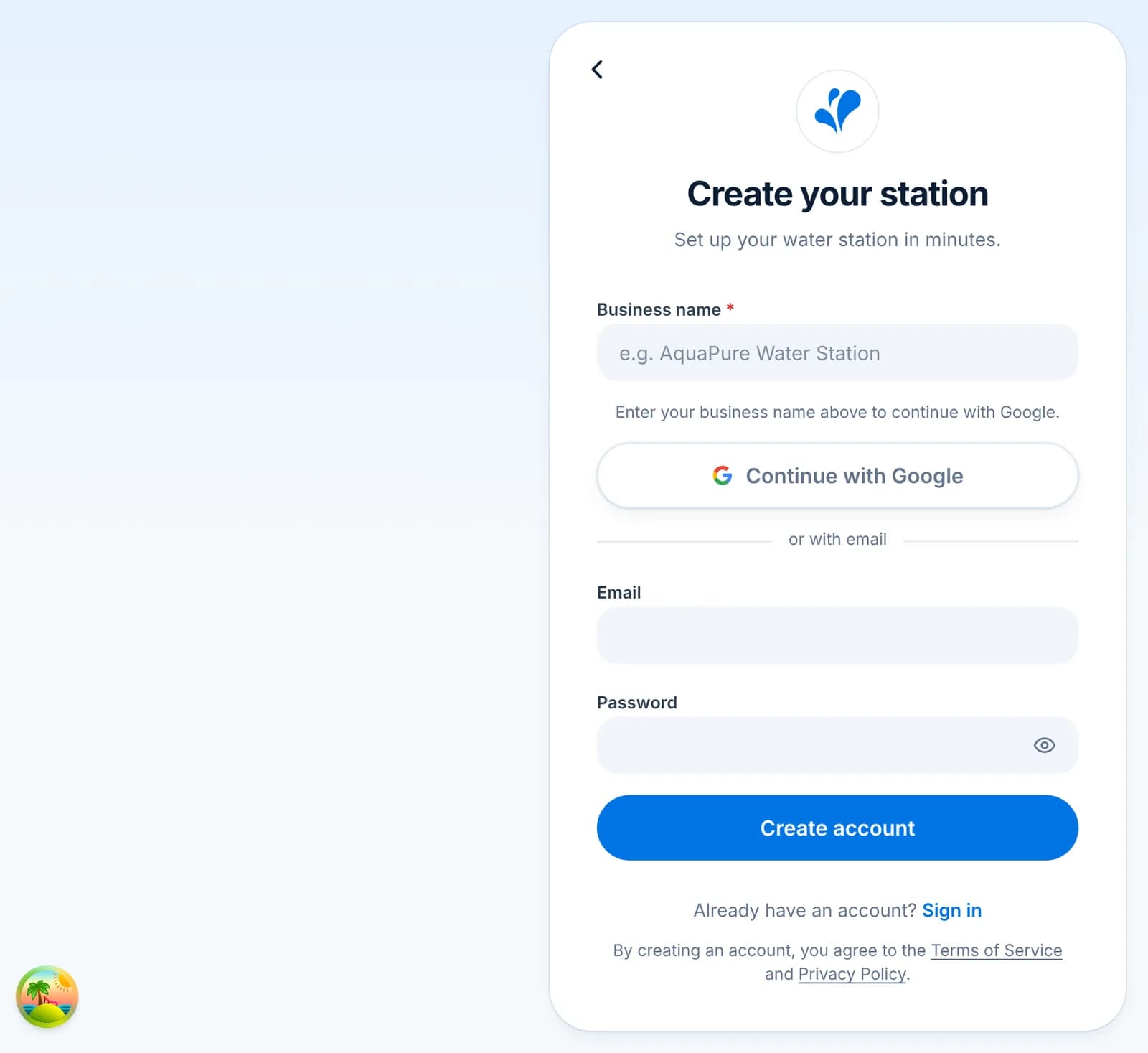
    The Create your station form with Business name, Continue with Google, and Email and Password fields.

    Tip: The business name becomes your branch name on receipts and reports. You can change it later under Settings › Branch Information.

  2. Step 2: Verify your email

    We send a one-time code to the address you entered. Type it on the Verify Email screen. The code expires after 10 minutes; if it does, request a new one from the same screen.

    Tip: Signed up with Google? Your email is already verified and you skip this step.

  3. Step 3: Sign in

    From then on, sign in at waterwisepos.com with your email and password, or with Google. Forgot your password? Use the Forgot password link to get a reset link by email.
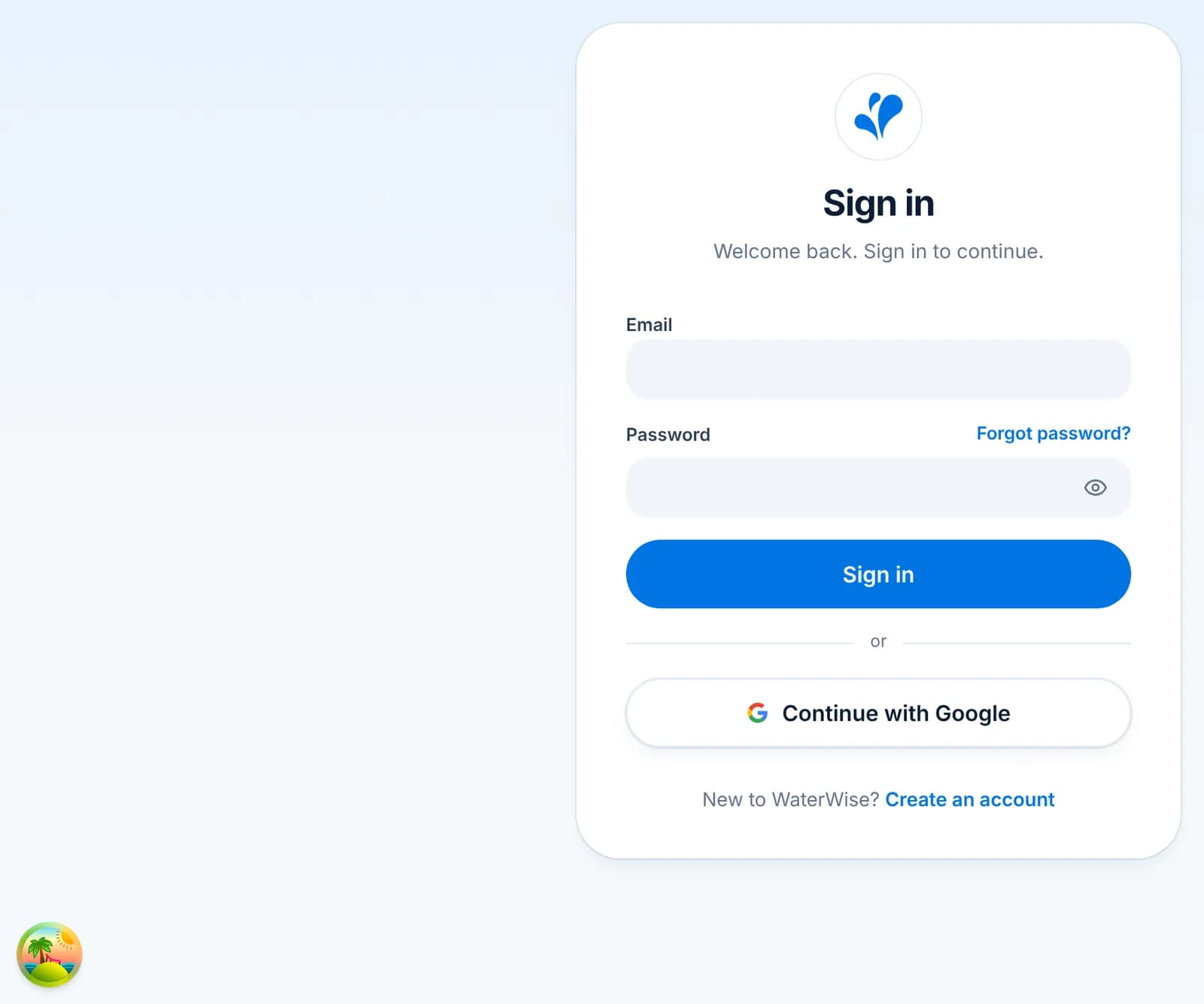
    The Sign in screen with Email, Password, a Sign in button and Continue with Google.
  4. Step 4: Find your way around

    You land on the Dashboard. The left sidebar (or the bottom bar on a phone) holds everything: Orders, Deliveries, Payments, Customers, Products, Inventory, Maintenance, Expenses, Reports and Settings. The blue New button on the Dashboard starts an order, customer or payment from anywhere.
    The Analytics dashboard with today’s orders, week orders, week sales and week unpaid tiles and a sales chart.

    Tip: Prefer a to-do style dashboard? Switch to Transactional at the top right to see unpaid customers and quick actions instead of charts.

  5. Step 5: Your first-day checklist

    Fill in your branch details, add your products with prices, add your regular customers, and take your first order. Each of these has its own article below.
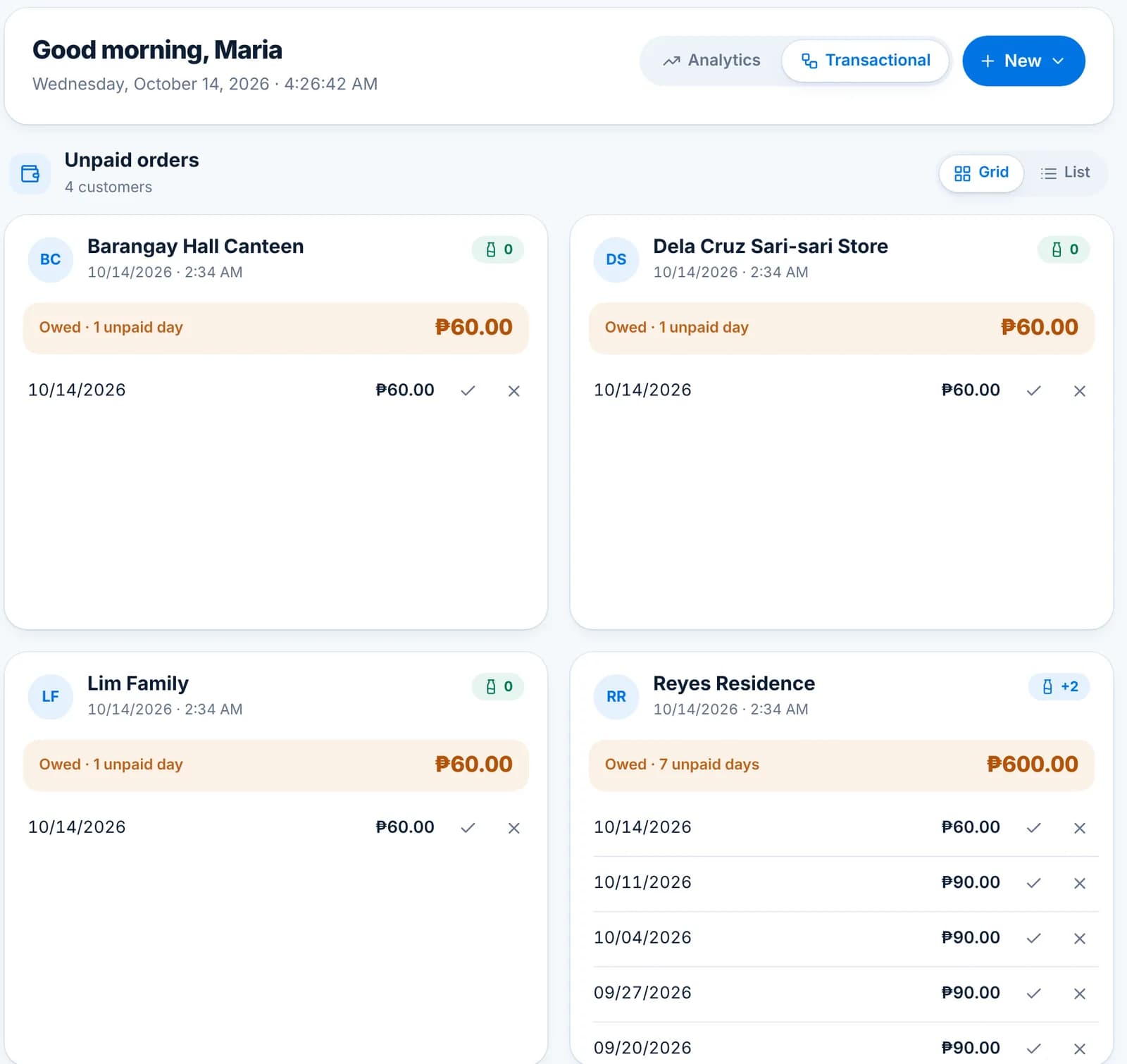
    The Transactional dashboard listing customers with unpaid orders and quick check and clear actions.
  • Your 30-day free trial starts the day you sign up and includes every feature, with no payment details needed.
  • Staff get their own sign-in from Settings › Users; never share the owner password.
  • Install the app on a phone or tablet from the Mobile app page so it opens like any other app and works offline at the counter.
The Dashboard

Two views of the same day: Analytics for the numbers, Transactional for the to-do list.

The Dashboard is the first page after sign-in. The toggle at the top right switches between Analytics and Transactional; the New button starts an order, a customer or a payment from anywhere. Settings › Others chooses which view opens by default.

  1. Step 1: Analytics

    Four tiles compare today and this week with the week before: orders today, orders this week, sales this week and unpaid this week. Below them the Sales report chart plots revenue against expenses over the last twelve months, and the Daily sales and Daily orders cards break the current week down by day.

    The Analytics dashboard with four KPI tiles, the Sales report chart and the Daily sales and Daily orders cards.

    Tip: Hover a point on the chart to read the exact revenue and expense for that month.

  2. Step 2: Transactional

    A card per customer with unpaid orders, grouped by day, with a check mark to record the payment and a cross to cancel the order. When customer monitoring is on, a Customers to check row sits above the cards with the regulars who missed their usual day.

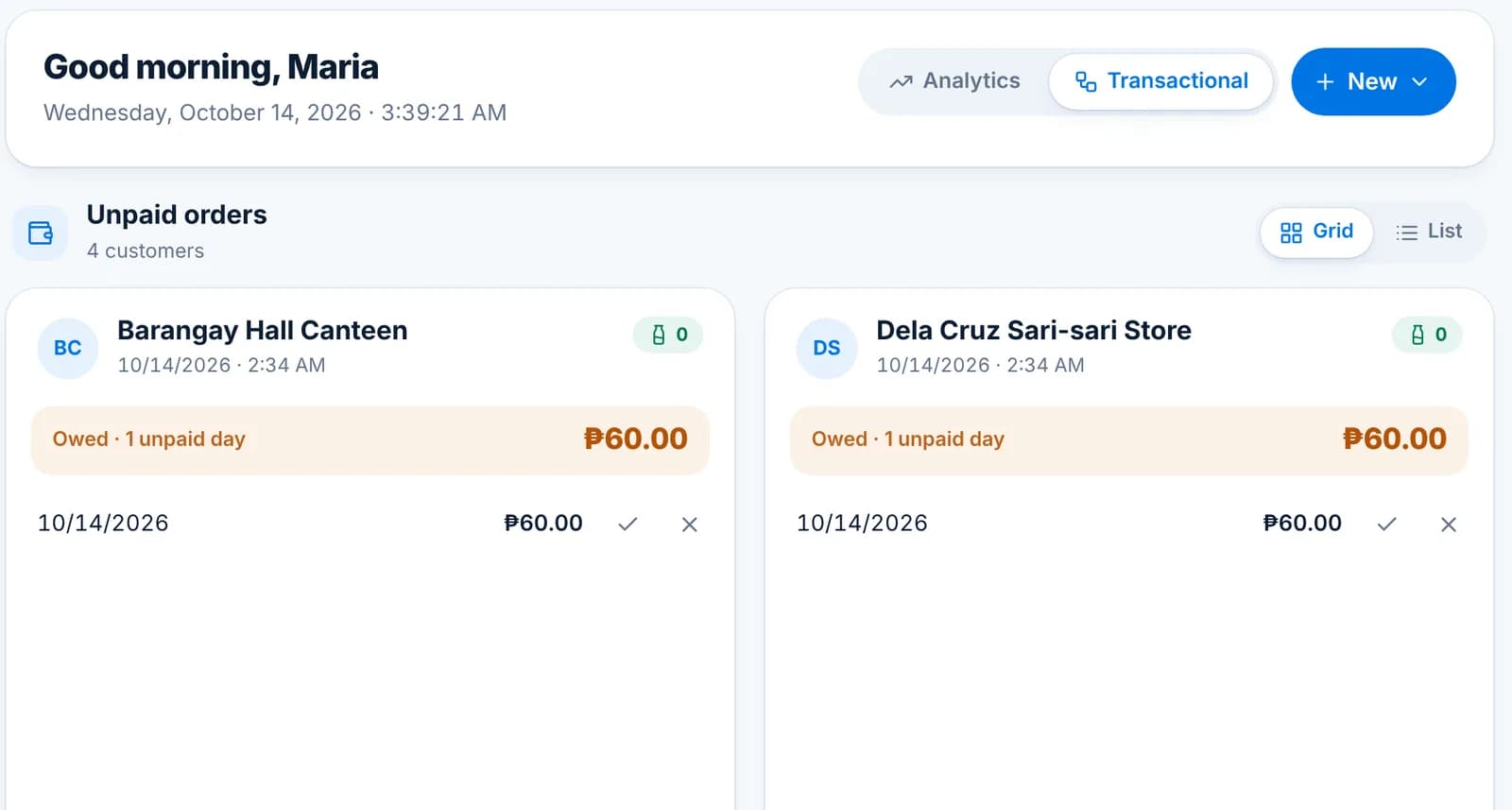
    The Transactional dashboard listing customers with unpaid orders and per-day check and cancel actions.
  3. Step 3: Banners

    Important things show as banners under the header: a trial that is ending, orders near the Free limit, sync problems, and overdue or due-soon maintenance. Each banner links to the page that fixes it.

  • The greeting uses your display name from Settings › Profile.
  • Cashiers see only the modules their role allows, so their Dashboard may be shorter than the owner’s.

Working offline and sync

What keeps working without internet, how changes catch up, and how to read the sync status.

WaterWise keeps a copy of your branch on each computer and phone. The counter never waits for the internet: orders, payments and customers are saved locally first and sent to the server as soon as there is a connection. Delivery tracking and live maps need a connection.

  1. Step 1: The first sync

    The first time you sign in on a device, a Setting up your branch screen downloads your data so the app also works offline. It runs once per device and takes a few seconds to a couple of minutes depending on how much history you have.

  2. Step 2: The Synced badge

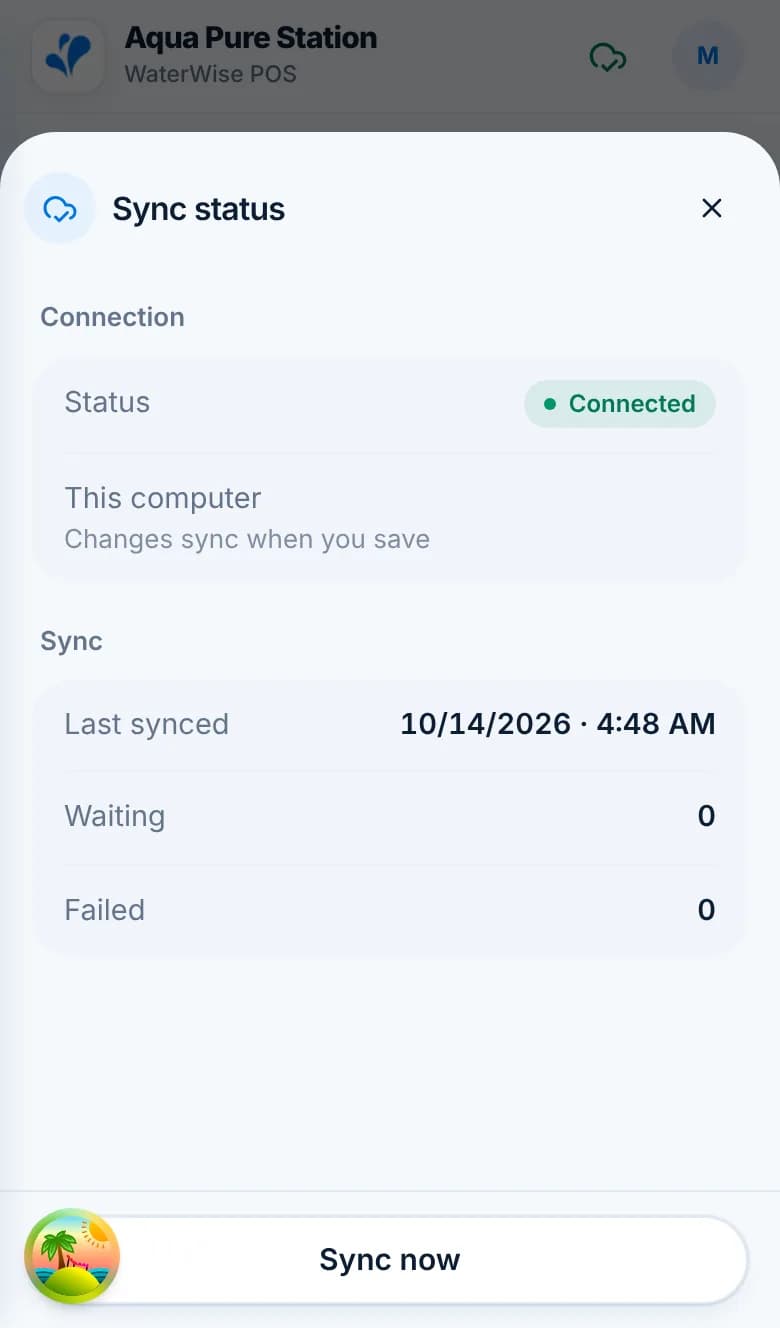
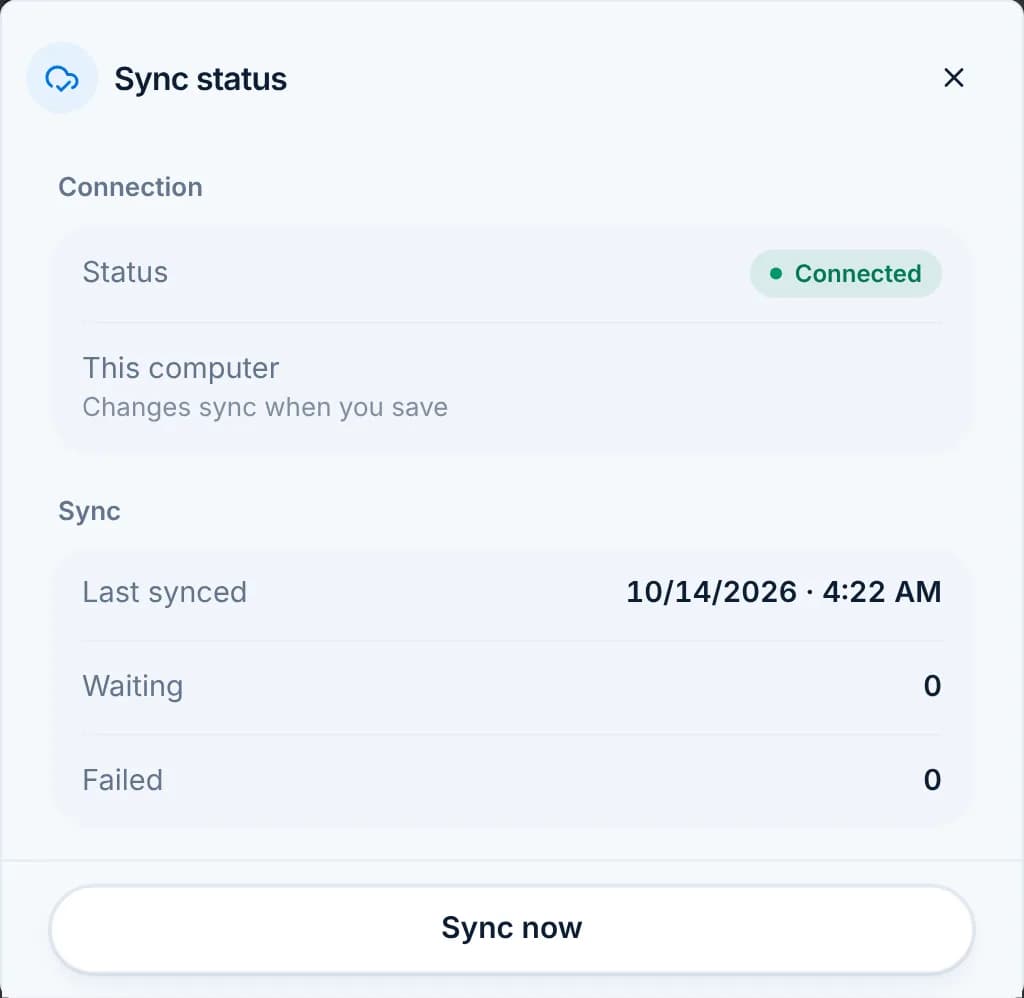
    The badge under your branch name in the sidebar shows the state: Synced, Syncing, Offline or an error. Click it to open Sync status with the connection state, the time of the last sync and how many changes are waiting or failed. Sync now forces a run.

    The Sync status dialog showing Connected, last synced time, waiting 0, failed 0 and a Sync now button.
  3. Step 3: Taking orders offline

    Nothing changes at the counter. Create orders, record payments, add customers. Stock movements and the customer’s balance update locally and the changes are queued. When the connection returns they are sent in order, and other devices receive them.
    Tip: Keep the tab or app open after reconnecting until the badge reads Synced again, so queued changes are not left on the device.

  4. Step 4: Two devices, one branch

    Each device has the same data once synced. If two people edit the same record while offline, the later save wins. Orders and payments are separate records, so taking orders on two devices at once is safe.

  • Needs a connection: Deliveries (maps and live tracking), report downloads, images, the PayMongo checkout and the Help Center.
  • A failed count in Sync status that does not clear with Sync now usually means a record that no longer exists on the server. Email support with the branch name.
  • Signing out clears the local copy on that device.

Branch profile and basic settings

Set the details that appear on receipts, your delivery starting point, and the defaults the whole branch shares.

Settings has four pages worth visiting on day one: Branch Information, Profile, Templates and Others. Everything saves automatically; the All changes saved badge at the top right confirms it.

  1. Step 1: Branch Information

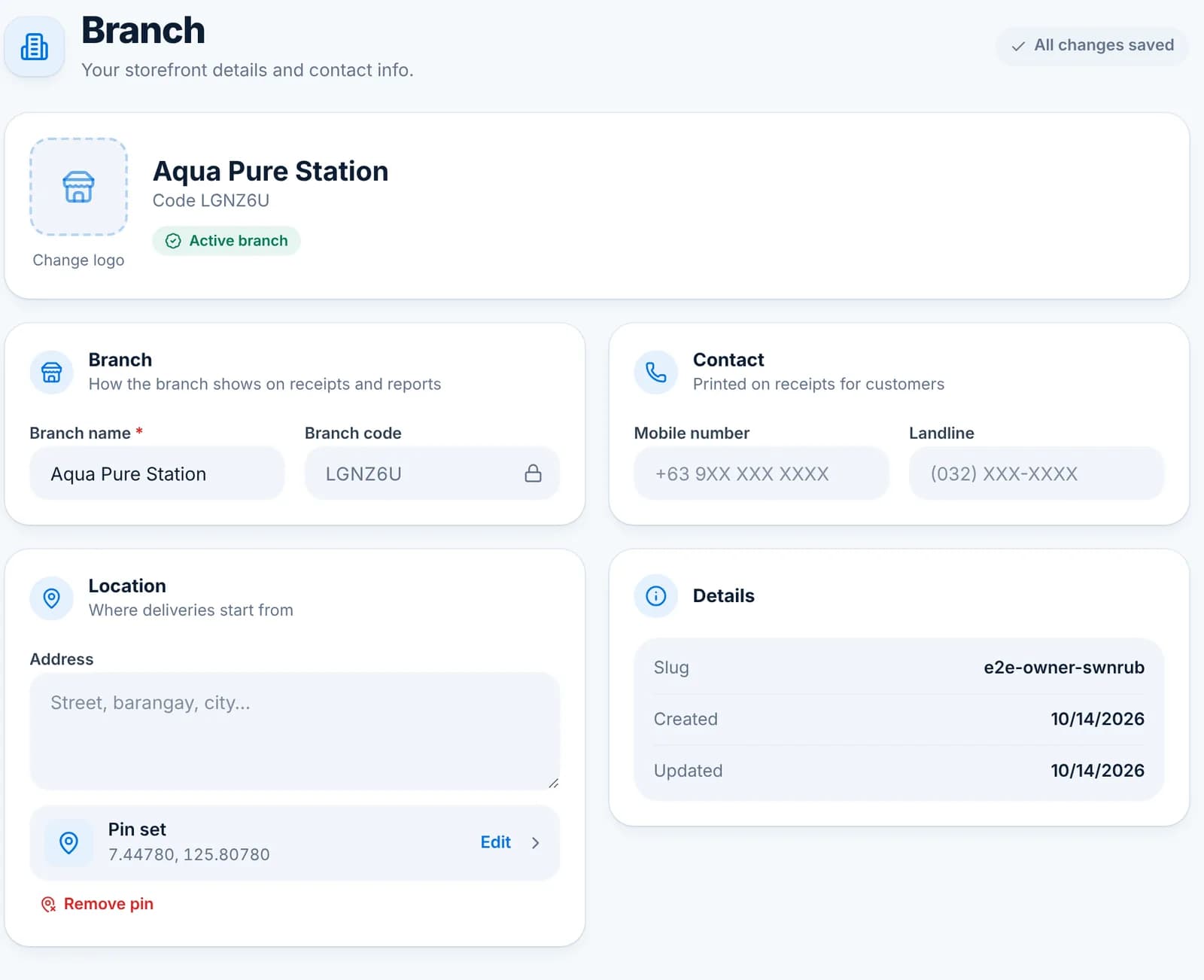
    Settings › Branch Information holds your branch name, the contact numbers printed on receipts, your address and your logo. The branch code is generated for you and cannot be changed.

    The Branch page with branch name, code, mobile and landline, address, map pin and logo.

    Tip: Set the map pin. Delivery trips start from this point and the route planner needs it.

  2. Step 2: Your profile

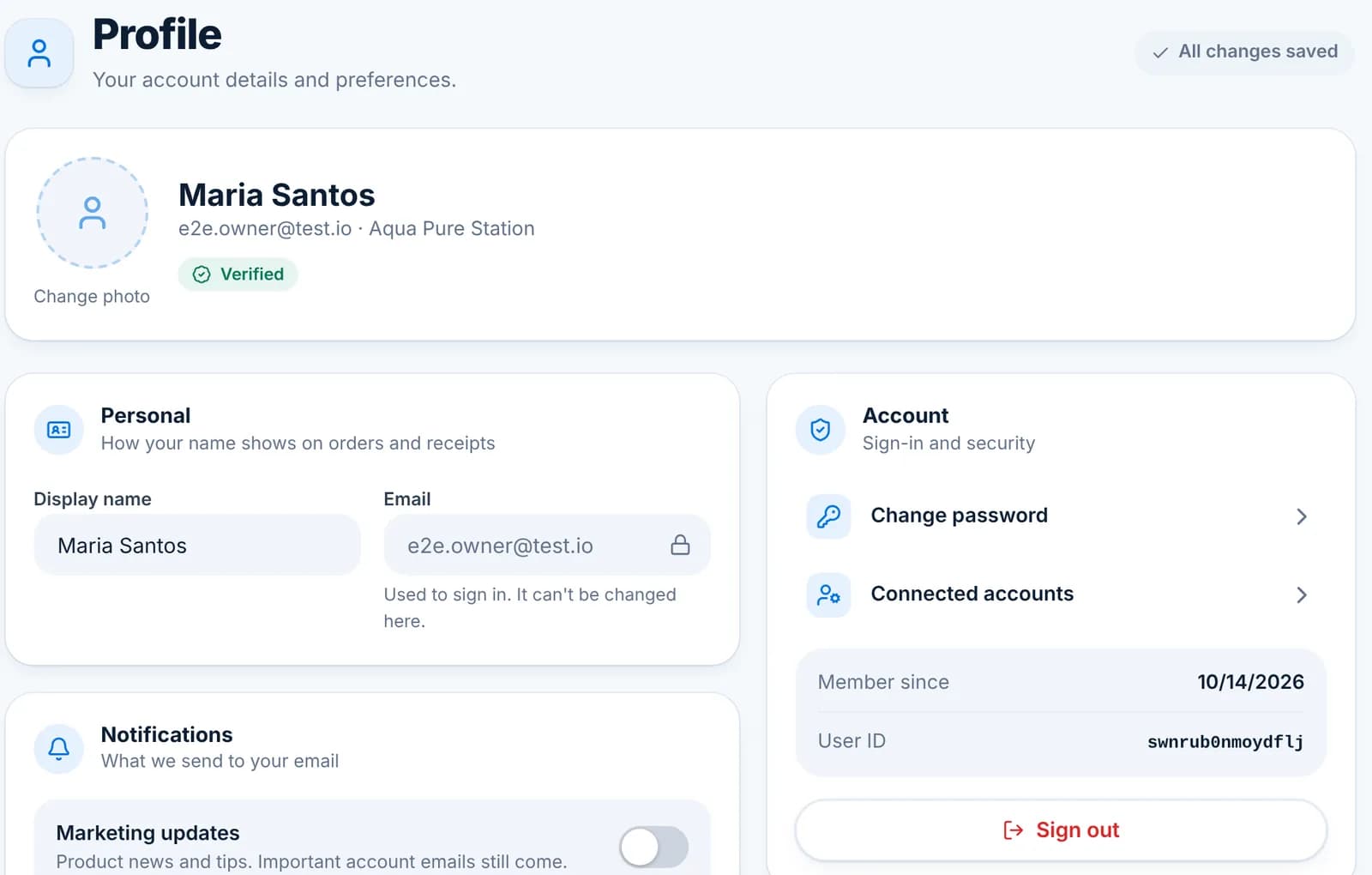
    Settings › Profile is about you, not the branch: your display name as it appears on orders and receipts, your photo, password and connected Google account. Each staff member has their own profile.

    The Profile page with display name, email, change password, connected accounts and a marketing updates toggle.
  3. Step 3: Templates

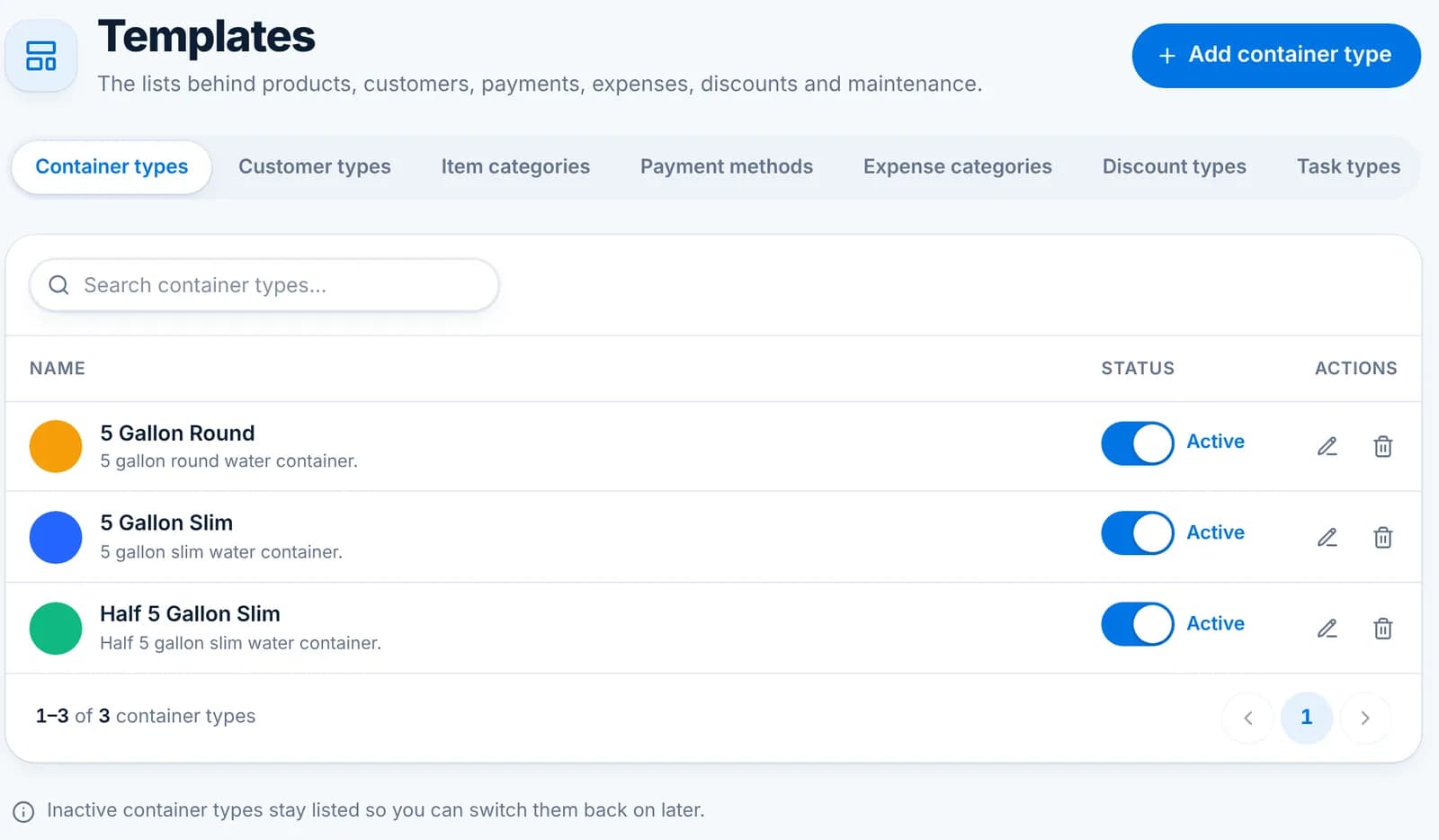
    Settings › Templates holds the lists the rest of the app picks from: container types, customer types, item categories, payment methods, expense categories, discount types and maintenance task types. The defaults suit most stations; add your own if you need them.

    The Templates page on the Container types tab listing 5 Gallon Round, 5 Gallon Slim and Half 5 Gallon Slim.

    Tip: Switch an entry to Inactive instead of deleting it. It stays out of the way but old records keep their label.

  4. Step 4: Other preferences

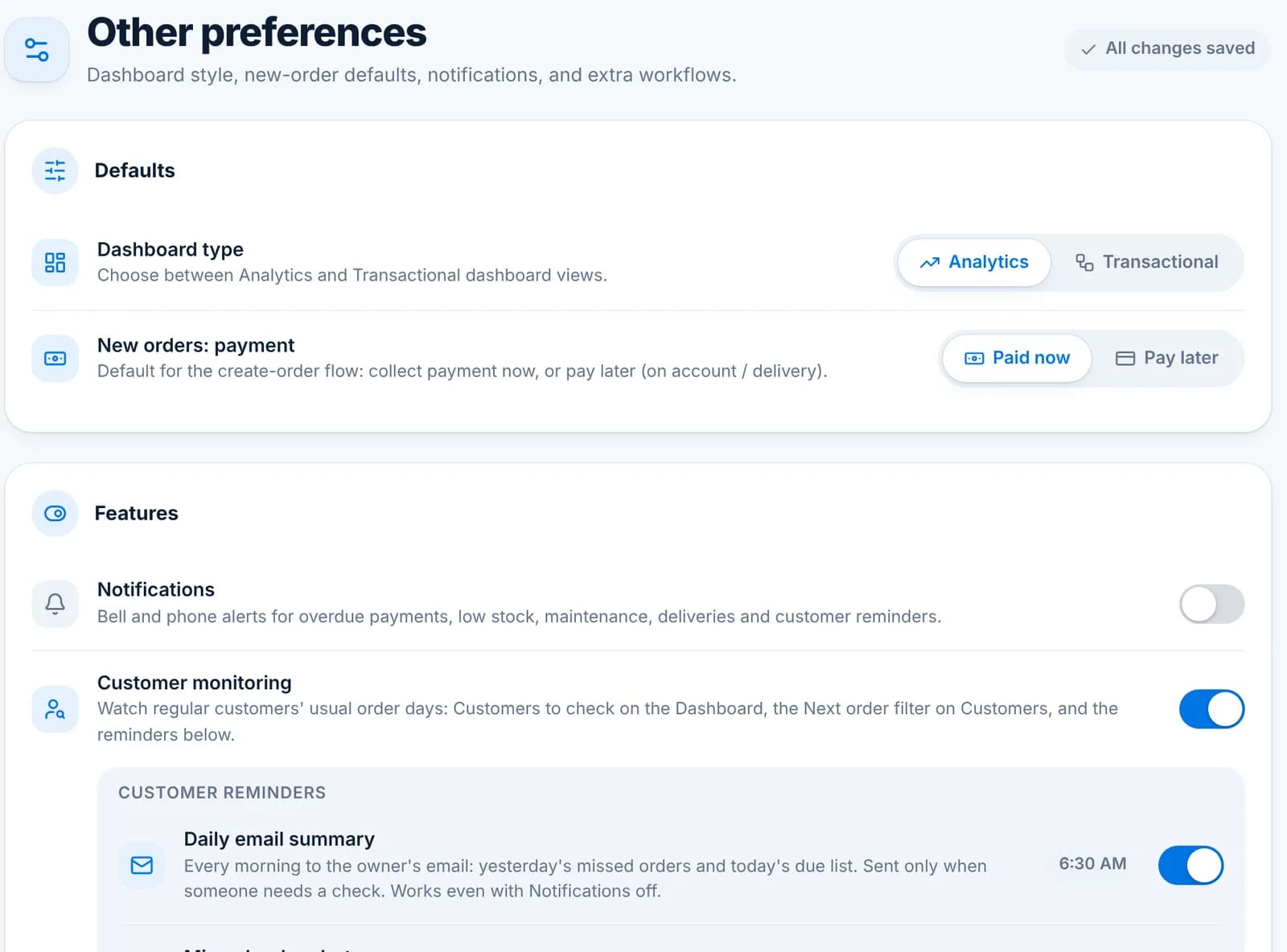
    Settings › Others sets branch-wide defaults: which dashboard opens first, whether new orders default to Paid now or Pay later, notifications, and customer monitoring with its daily email summary, missed order alert and due today list.

    The Other preferences page with Dashboard type, New orders payment default, Notifications and Customer monitoring reminders.

    Tip: These apply to everyone in the branch, so agree on them with your staff before changing them mid-shift.

  • The branch name, numbers and address print on every receipt and report header.
  • Customer monitoring learns each regular customer’s usual order day and flags the ones who missed it, on the Dashboard and under Customers.

Templates: the lists behind the app

Customer types, categories, payment methods, discounts and more, all editable in one place.

Settings › Templates holds the pick-lists the rest of the app uses. The defaults cover a typical refilling station; add, rename or switch off entries to match how your branch works. Each tab has an Add button, a search box and an Active switch per row.

  1. Step 1: Customer types

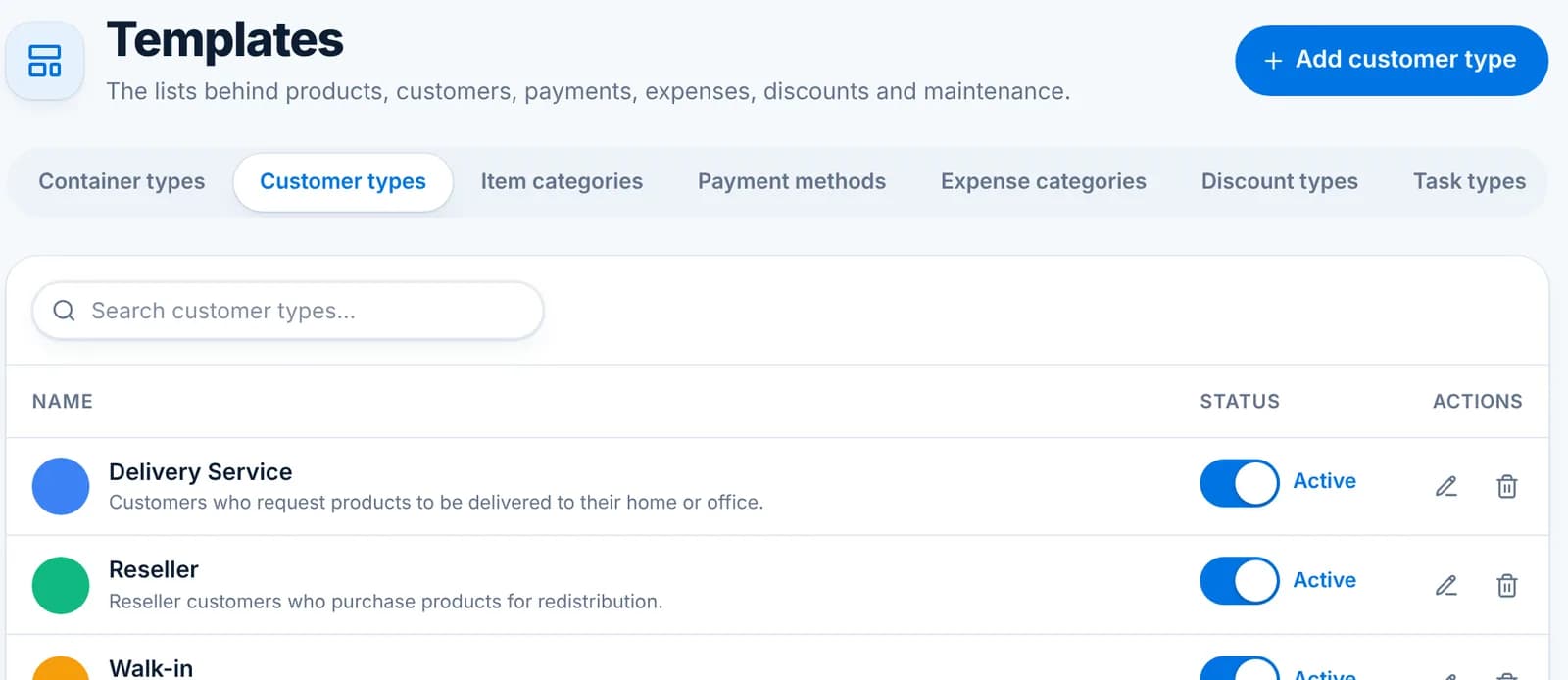
    Delivery Service, Reseller and Walk-in by default. A customer’s type decides which price they pay for each product (set under Products › Customer pricing) and whether discounts apply. Add a type such as “Wholesale” if you price a group differently.

    The Templates page on the Customer types tab listing Delivery Service, Reseller and Walk-in.
  2. Step 2: Payment methods

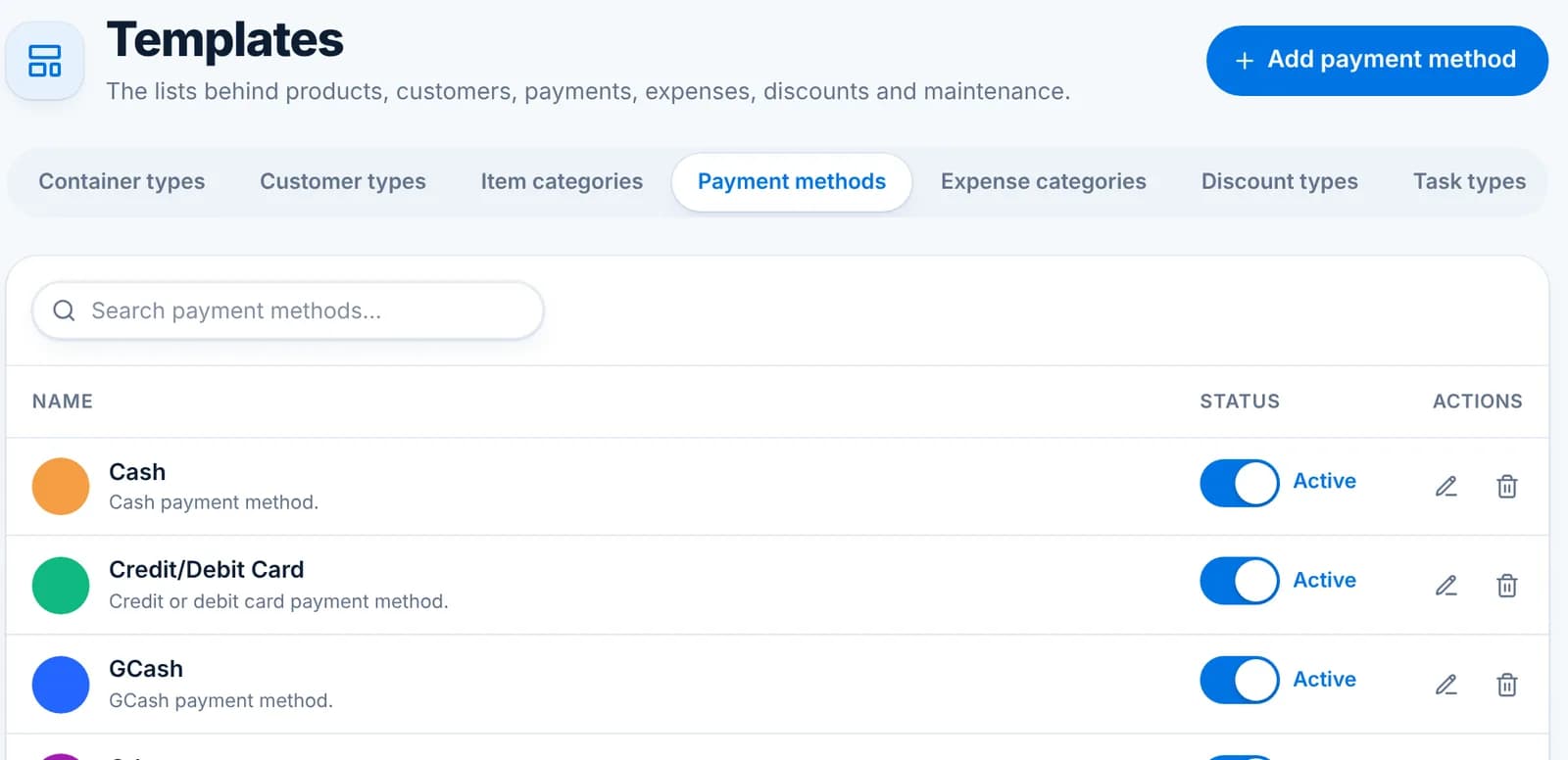
    Cash, Credit/Debit Card, GCash and Others by default. They appear on the New order payment panel, in New payment and in Expenses. Switch off the ones you never take.

    The Payment methods tab listing Cash, Credit/Debit Card, GCash and Others.
  3. Step 3: Discount types

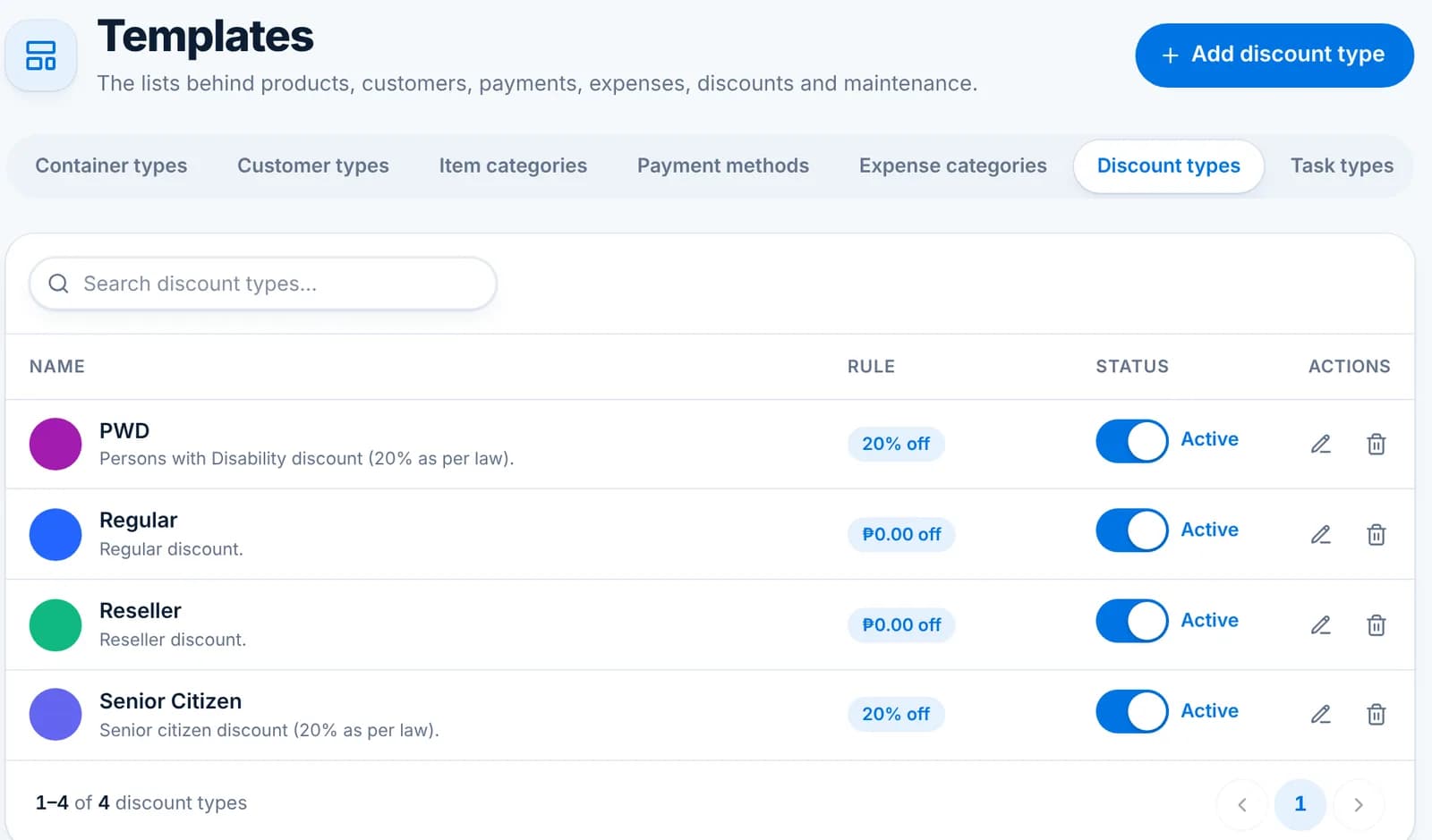
    Each discount has a rule: a percentage or a fixed amount, with an optional minimum purchase and start and end dates. PWD and Senior Citizen at 20% are included for the legal discounts. See Discounts for how they are applied.

    The Discount types tab listing PWD, Regular, Reseller and Senior Citizen with their rules.
  4. Step 4: Container types, item categories, expense categories, task types

    Container types (5 Gallon Round, 5 Gallon Slim, Half 5 Gallon Slim) label products and borrowed stock. Item categories group products. Expense categories group spending for the expense reports. Task types (filter change, cleaning and so on) label maintenance schedules and work orders.

    The Container types tab listing three container types with Active switches.
  • Switch an entry to Inactive instead of deleting it when records already use it; it disappears from pickers but old records keep their label.
  • Edits apply to the whole branch at once.

Free trial and plan limits

What the 30-day trial includes, what changes when it ends, and how Pro and Lifetime work.

Every new branch starts on a free 30-day trial with every feature switched on, including delivery tracking, staff accounts and maintenance. No card or payment details are needed to start.

  1. Step 1: See where you stand

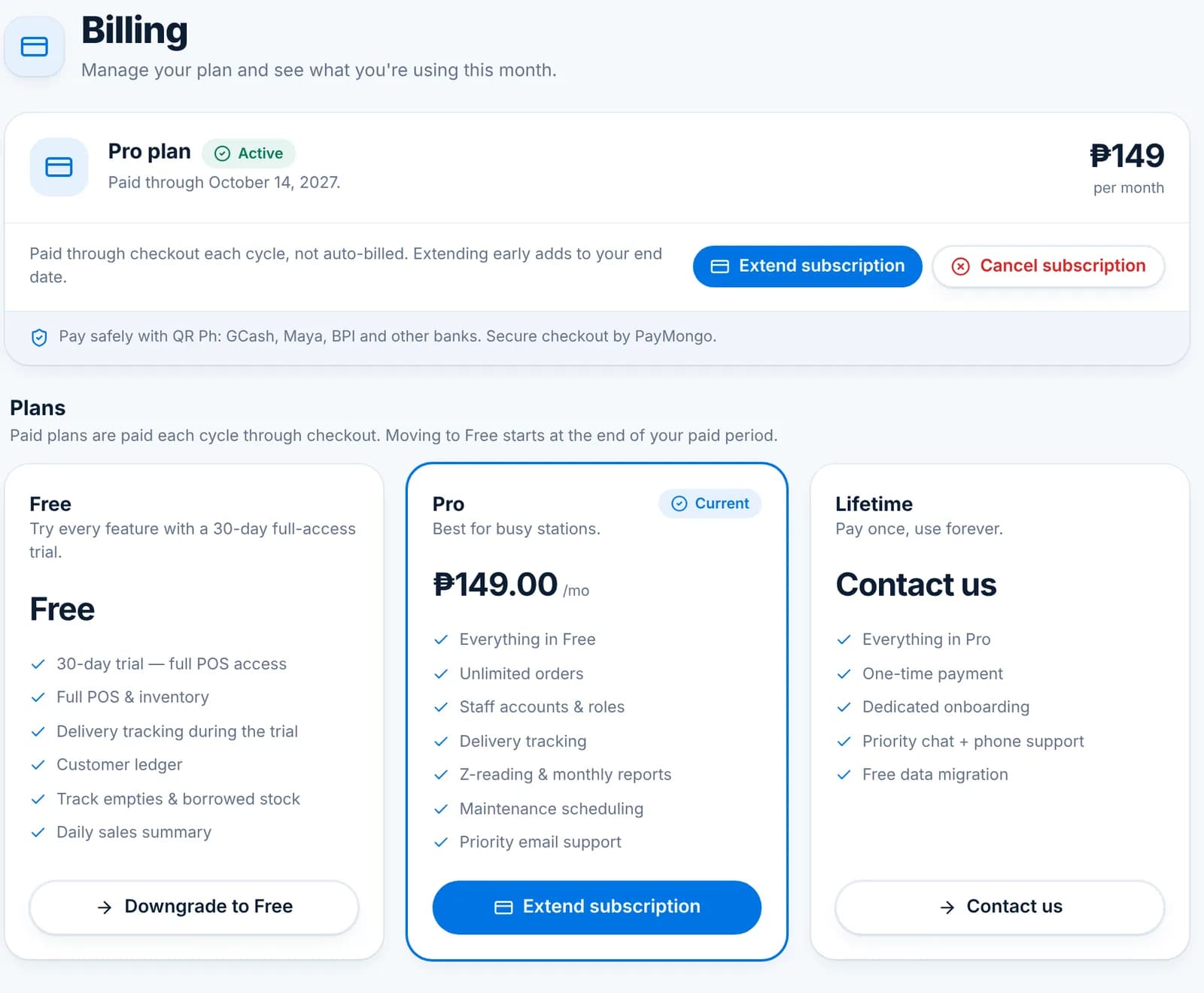
    Settings › Billing shows your current plan, the date it is paid through, and the three plans side by side. During the trial the badge reads Trial and shows the days left.

    The Billing page showing the Pro plan as active with Extend subscription and Cancel subscription buttons, and the Free, Pro and Lifetime plan cards.
  2. Step 2: When the trial ends

    Your records stay and you can still sign in and look at them, but creating new orders needs Pro. Nothing is deleted and nothing is charged automatically.

  3. Step 3: Upgrade to Pro

    Pro is ₱149 for each 30-day period, paid through a secure PayMongo checkout (QR Ph, GCash, Maya, BPI and other banks). You pay each cycle yourself; there are no automatic charges. See Upgrading and PayMongo checkout below for the steps.

    Tip: Extending early is safe: the new period is added to the end of the one you already paid for.

  4. Step 4: Lifetime

    Lifetime is a one-time payment that includes everything in Pro plus dedicated onboarding, priority chat and phone support and free data migration. Click Contact us on the Lifetime card or email [email protected].

  • Free (after the trial): view your data, no new orders.
  • Pro: unlimited orders, staff accounts and roles, delivery tracking, Z-reading and monthly reports, maintenance scheduling, priority email support.
  • Lifetime: everything in Pro, pay once.

Orders & payments

Selling at the counter, carts, and recording payments.

Create and complete orders

Take a sale at the counter in four taps, then move it through its statuses until it is done.

The New order screen is built for speed: pick the customer, tap their products, take the payment. The customer’s own prices and discounts apply automatically. Everything here works offline and syncs when you reconnect.

  1. Step 1: Open New order

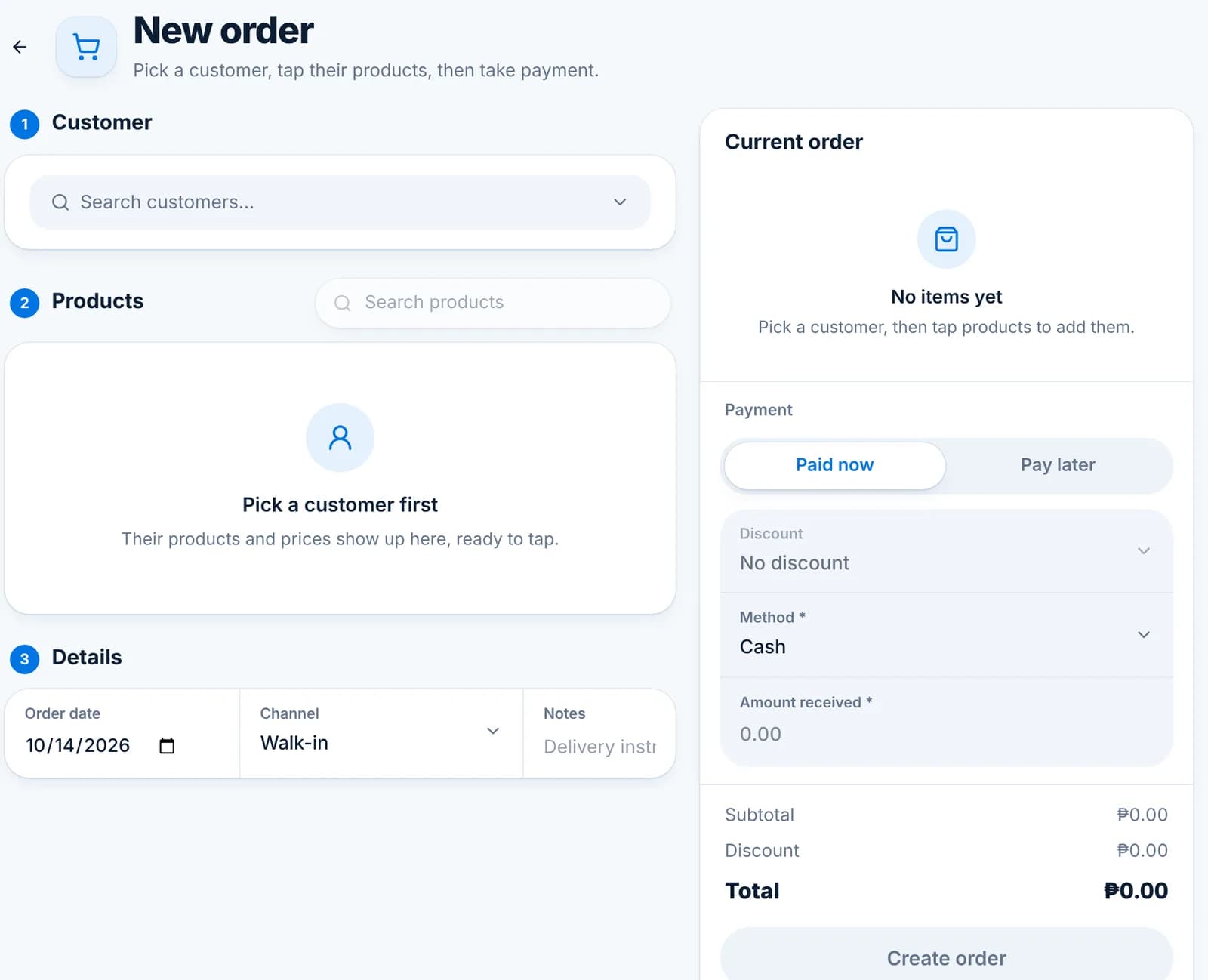
    Click New order on the Orders page, or the New button on the Dashboard. The screen has three numbered parts: Customer, Products and Details, with the Current order panel on the right.

    The empty New order screen with Customer, Products and Details sections and a Current order panel.
  2. Step 2: Pick the customer

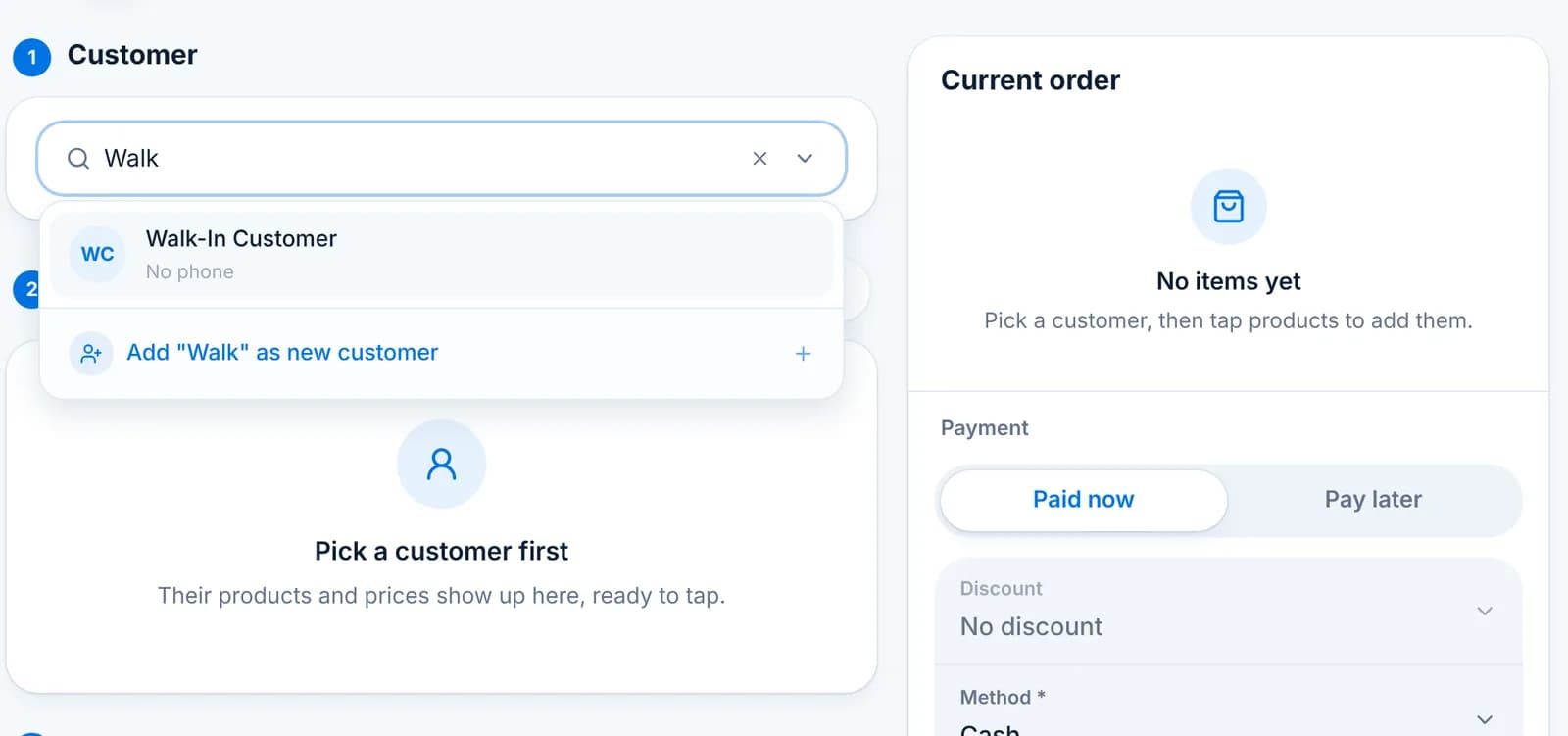
    Type a name or phone number in the Customer box and pick the match. Use Walk-In Customer for anyone you do not need to track. Can’t find them? Add “name” as new customer creates the record without leaving the order.

    The customer search showing Walk-In Customer and an Add as new customer option.

    Tip: The customer’s type (Walk-in, Delivery Service, Reseller) decides which prices show on the tiles.

  3. Step 3: Tap the products

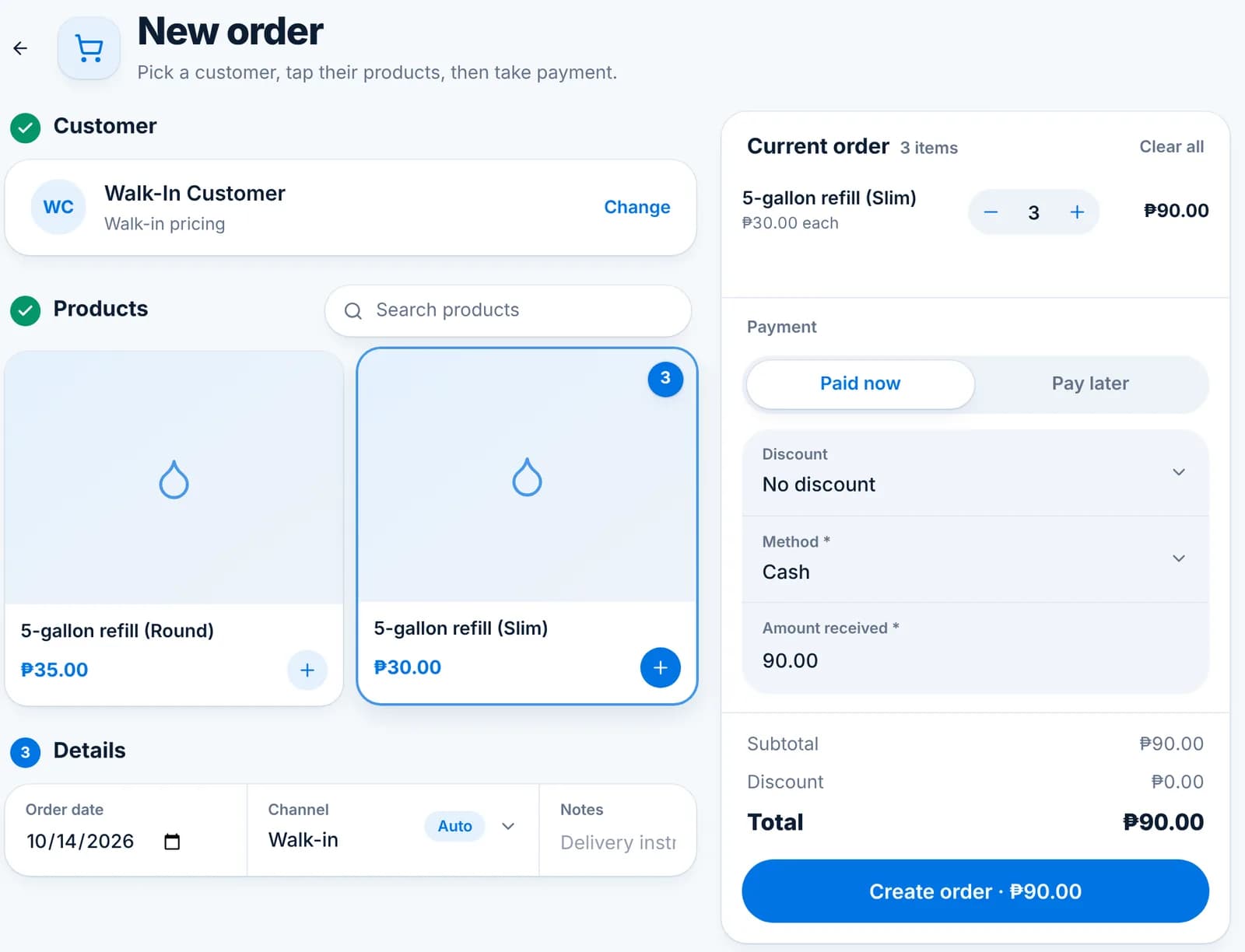
    Each tap adds one unit; the badge on the tile shows how many are in the cart. Change quantities with the minus and plus buttons in the Current order panel. Products that are not for sale (seals, parts) do not show here.

    The New order screen with three 5-gallon refills in the cart and a Create order button for ₱90.
  4. Step 4: Take the payment

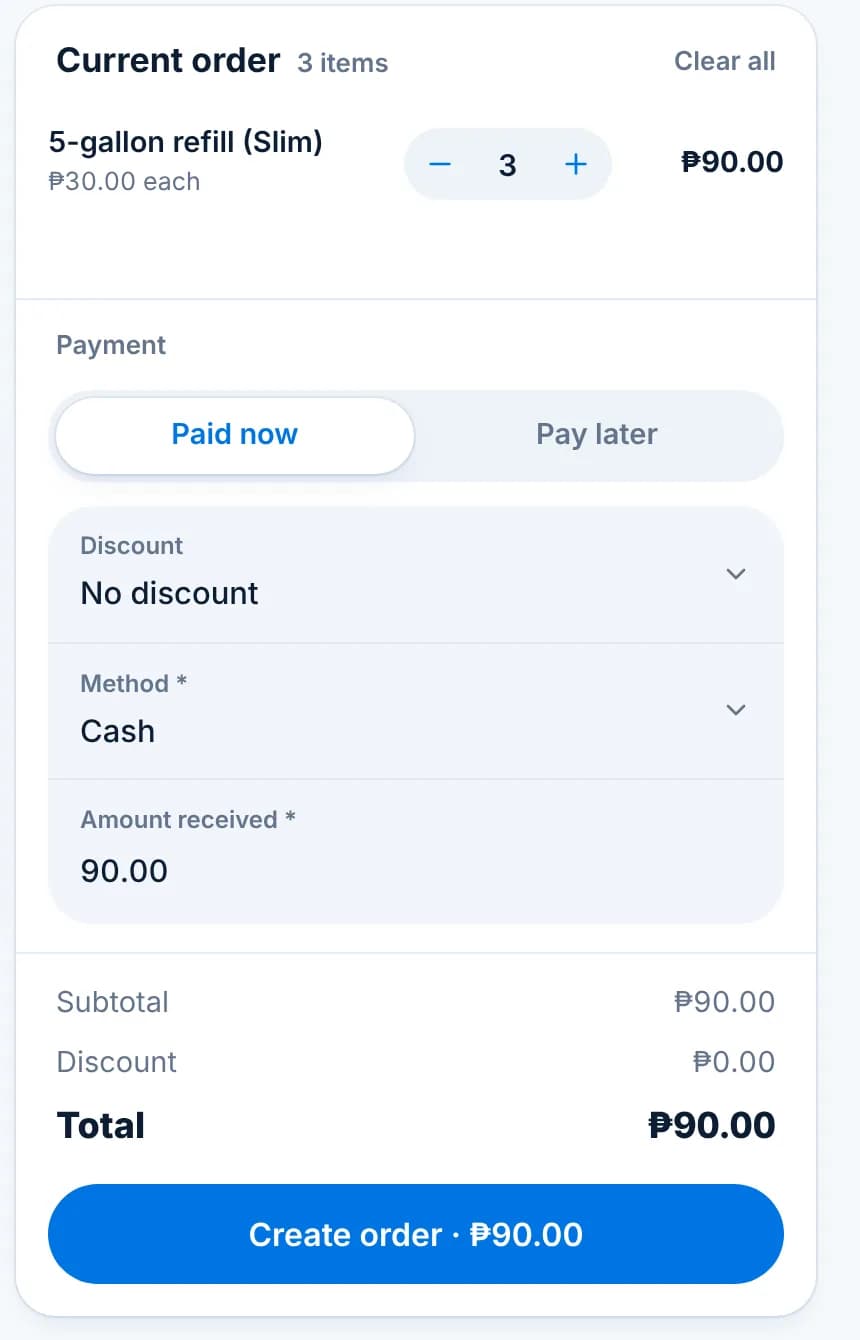
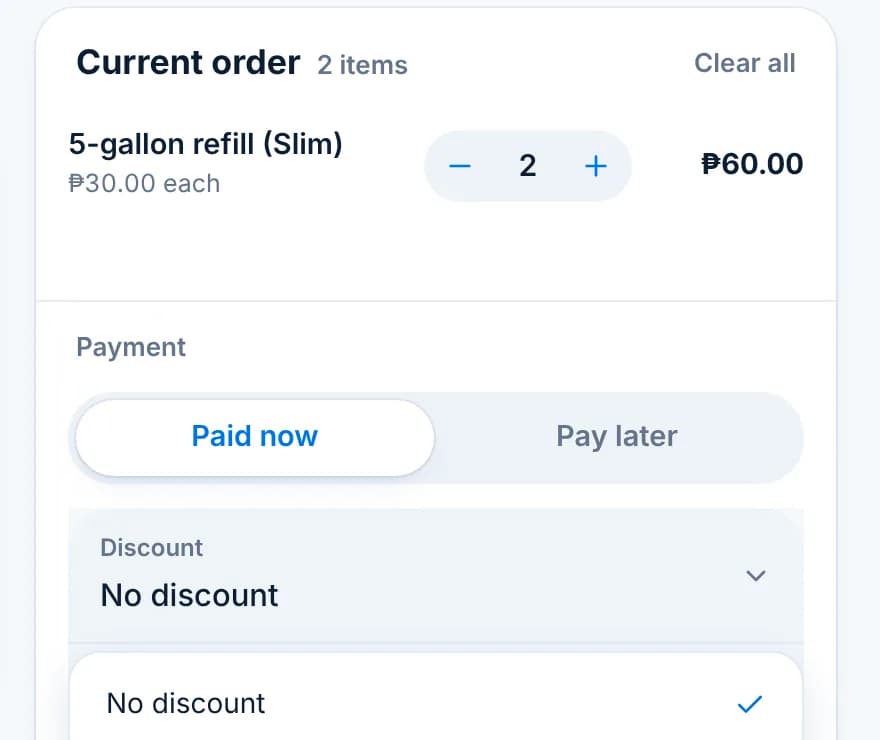
    Under Payment choose Paid now and enter the method and amount received, or Pay later to put the order on the customer’s account (for deliveries and credit customers). Add a discount if the customer’s type allows one. Then click Create order.

    The Current order panel with the Paid now and Pay later toggle, discount, method, amount received and the total.

    Tip: Settings › Others lets you choose which of Paid now or Pay later is selected by default.

  5. Step 5: Print or email the receipt

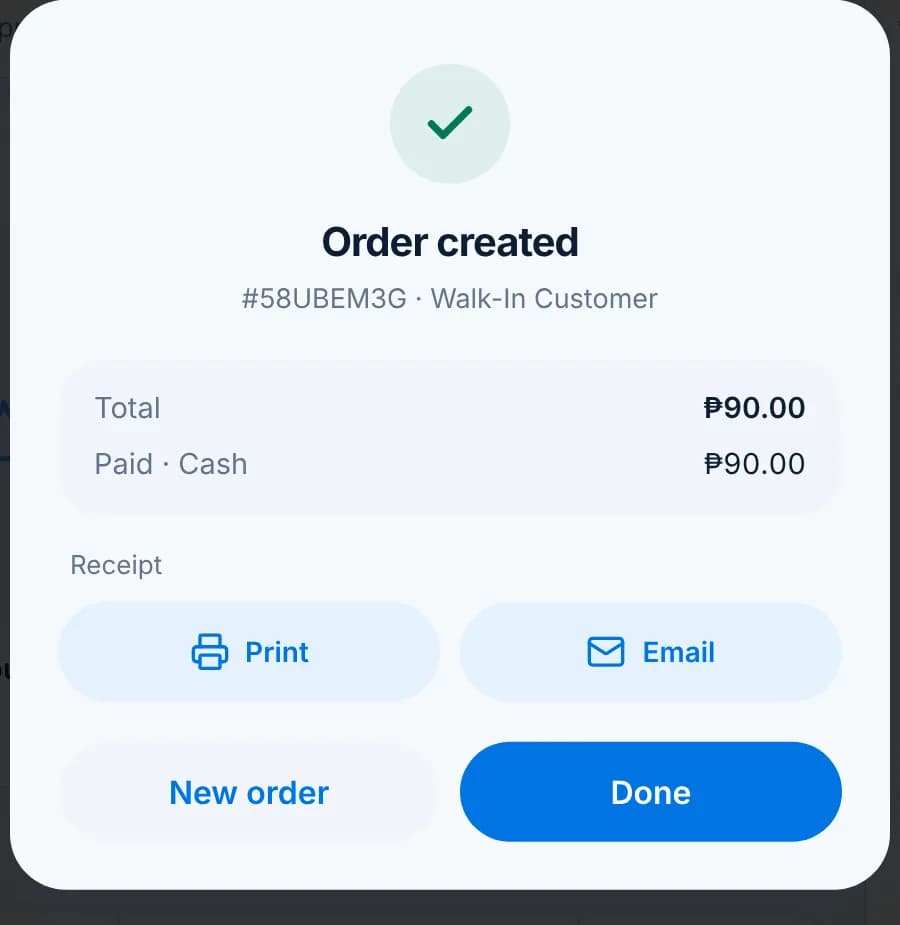
    The Order created dialog shows the order number and what was paid. Print or Email the receipt, start a New order, or click Done.

    The Order created dialog with the order number, total, paid amount, Print and Email receipt buttons.
  6. Step 6: Move it through its statuses

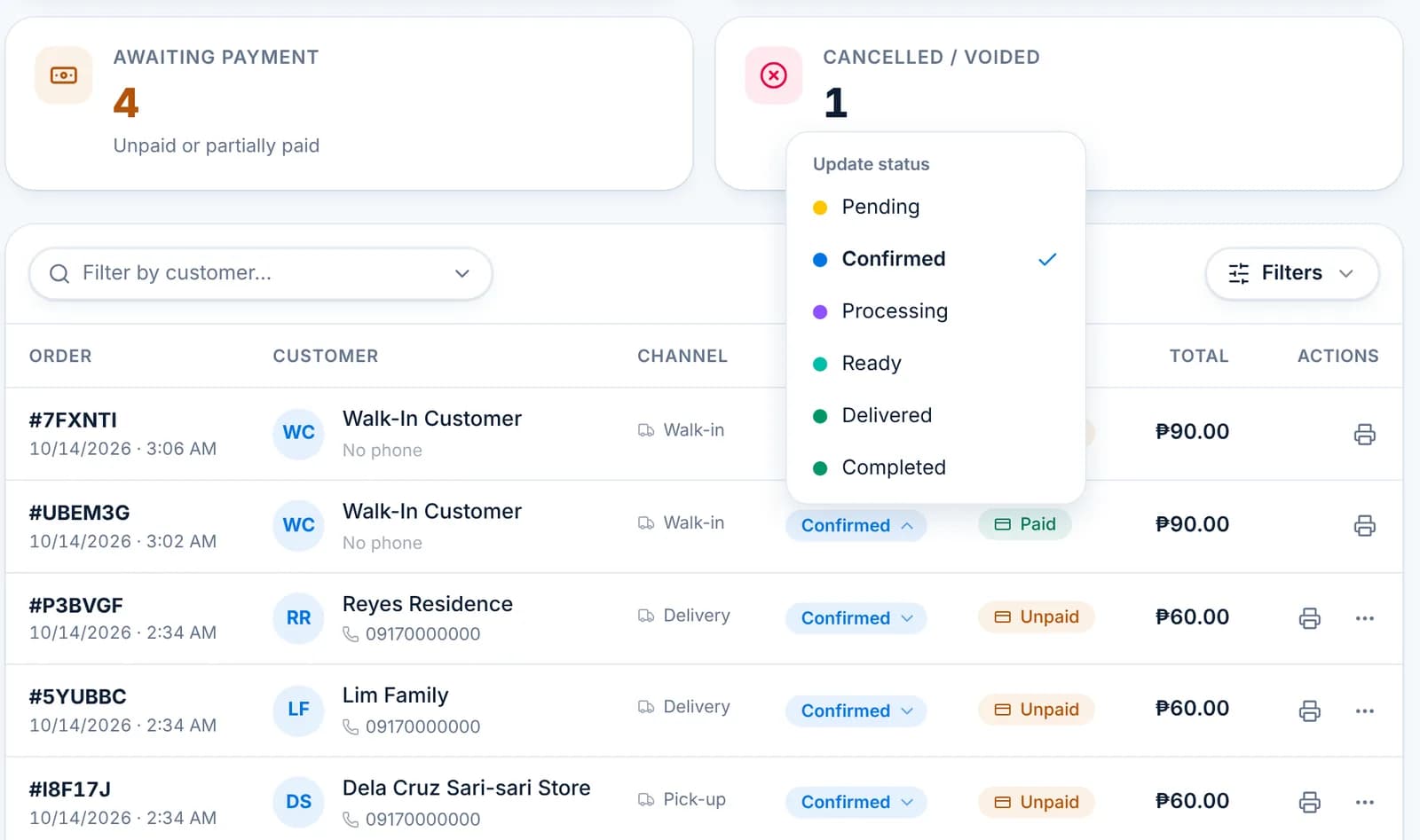
    On the Orders page each order shows its status. Click the status pill to move it: Pending, Confirmed, Processing, Ready, Delivered, Completed. Delivery orders also move on their own as the driver completes stops.

    The Orders table with the Update status menu open: Pending, Confirmed, Processing, Ready, Delivered, Completed.
  7. Step 7: Cancel a mistake

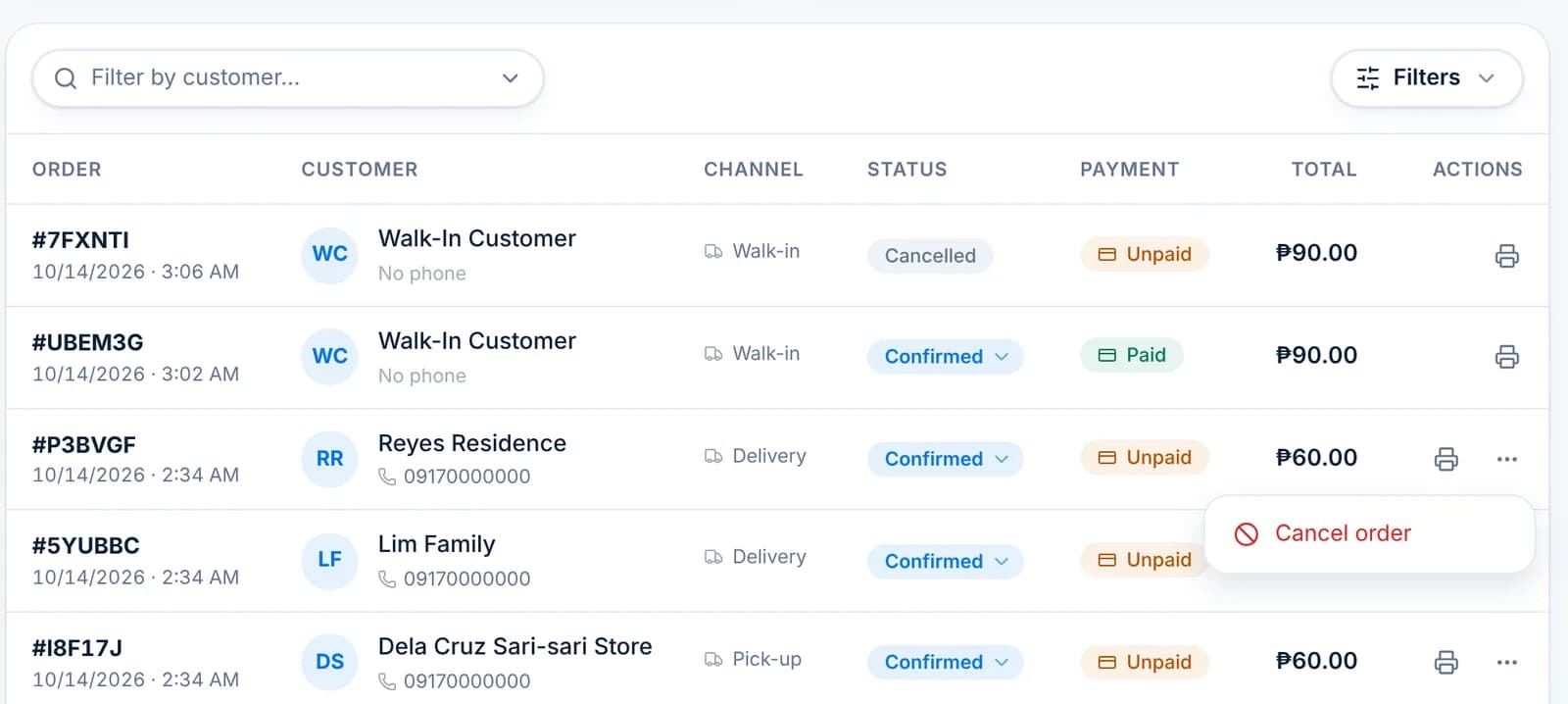
    An unpaid order can be cancelled from the status menu or the row’s ··· menu. Stock the order used goes back automatically. A paid order cannot be cancelled, so the money trail stays intact; if one was made by mistake, email [email protected] to have it reversed.

    The row action menu on an unpaid order showing Cancel order.
  • Order date and Channel (Walk-in, Pick-up, Delivery) sit under Details. Channel is set automatically from the customer’s type and can be changed.
  • Delivery orders with a customer pin appear under Deliveries › New trip, ready to be planned.
  • The Order Summary Report and Daily Sales Summary under Reports list every order with its status and payment.

Record payments on orders

Collect what a customer owes, in full or in part, and keep their balance right.

An order created with Pay later sits on the customer’s account until you record a payment. You can collect from three places: the Payments page, the Collect button on the customer’s page, or the unpaid cards on the Transactional dashboard. All three open the same New payment dialog.

  1. Step 1: Open New payment

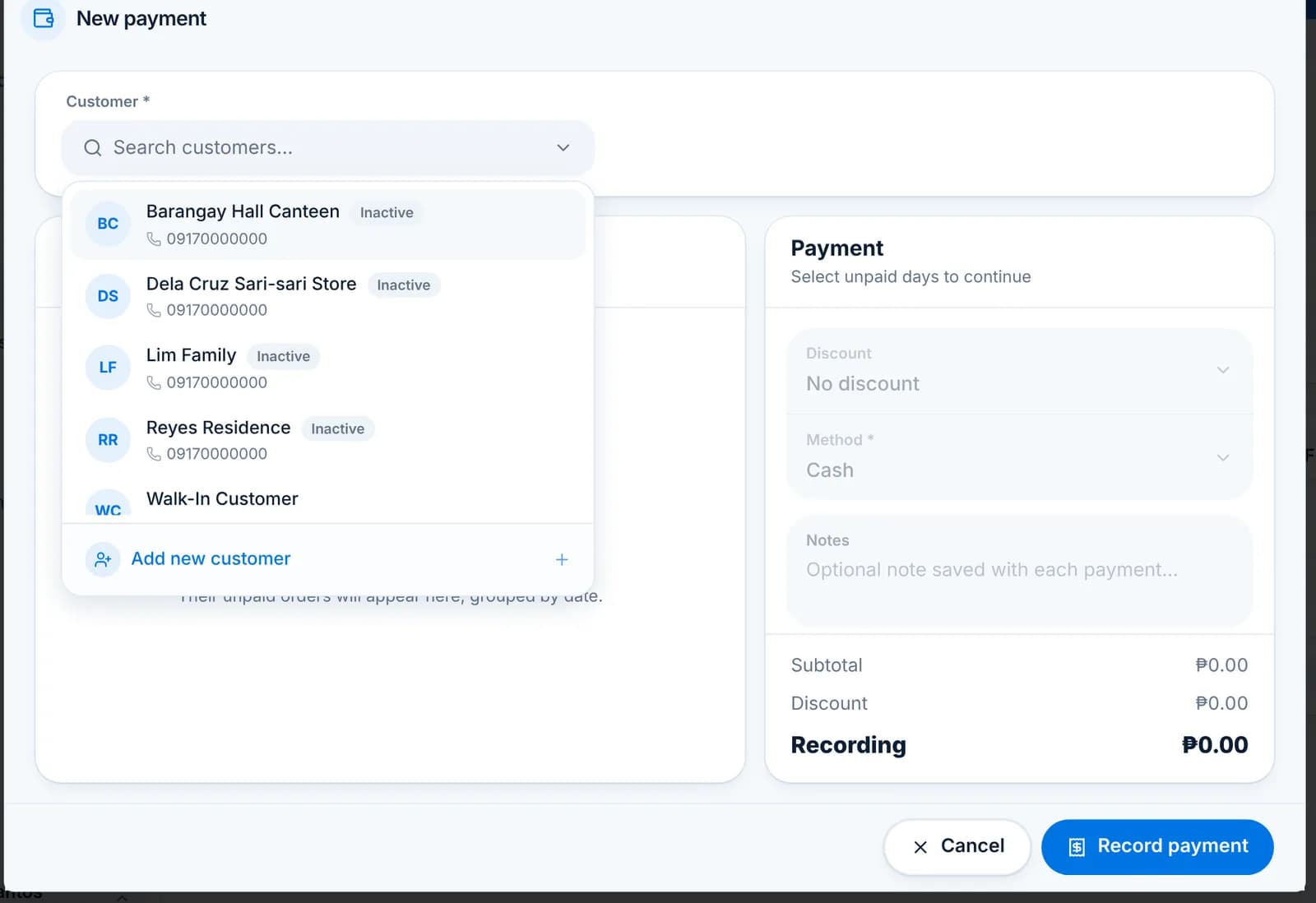
    Go to Payments and click New payment. Pick the customer; the dialog shows how much they owe and lists their unpaid days.

    The New payment dialog with the customer search open, listing customers and an Add new customer option.
  2. Step 2: Tick the days to collect

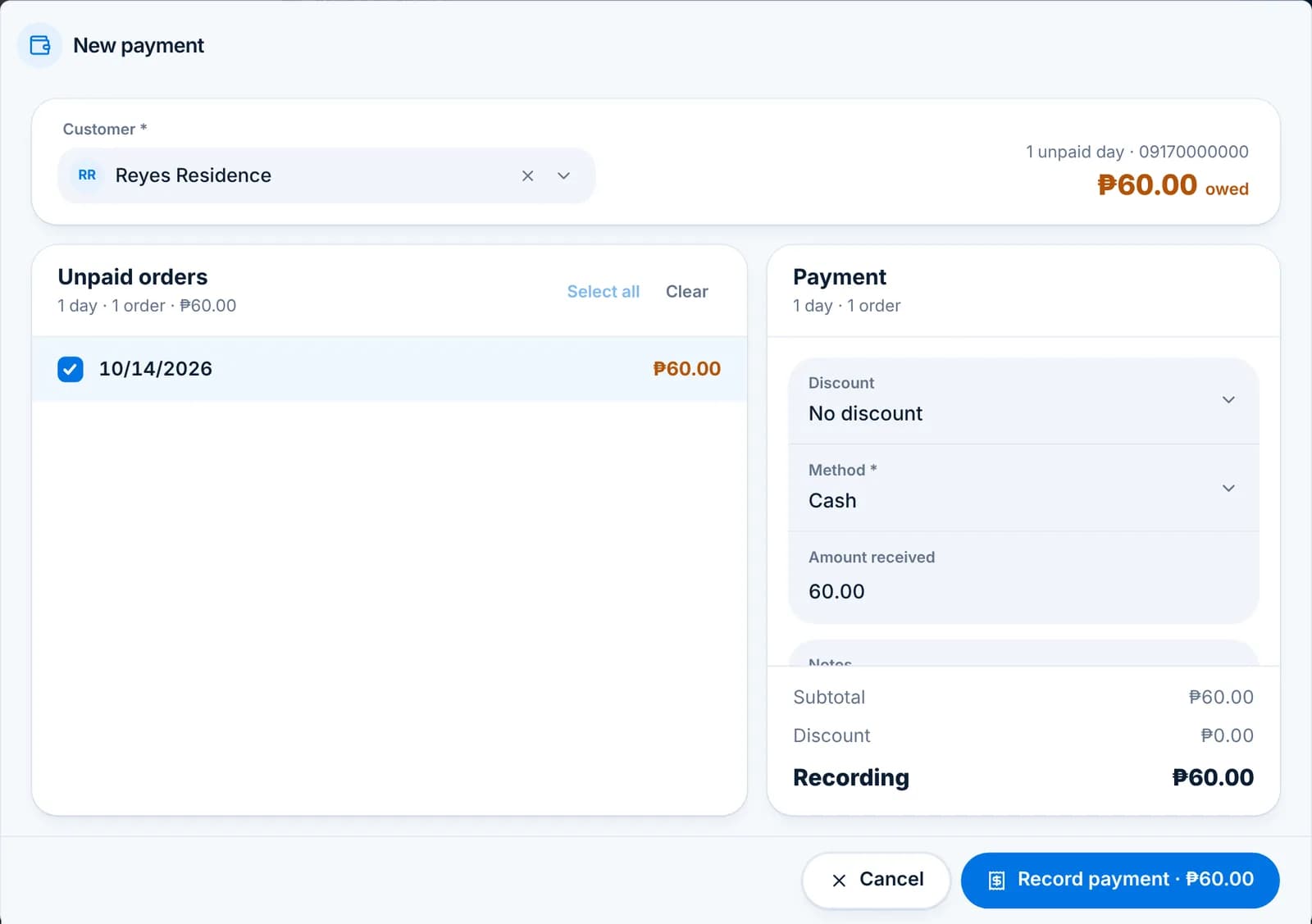
    Each unpaid day groups that day’s orders. Tick one, several, or Select all. The amount received fills in with the total of what you ticked.

    The New payment dialog for Reyes Residence with one unpaid day ticked, method Cash, amount received ₱60 and a Record payment ₱60 button.

    Tip: Partial payment? Lower the Amount received. The rest stays on the account and shows as outstanding.

  3. Step 3: Method, discount, notes

    Choose the payment method (cash, GCash, bank and others from Settings › Templates), apply a discount if allowed, and add a note such as a GCash reference. Click Record payment.

  4. Step 4: Collect from the customer’s page

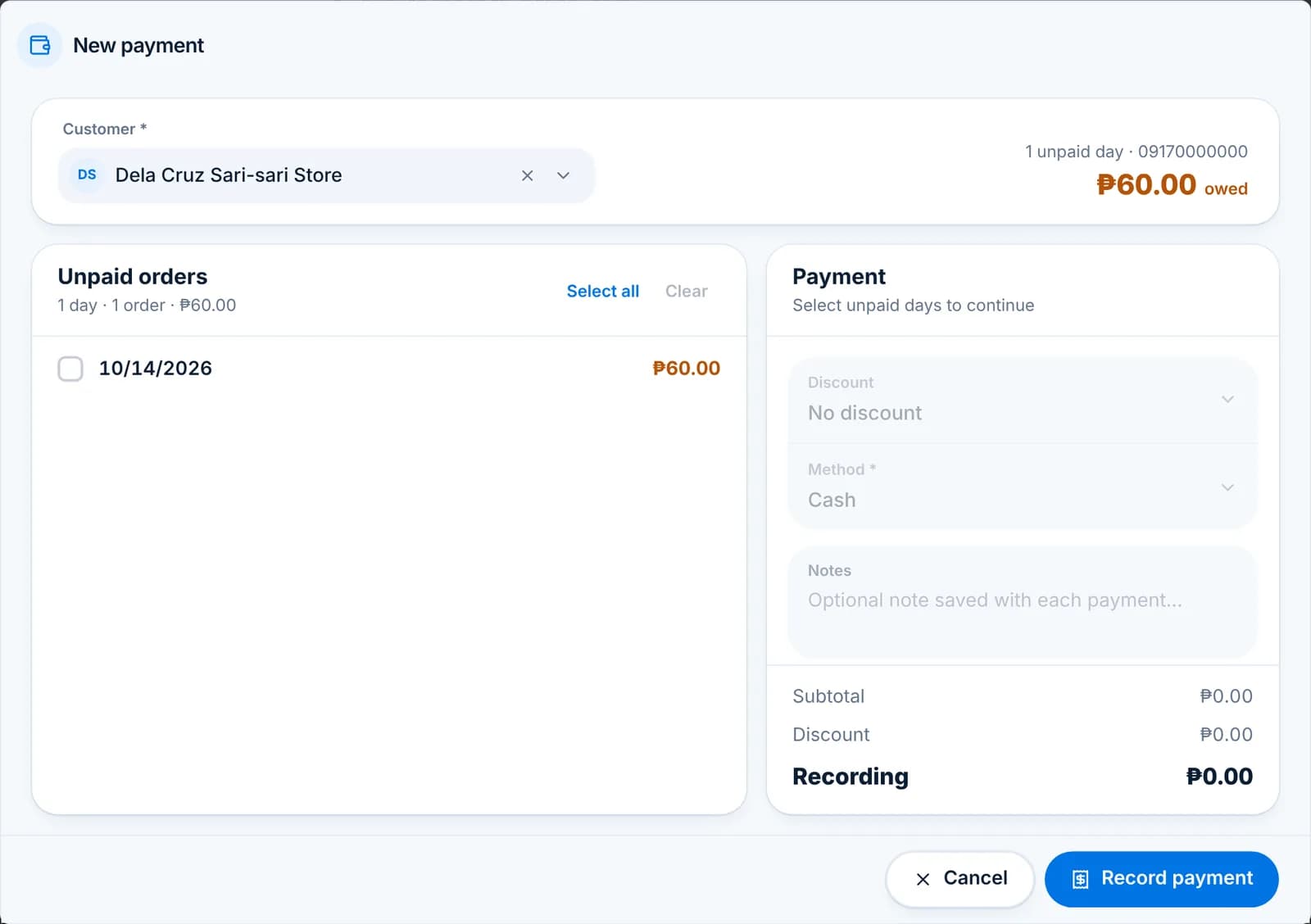
    On a customer’s page the Summary card shows what they owe, with a Collect button that opens the same dialog with the customer already chosen.

    The New payment dialog opened from a customer page, with Dela Cruz Sari-sari Store preselected and ₱60 owed.
  5. Step 5: Review collections

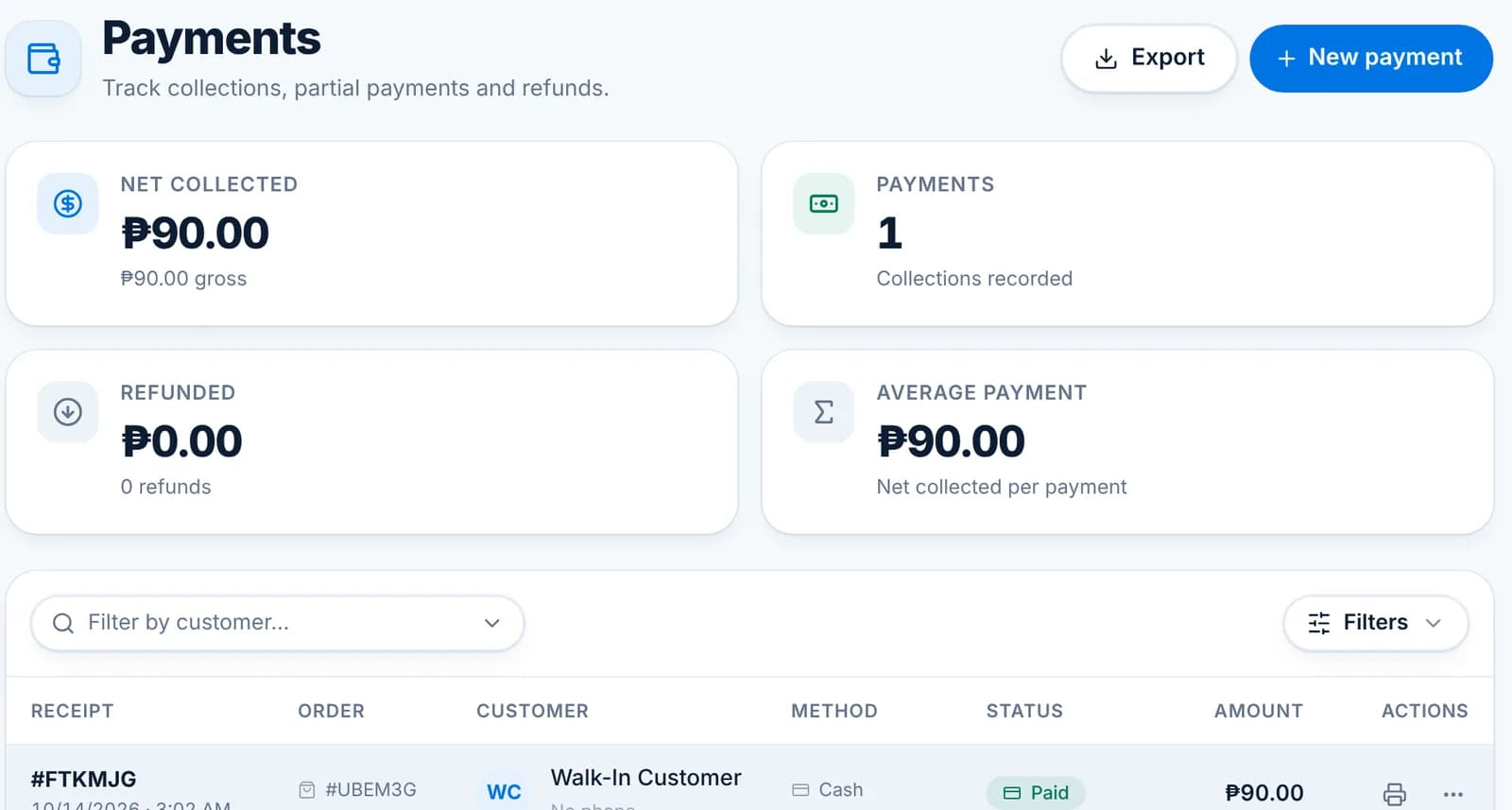
    The Payments page lists every receipt with order, customer, method and status, and totals net collected, refunds and the average payment. Print or reprint a receipt from the row.

    The Payments page with net collected, payments, refunded and average payment tiles and one receipt row.
  • Drivers can collect at the door from the phone app; those payments appear here too, tagged with the trip.
  • Void payments (reverse a posted payment) is a separate permission; see Users, roles and permissions.
  • Payments by Customer and Customers with Outstanding Balance under Reports give you the collection picture per customer.

Discounts

Set up discount rules once, allow them per customer type, and apply them at the counter or when collecting.

A discount in WaterWise is a named rule: a percentage or a fixed amount, with an optional minimum purchase and validity dates. Rules live under Settings › Templates › Discount types. Whether a customer can get one depends on their customer type and on each product’s Discount switch.

  1. Step 1: Create the rule

    Settings › Templates › Discount types › Add discount type. Name it, choose Percentage or Fixed amount, enter the value, and optionally a minimum purchase and start and end dates. PWD and Senior Citizen (20%) are included.

    The Discount types tab with PWD and Senior Citizen at 20% off and two fixed-amount discounts.
  2. Step 2: Allow it on the product

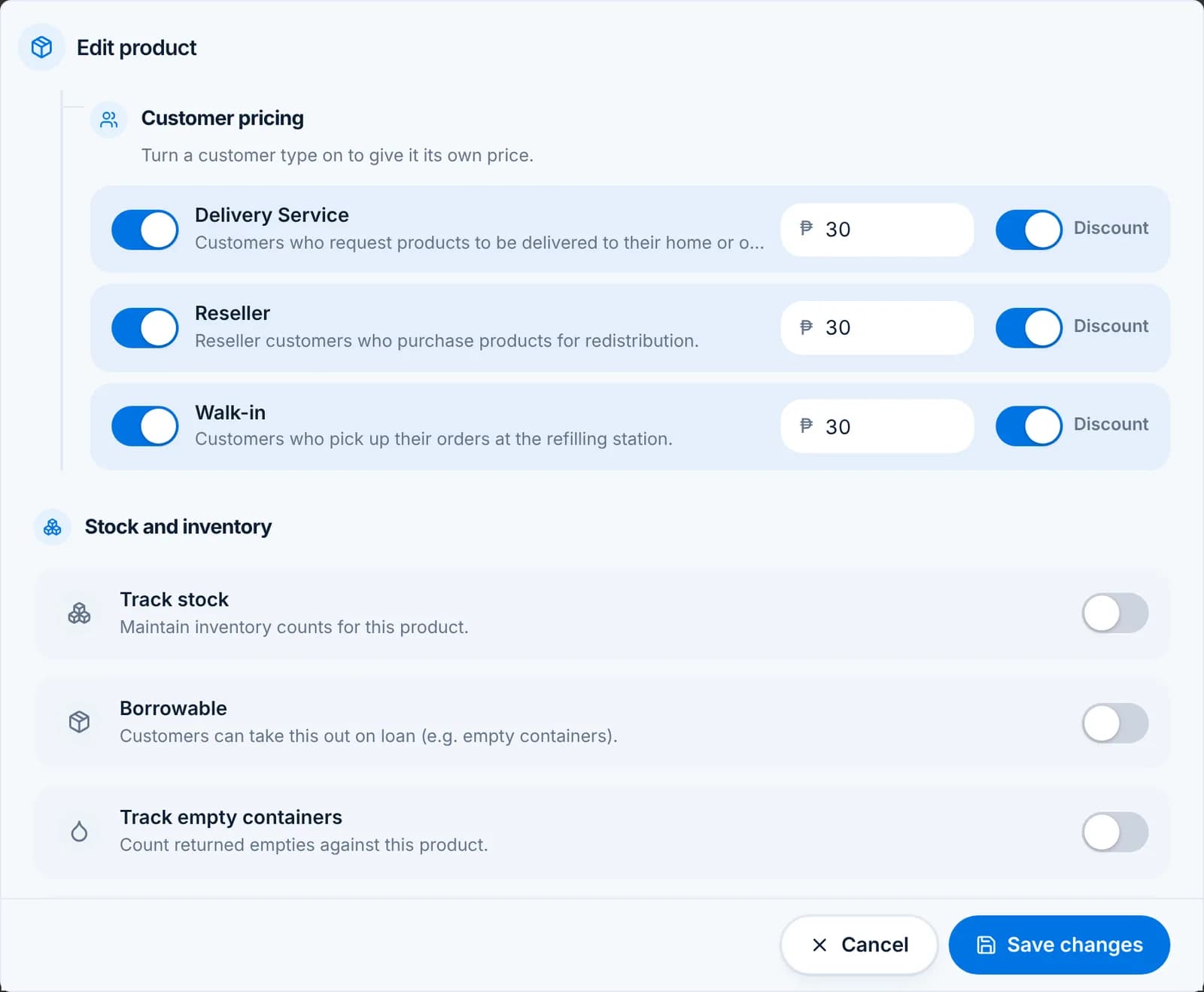
    Under Products › edit product › Customer pricing, each customer type has a Discount switch next to its price. Off means that type always pays full price for this product, whatever discount the cashier picks.

    Customer pricing rows for Delivery Service, Reseller and Walk-in, each with a price and a Discount switch.

    Tip: A common setup: discounts on for Walk-in and Delivery Service, off for Reseller who already get a lower price.

  3. Step 3: Apply it on an order

    On New order, the Discount dropdown in the Current order panel lists the active rules. Pick one and the total updates; the discount line shows what was taken off. The receipt prints the rule’s name.

    The Discount dropdown on the New order screen listing No discount, PWD 20%, Regular, Reseller and Senior Citizen 20%.
  4. Step 4: Apply it when collecting

    The New payment dialog has the same Discount dropdown, for a discount agreed at collection time on a Pay later order.

    The New payment dialog with a Discount field above Method and Amount received.
  • Fixed-amount discounts come off the order total once, not per item.
  • A rule outside its start and end dates does not show in the dropdown.
  • The Daily Sales Summary and Order Summary reports show the discount per order.

Receipts: print and email

Give the customer a receipt right after the sale, or reprint one later from the order.

Every order and every payment has a receipt. The header carries your branch name, address and contact numbers from Settings › Branch Information, and the body lists the items, discount, payment and cashier.

  1. Step 1: Right after the sale

    The Order created dialog offers Print and Email. Print opens the browser’s print dialog for your receipt or office printer. Email sends the receipt as a PDF to the customer’s email address; if the record has none, you are asked for one.

    The Order created dialog with Print and Email receipt buttons.
  2. Step 2: Reprint from the Orders page

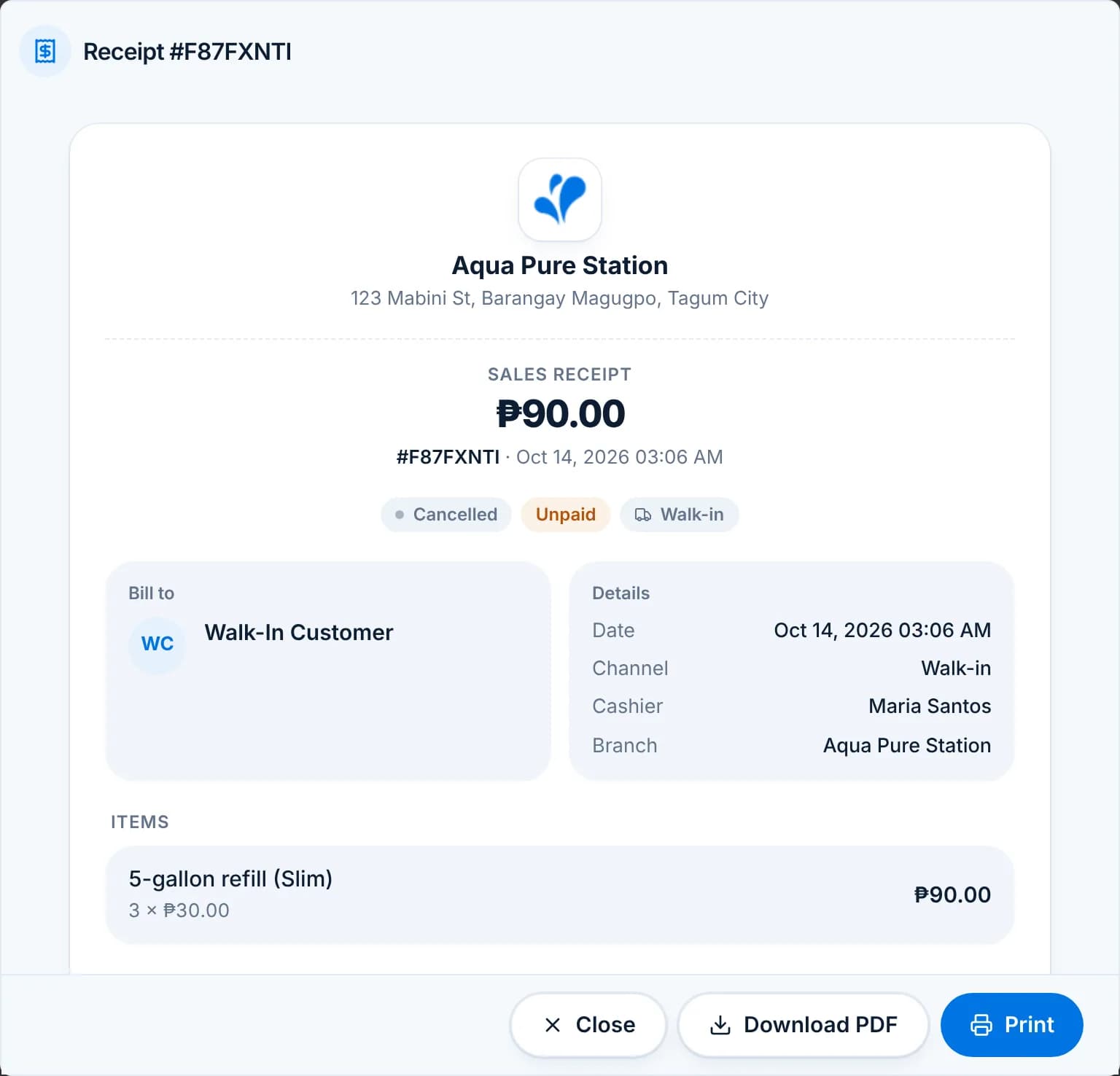
    Click the printer icon on any order row to open the receipt preview. From there Download PDF saves it and Print prints it. Cancelled and voided orders show their status on the receipt.

    A receipt preview for order #F87FXNTI showing the branch header, status badges, bill to, details and items.
  3. Step 3: Payment receipts

    The Payments page has the same printer icon per receipt. It shows what was collected, the method and the orders it covers, which is what customers on account usually ask for.

    The Payments page with a receipt row and its printer action.
  4. Step 4: What prints on the header

    Branch name, address, mobile and landline come from Settings › Branch Information, and the logo from the same page. Keep them current; they print on reports too.

    The Branch page with name, code, contact numbers, address and logo.
  • Email receipts go out from [email protected] with your branch name in the subject.
  • For thermal receipt printers use the browser print dialog with the printer’s own paper size; a dedicated thermal print mode is planned.

Delivery tracking (Pro)

Plan a trip from open delivery orders, assign a driver and follow them live.

Delivery tracking is included in Pro and during the trial. You plan trips in the web app; drivers run them in the phone app, which shares their location, lets them mark each stop delivered, take proof-of-delivery photos and collect payment at the door.

  1. Step 1: Prepare the orders

    A delivery order needs a customer with a map pin (Set pin on map in the customer form) and the Delivery channel. Create the orders as usual, with Pay later if the driver collects.

  2. Step 2: Start a new trip

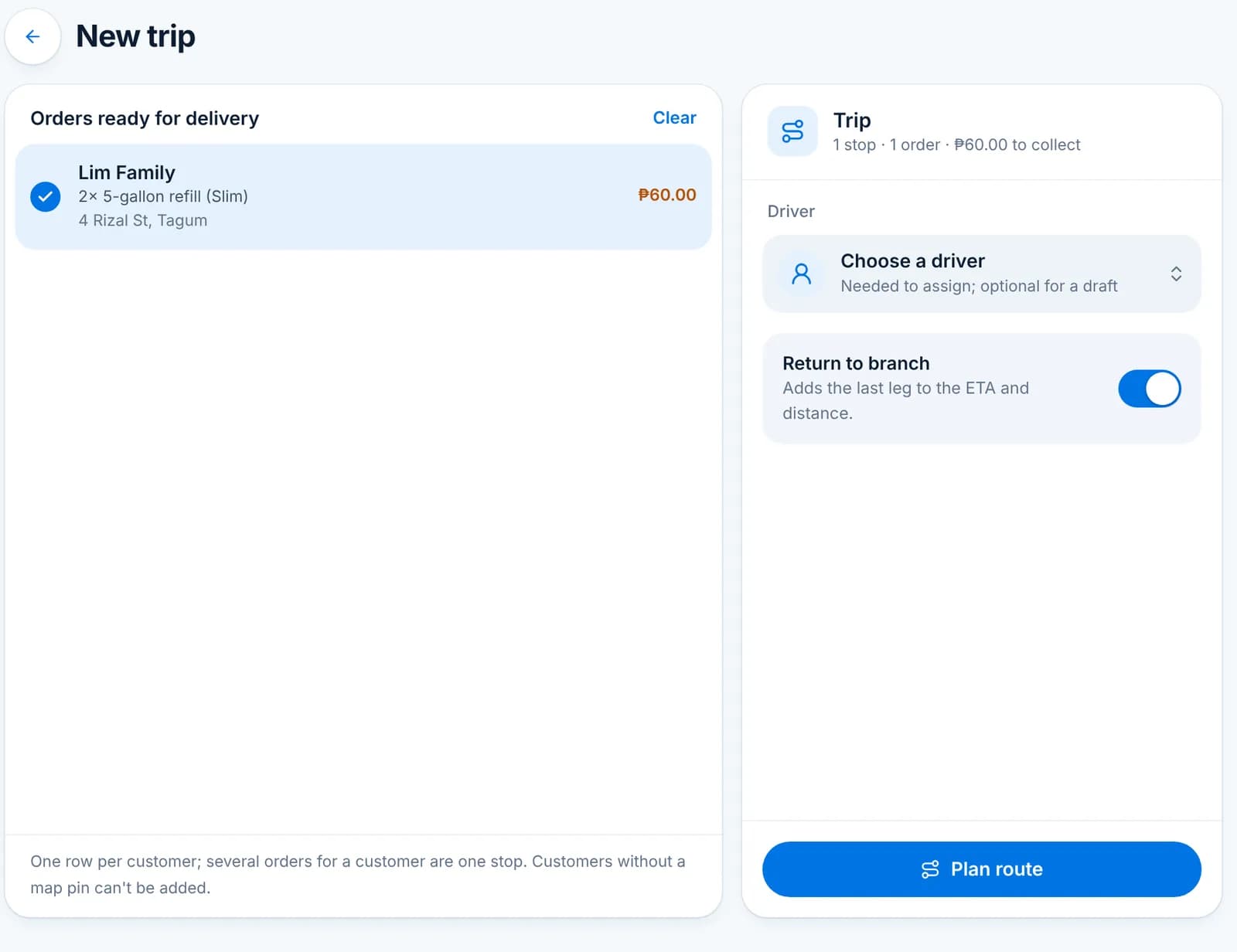
    Go to Deliveries and click New trip. The left list shows every order ready for delivery, one row per customer. Tick the ones for this trip.

    The New trip screen with Lim Family ticked under Orders ready for delivery and the Trip panel with Choose a driver.
  3. Step 3: Choose the driver

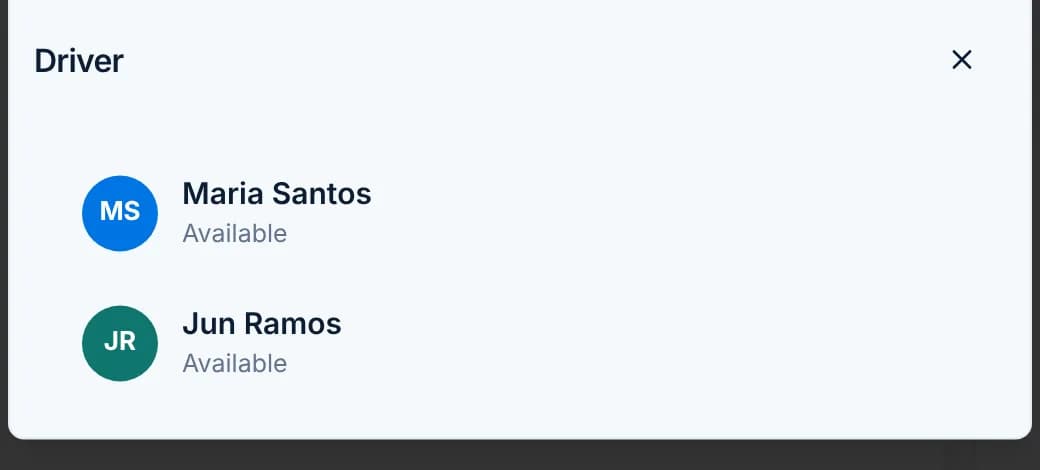
    Click Choose a driver and pick a team member with the Delivery role. You can leave this for later and save the trip as a draft.

    The Driver popup listing available drivers.
  4. Step 4: Plan the route

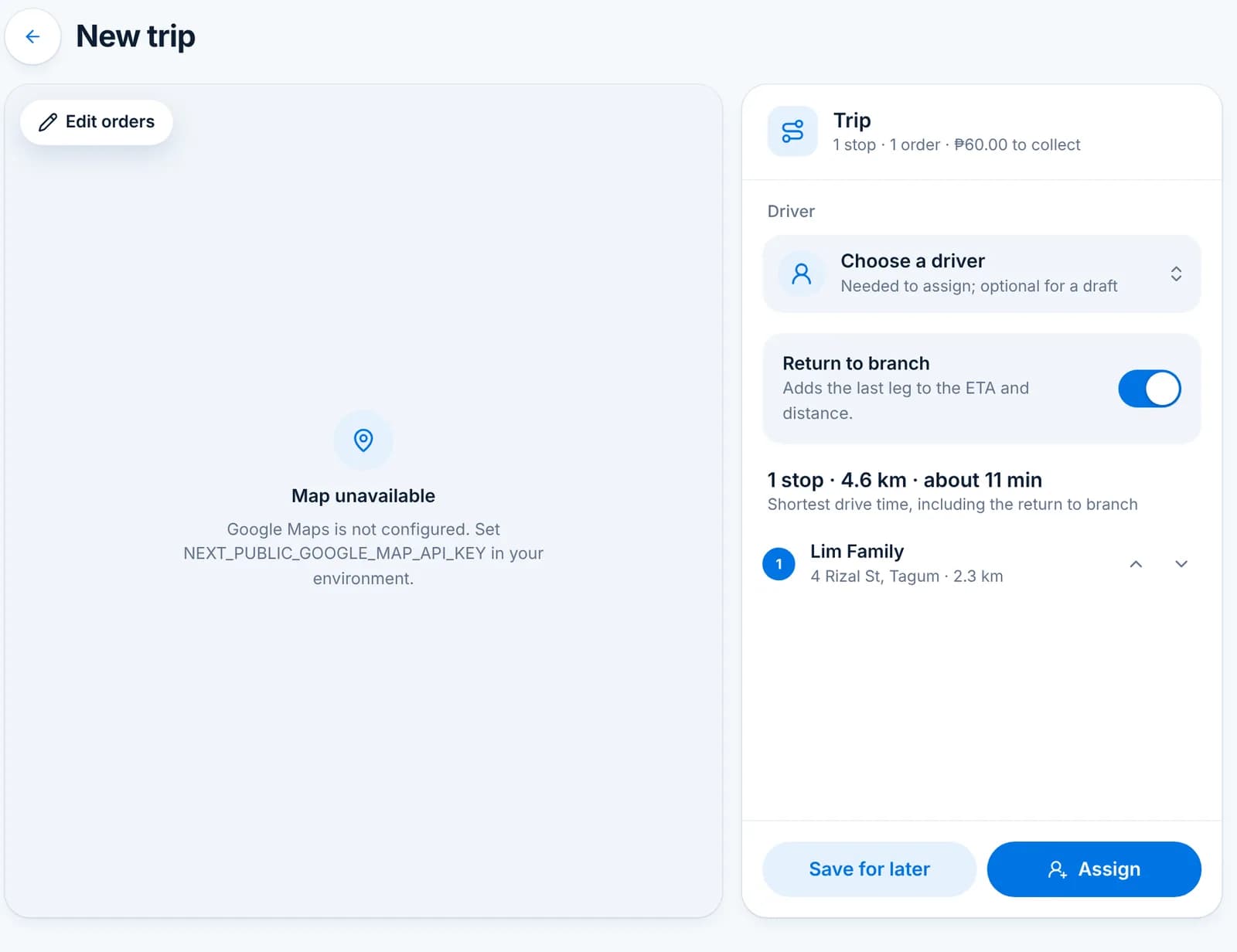
    Click Plan route. WaterWise orders the stops for the shortest drive, shows the distance and time, and adds the return to branch if that switch is on. Drag stops with the arrows if you know a better order.

    The planned trip with 1 stop, 4.6 km, about 11 minutes, and Save for later and Assign buttons.

    Tip: The map needs an internet connection. Everything else about the trip works offline.

  5. Step 5: Assign and follow

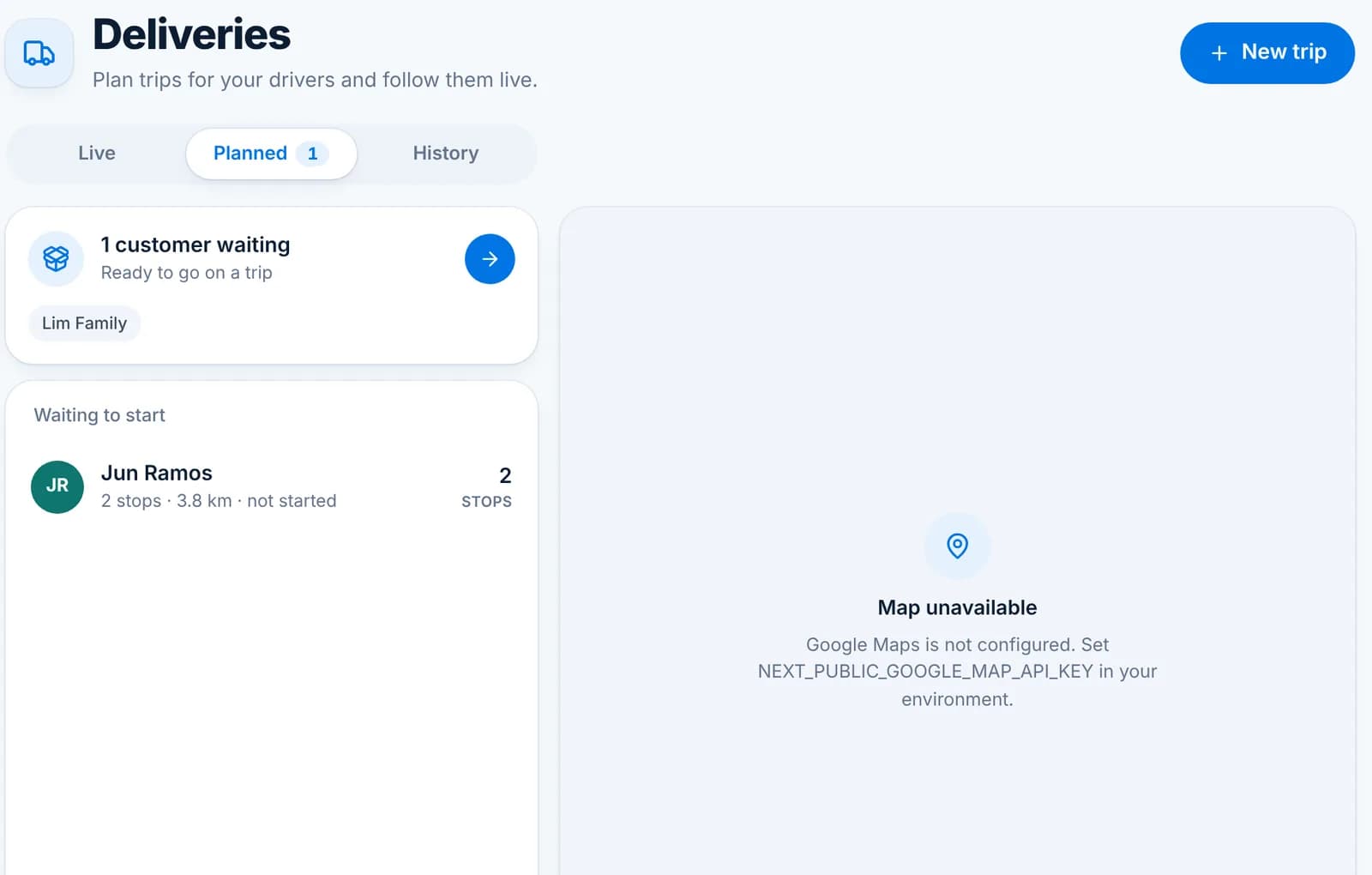
    Click Assign. The trip appears under the Planned tab until the driver starts it in the phone app, then moves to Live, where you see the driver on the map, each stop delivered or not, photos and money collected.

    The Deliveries page on the Planned tab with Jun Ramos, 2 stops, 3.8 km, not started.
  6. Step 6: Live and History

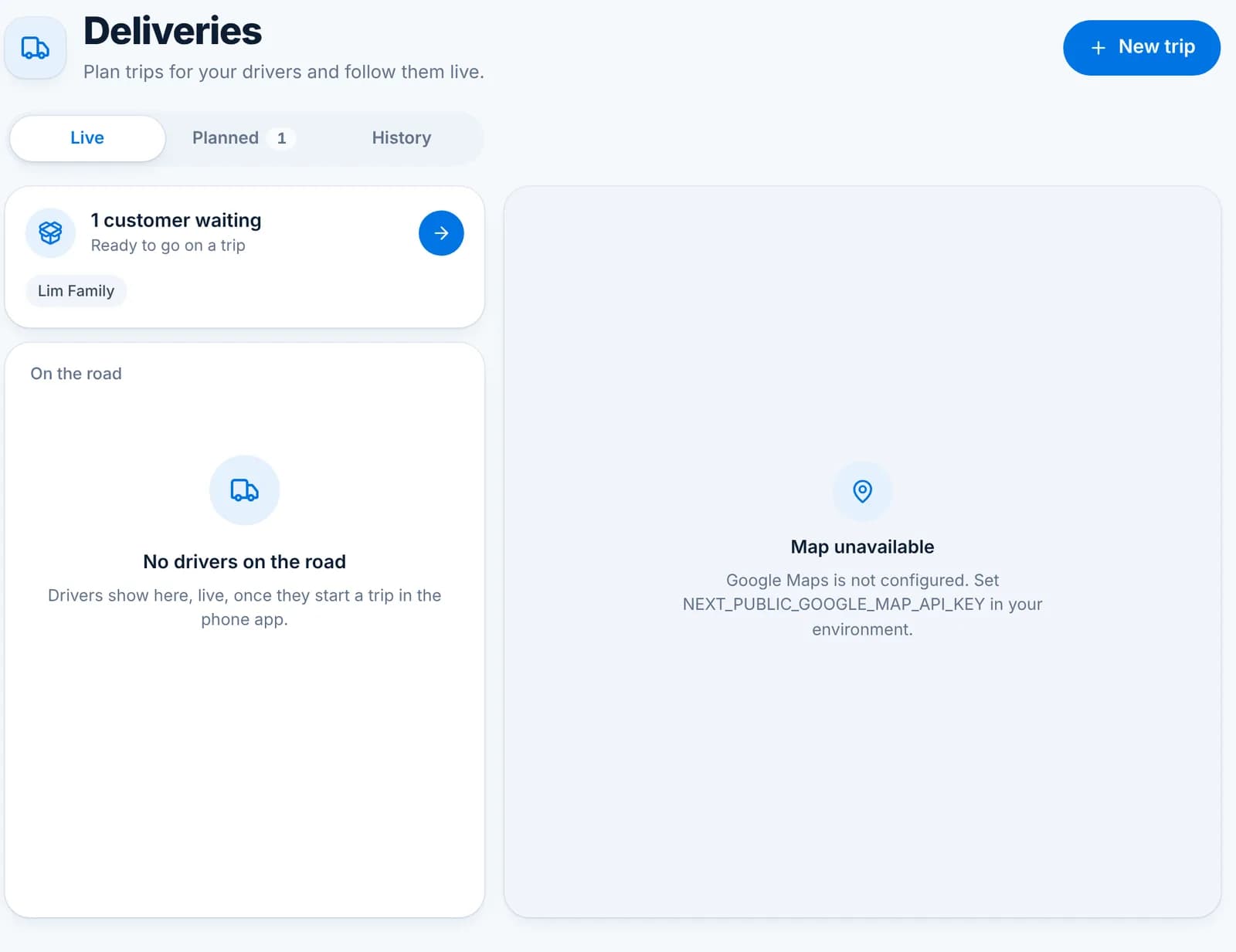
    Live shows drivers on the road right now. History keeps every finished trip with its stops, times and collections.

    The Deliveries page on the Live tab with one customer waiting and no drivers on the road.
  • Drivers see only their own trips and the Deliveries module; the Delivery role is set up for that.
  • A cancelled trip returns its orders to the ready list.
  • Customers without a pin can’t be added to a trip; the screen tells you which ones.

Customers

Customer records, ledger balances, and delivery context.

Customer records

Add a customer in under a minute and keep the list useful during rush hour.

A customer record holds contact details, a type that sets their prices, a delivery address and pin, and everything they have ordered, paid and borrowed. Staff pick customers by name or phone on New order, so keep names short and phones accurate.

  1. Step 1: Add a customer

    Go to Customers and click Add customer. Enter the name and phone number; email is optional but lets you send receipts.

    The Add customer form with name, phone, email and customer type.
  2. Step 2: Pick the customer type

    Delivery Service, Reseller and Walk-in are the defaults. The type decides which price the customer pays for each product and whether discounts are allowed. Edit or add types under Settings › Templates.

    Tip: Set the right type from the start: changing it later changes the prices they see on their next order, not past ones.

  3. Step 3: Address and map pin

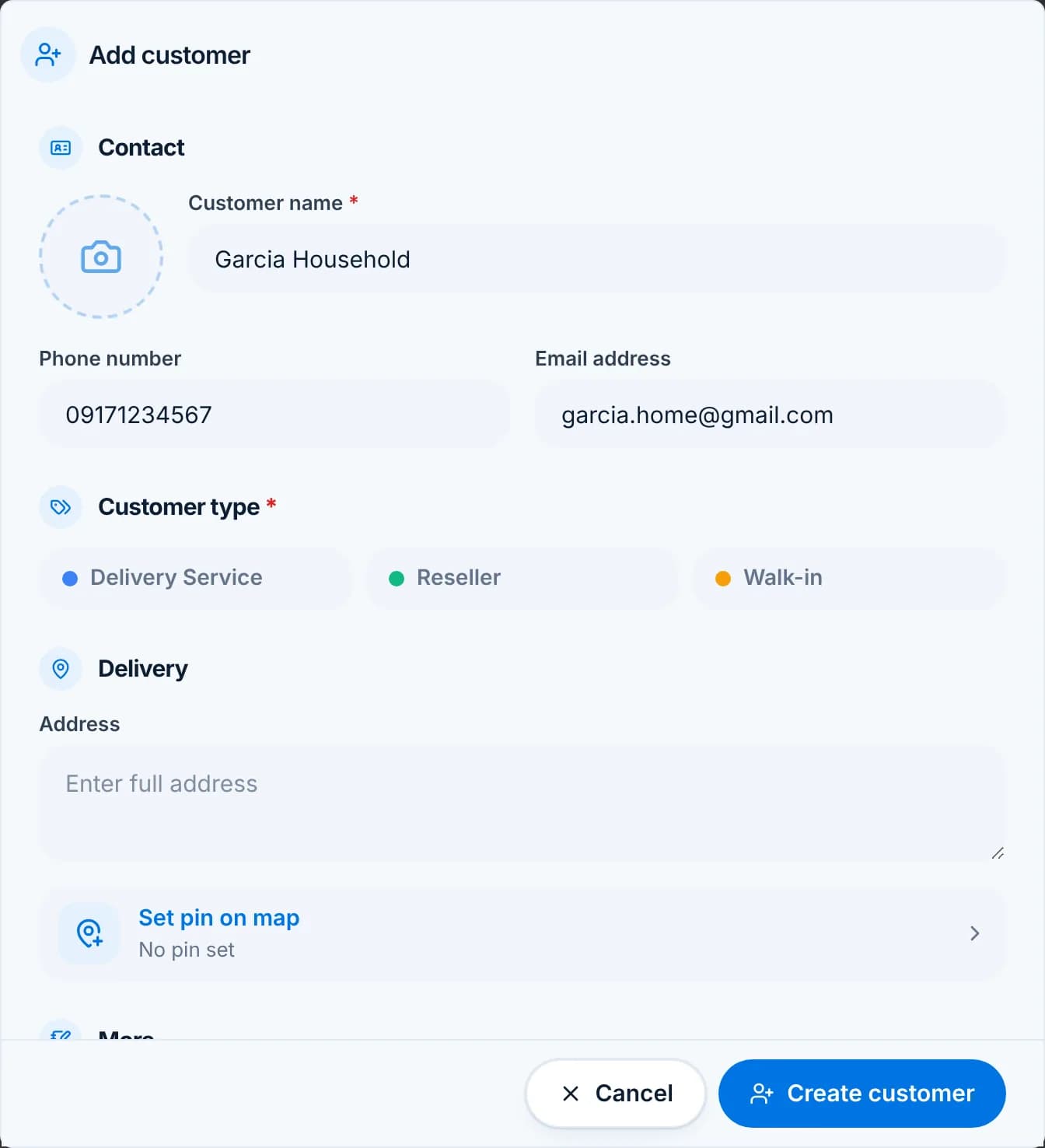
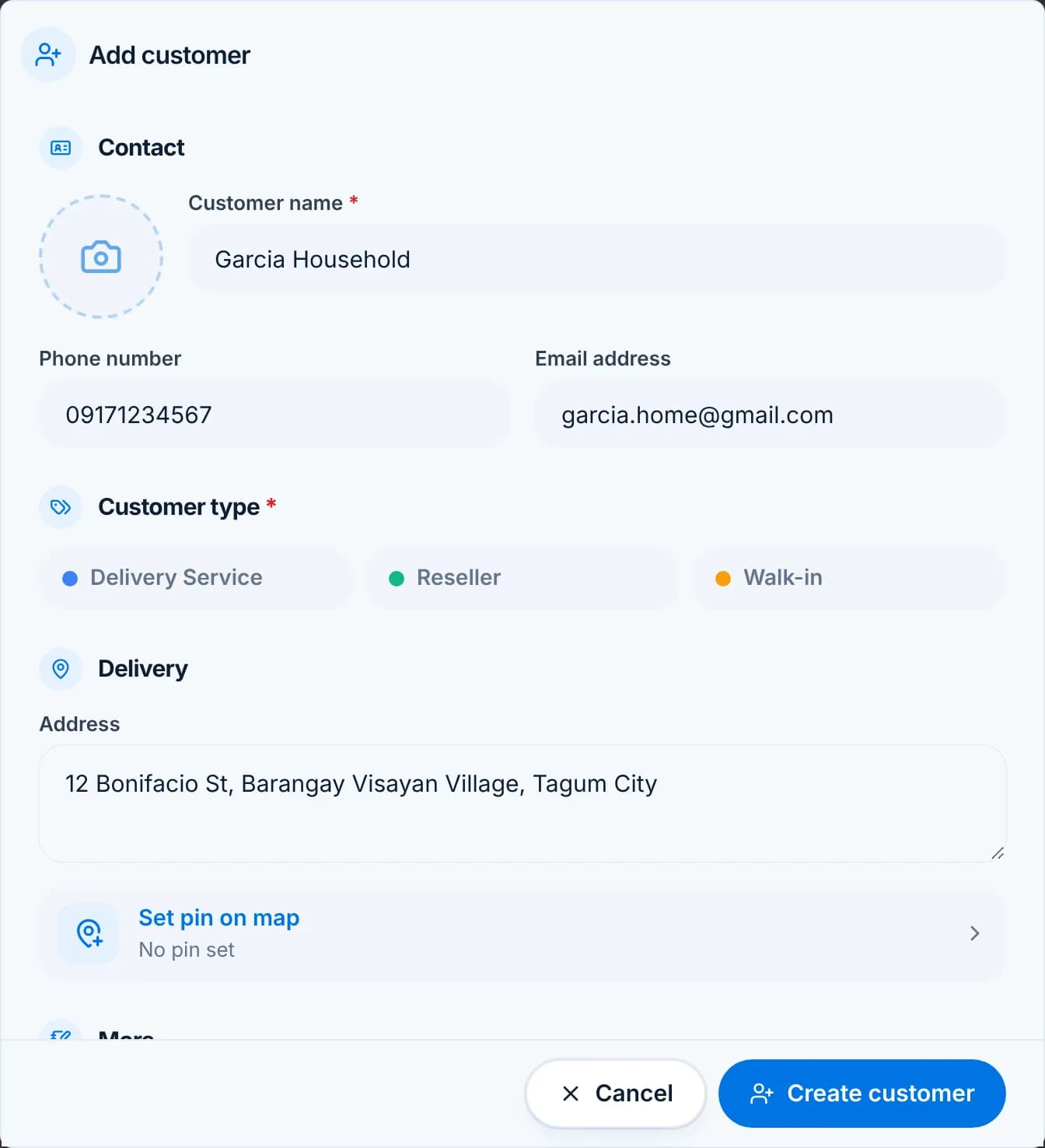
    For delivery customers type the address and click Set pin on map. The pin is what the route planner uses; the text address is what the driver reads.

    The Delivery section of the customer form with an address and a Set pin on map row.
  4. Step 4: Find customers fast

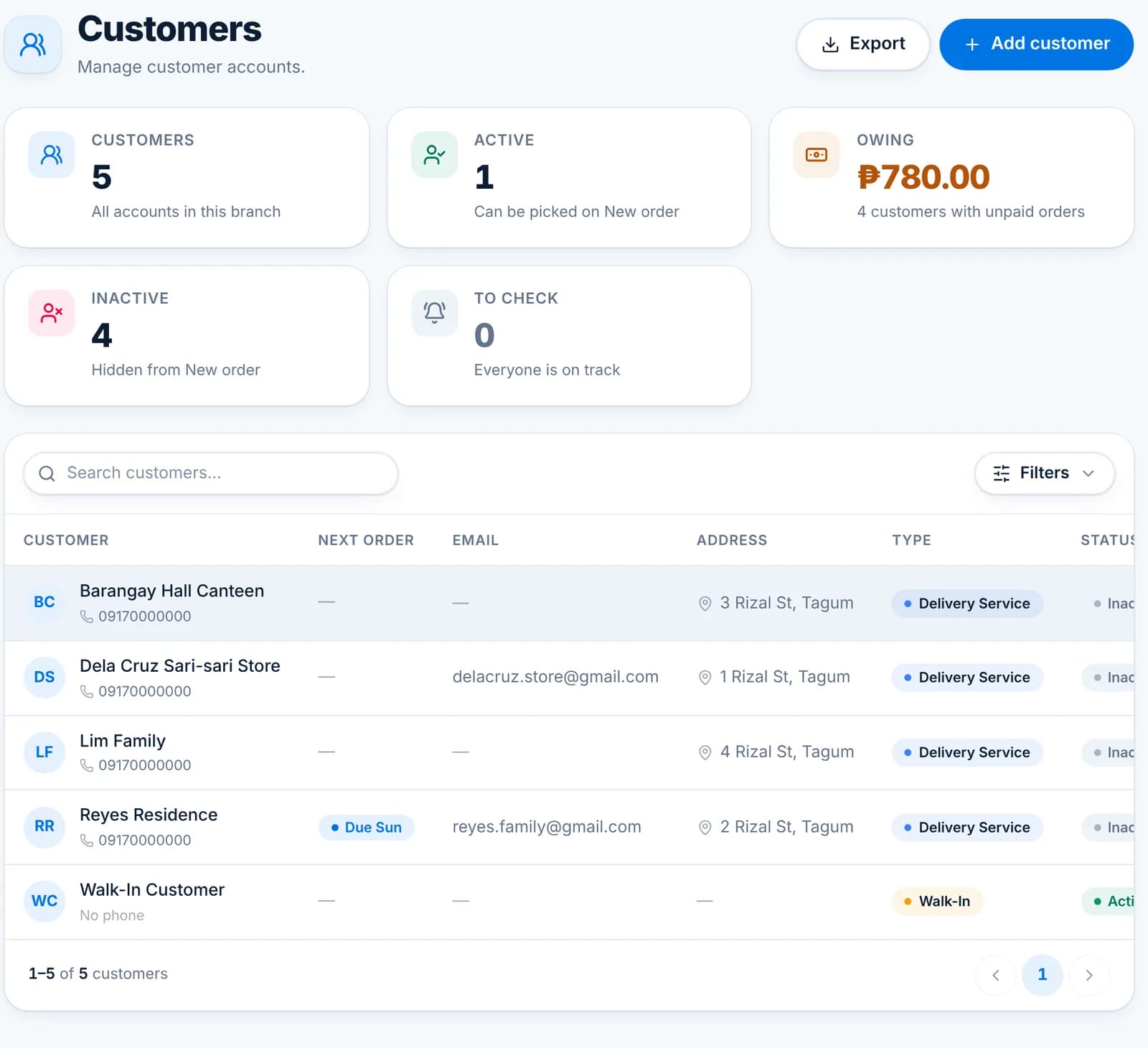
    The Customers list searches by name or phone and filters by type and status. The tiles show who owes money and who is To check (regular customers who missed their usual day).

    The Customers page with customers, active, owing, inactive and to check tiles and the customer table.
  5. Step 5: The customer page

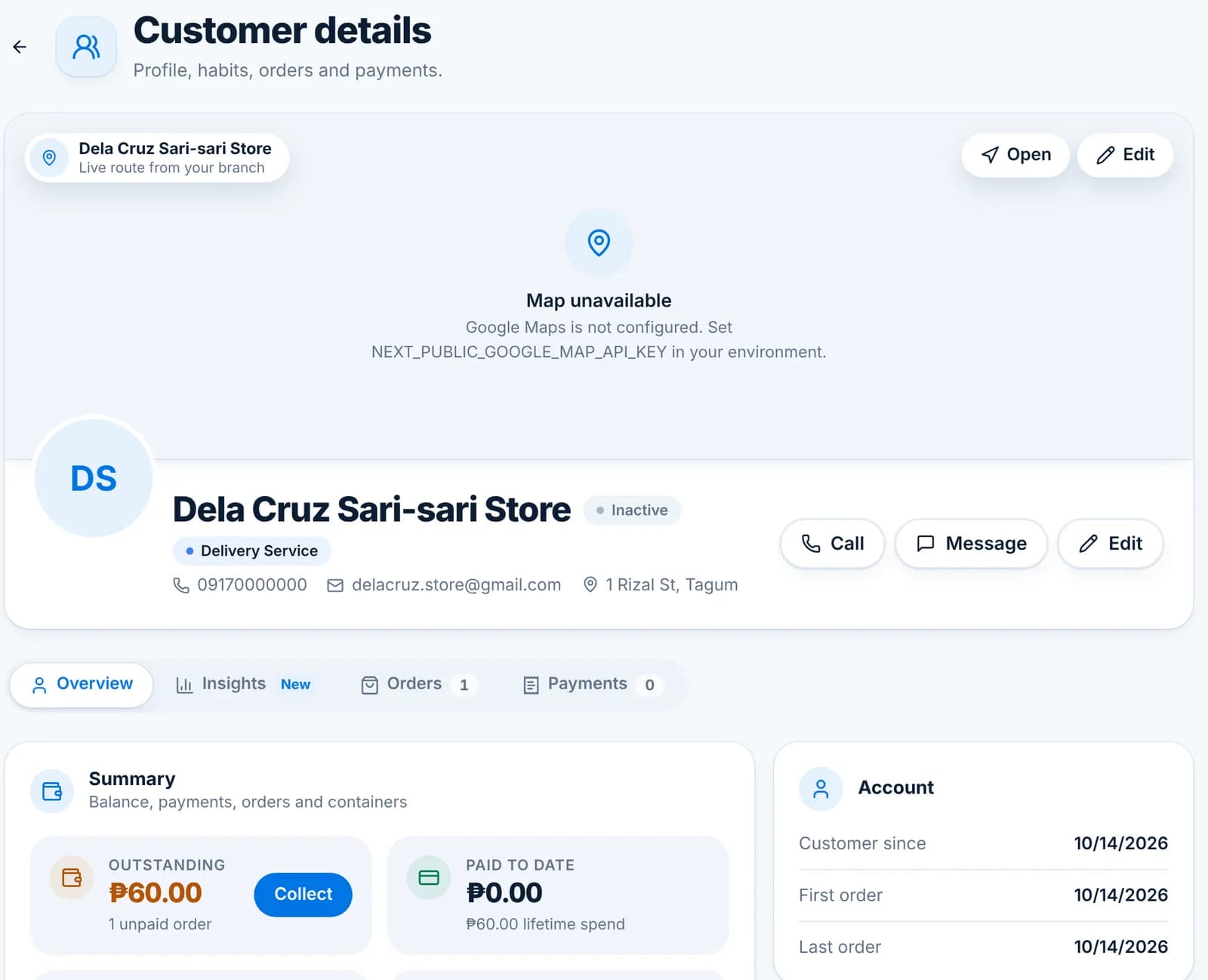
    Click a customer to see their page: map, contact buttons, and tabs for Overview, Insights, Orders and Payments. The Summary card shows what they owe, with a Collect button, and how many containers they hold.

    The customer page for Dela Cruz Sari-sari Store with map, call and message buttons and the Summary card.
  • Inactive customers stay in the list but are hidden from New order. Use it for customers who moved away.
  • Walk-In Customer is a built-in record for sales you don’t need to track; it cannot be deleted.
  • The Customer List report exports all contacts; Customer Purchase History shows one customer’s orders over time.

Ledger balances and collections

See what each customer owes, collect it, and keep credit under control.

Every Pay later order adds to the customer’s outstanding balance; every payment reduces it. WaterWise keeps the numbers; your branch decides who gets credit and for how long.

  1. Step 1: Where the balance shows

    The Summary card on the customer page shows Outstanding (unpaid orders), Paid to date and Containers out. The Customers list has an Owing tile and the Transactional dashboard lists every customer with unpaid orders.

    The customer page Summary card with Outstanding ₱60, a Collect button, paid to date and containers out.
  2. Step 2: Collect

    Click Collect on the customer page, or the check mark on their card on the Transactional dashboard. Tick the days being paid, enter the amount and method, and record it. Partial amounts are fine.

    The New payment dialog opened from the customer page.
  3. Step 3: See the history

    The Orders and Payments tabs on the customer page list every order and receipt. Insights shows buying habits once there are a few orders: usual day, usual products, average spend.

  4. Step 4: Reports for collection day

    Customers with Outstanding Balance lists everyone who owes, with amounts. Payments by Customer shows what each customer paid over a period. Both print or download as PDF.

    The Reports page listing sales, customer and stock reports.
  • Cancelling an unpaid order removes it from the balance; voiding a paid order needs the Void orders permission.
  • Give the Collect unpaid balances permission to the staff who handle collections, and keep Void payments for the owner or manager.
  • Customer monitoring (Settings › Others) can email you each morning with yesterday’s missed orders and today’s due list.

Customer insights and monitoring

Know each regular’s usual day and order, and get told when they miss it.

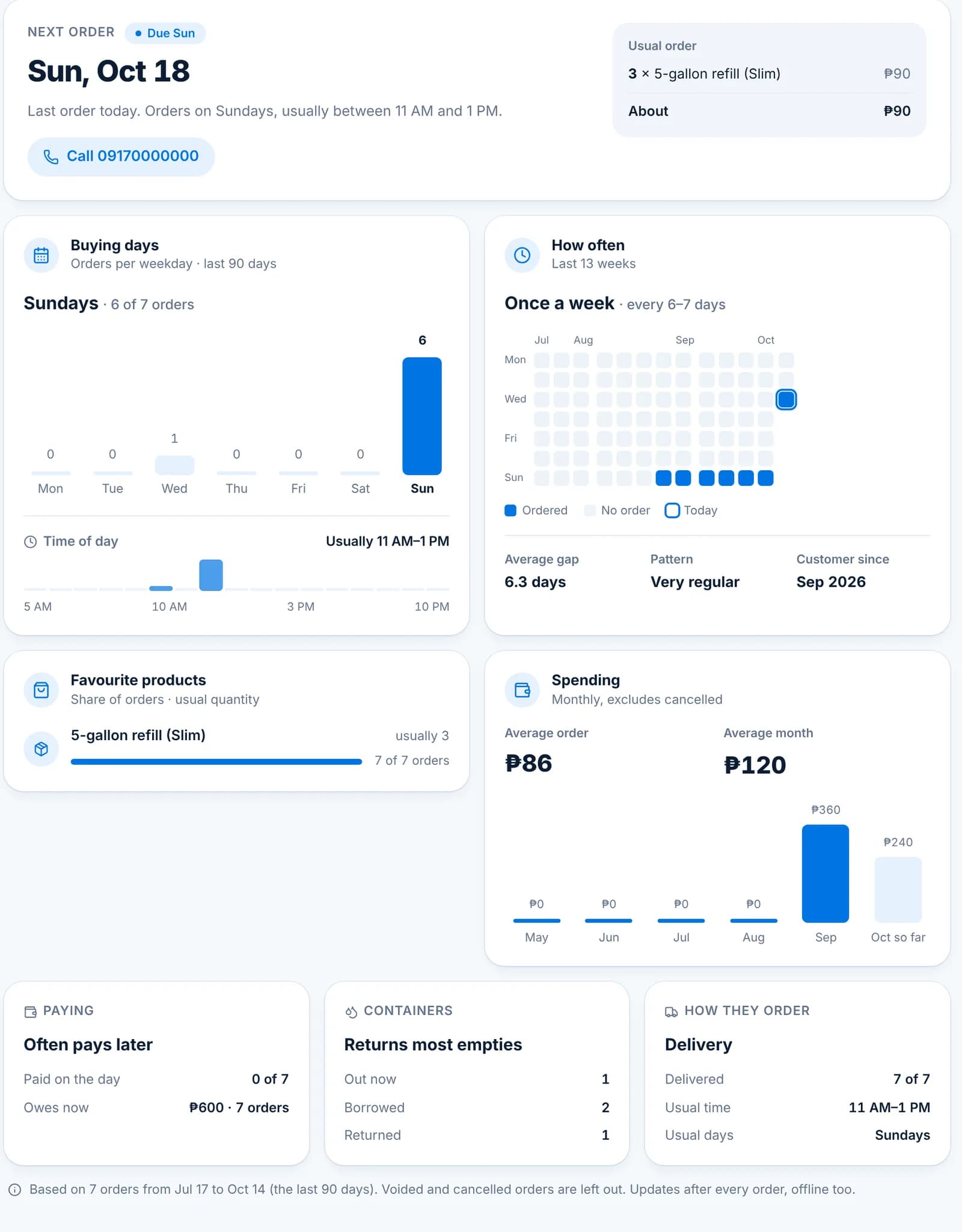
After a few orders WaterWise learns each customer’s habits: which day they order, what they usually take, how often and how much. The Insights tab shows it; customer monitoring turns it into reminders so a missed order gets a call before the customer runs dry.

  1. Step 1: The Insights tab

    Open a customer and click Insights. The top card predicts the next order date and the usual order, with a Call button. Below: buying days, time of day, how often (with a 13-week calendar), favourite products, spending by month, and how they pay, return containers and receive orders.

    The Insights tab for Reyes Residence: next order Sun Oct 18, usual order 3 × 5-gallon refill, buying days chart, how often calendar, favourite products and spending.

    Tip: Insights use the last 90 days and update after every order, offline too. Cancelled and voided orders are left out.

  2. Step 2: Switch on customer monitoring

    Settings › Others › Customer monitoring. With it on, the Customers list gains a Next order column and a To check tile, and the Dashboard shows Customers to check. Three reminders sit under it: a daily email summary, a missed order alert and a due today list.

    The Other preferences page with Customer monitoring on and the Daily email summary, Missed order alert and Due today list reminders.
  3. Step 3: Next order and To check

    Each regular shows a Next order pill such as Due Sun. When the day passes without an order they move to To check, so the counter can call them. Mark Not needed today on the Dashboard card to clear one.

    The Customers list with a Next order column showing Due Sun for Reyes Residence and a To check tile.
  4. Step 4: The daily email

    Every morning at the set time the owner receives yesterday’s missed orders and today’s due list by email. It works even with Notifications off. The missed order alert and due today list are bell and phone alerts and need Notifications on.

  • Habits show after four orders in the last 90 days; before that the tab says what it is waiting for.
  • Monitoring and reminders are branch-wide settings and apply to every user.
  • The Top Customers and Customer Purchase History reports give the longer-term view.

Inventory

Stock levels, adjustments, borrowed containers, and history.

Stock levels

Watch what is on hand, set minimums and reorder points, and act before you run out.

Stock Levels shows every product with Track stock switched on. Sales, deliveries, adjustments, loans and returns all move the count automatically; you only step in to add deliveries and correct mistakes.

  1. Step 1: Switch on Track stock

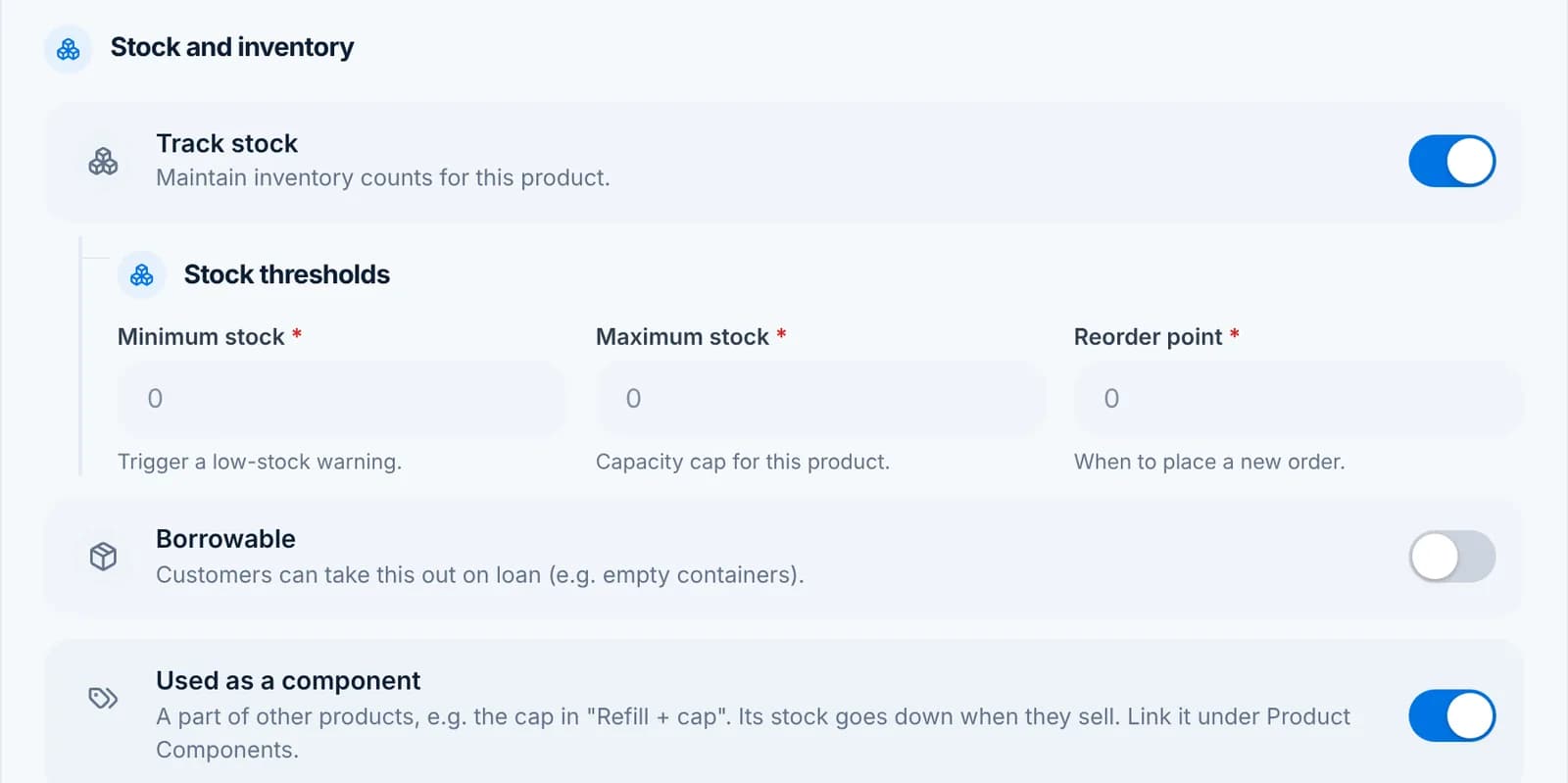
    Open the product under Products and turn on Track stock in the Stock and inventory section. Refills usually stay off (water is not counted); containers, seals, caps and bottled products are usually on.

    The Stock and inventory section of the product form with Track stock on and the Stock thresholds fields.
  2. Step 2: Set thresholds

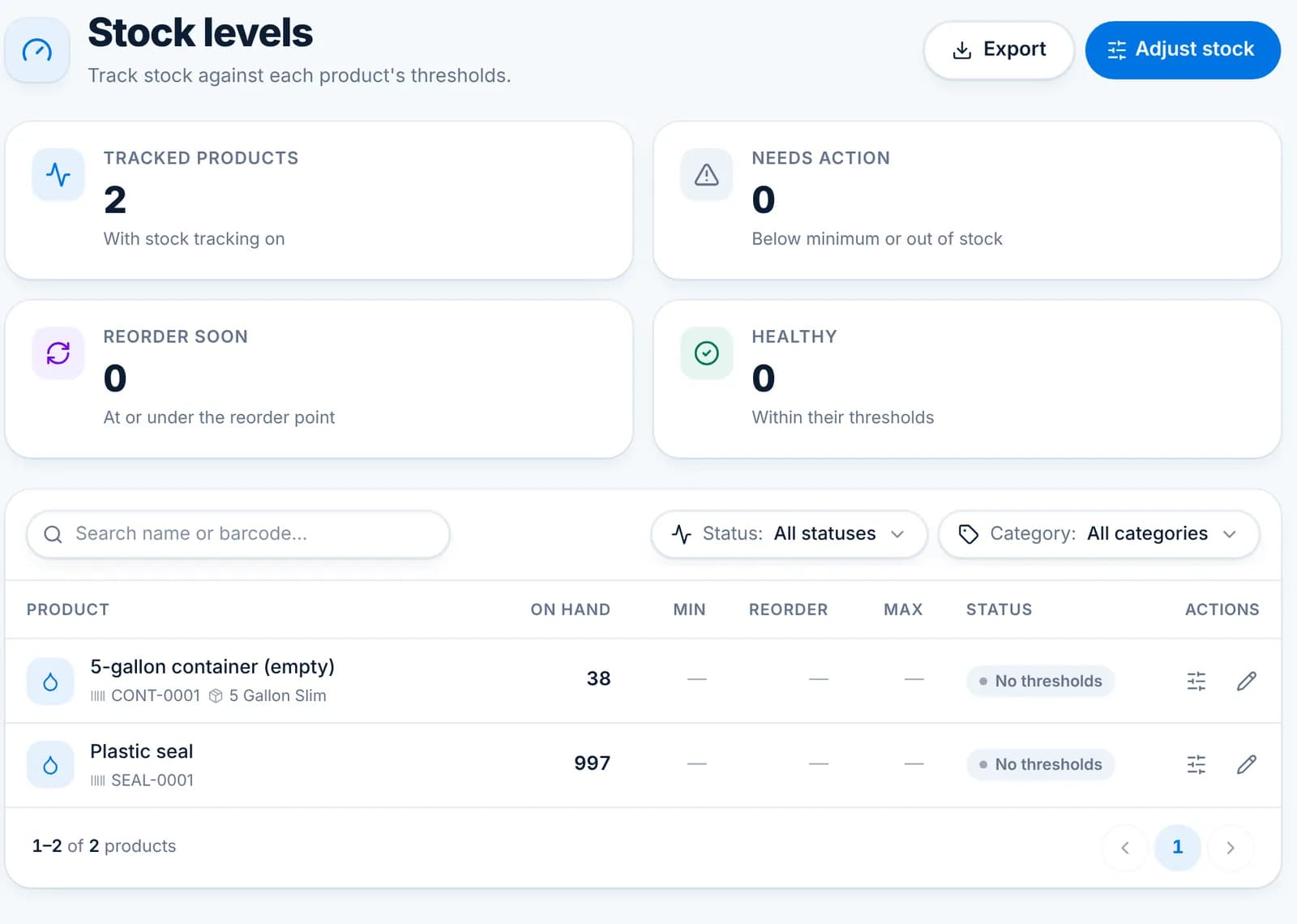
    Under Track stock, fill in Minimum stock, Reorder point and Maximum stock. They drive the status column and the tiles: Needs action (below minimum or out), Reorder soon (at or under the reorder point) and Healthy.

    Tip: Set the reorder point to what you use between two supplier deliveries, plus a small buffer.

  3. Step 3: Read the page

    Inventory › Stock Levels lists on hand, min, reorder and max per product with a status. Search by name or barcode and filter by status or category. The actions open a stock adjustment or the product itself.

    The Stock levels page with tracked products, needs action, reorder soon and healthy tiles and two products listed.
  4. Step 4: Add a delivery

    When stock arrives, click Adjust stock, choose Delivery, pick the product and enter the quantity. See Stock adjustments for the details and for logging the cost as an expense.

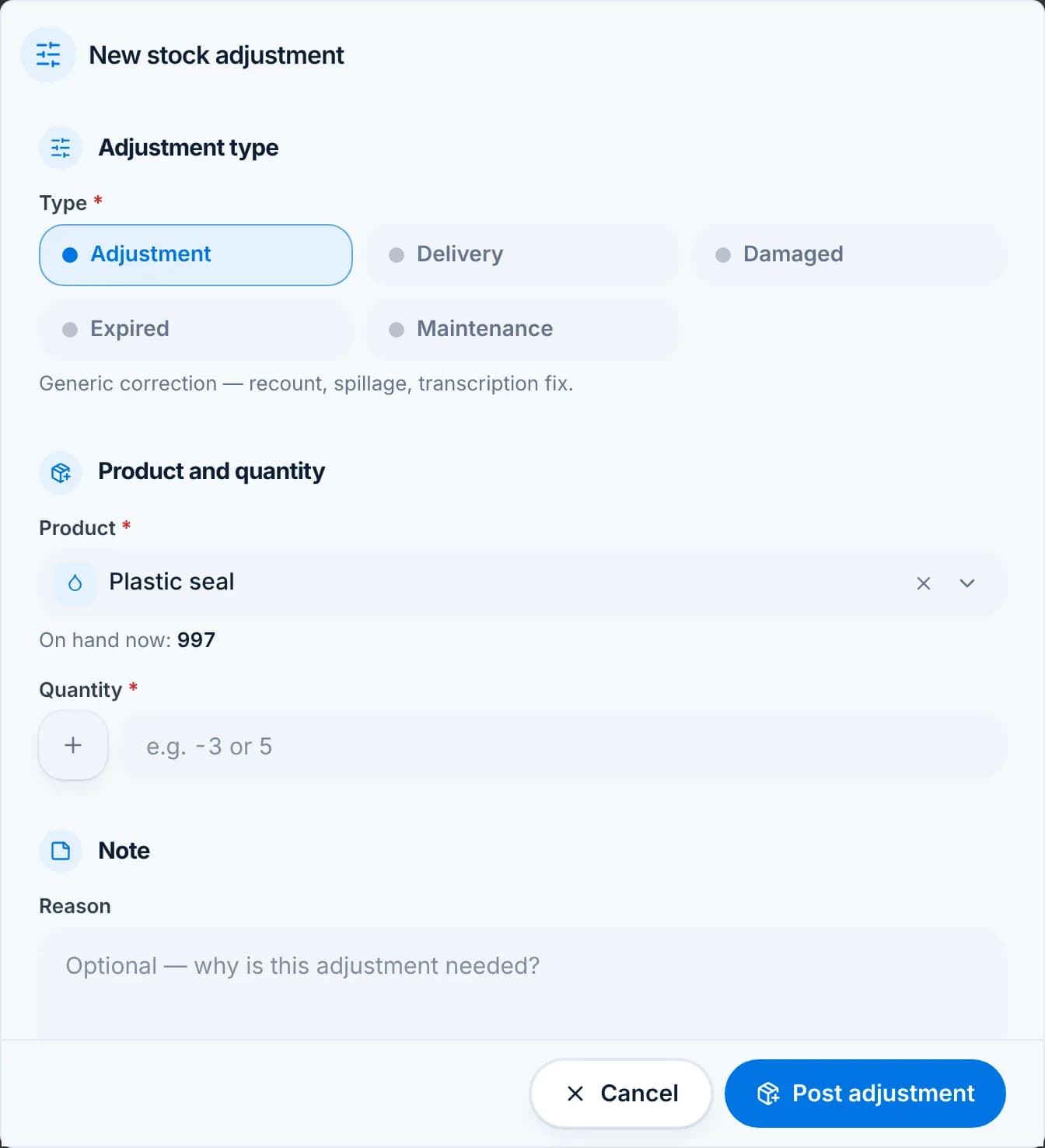
    The New stock adjustment dialog with the five adjustment types and a product picked, showing On hand now 997.
  5. Step 5: Investigate a drift

    If the shelf and the screen disagree, open Transaction History, filter by the product and read the movements since your last count. Then post an Adjustment for the difference with a short reason.

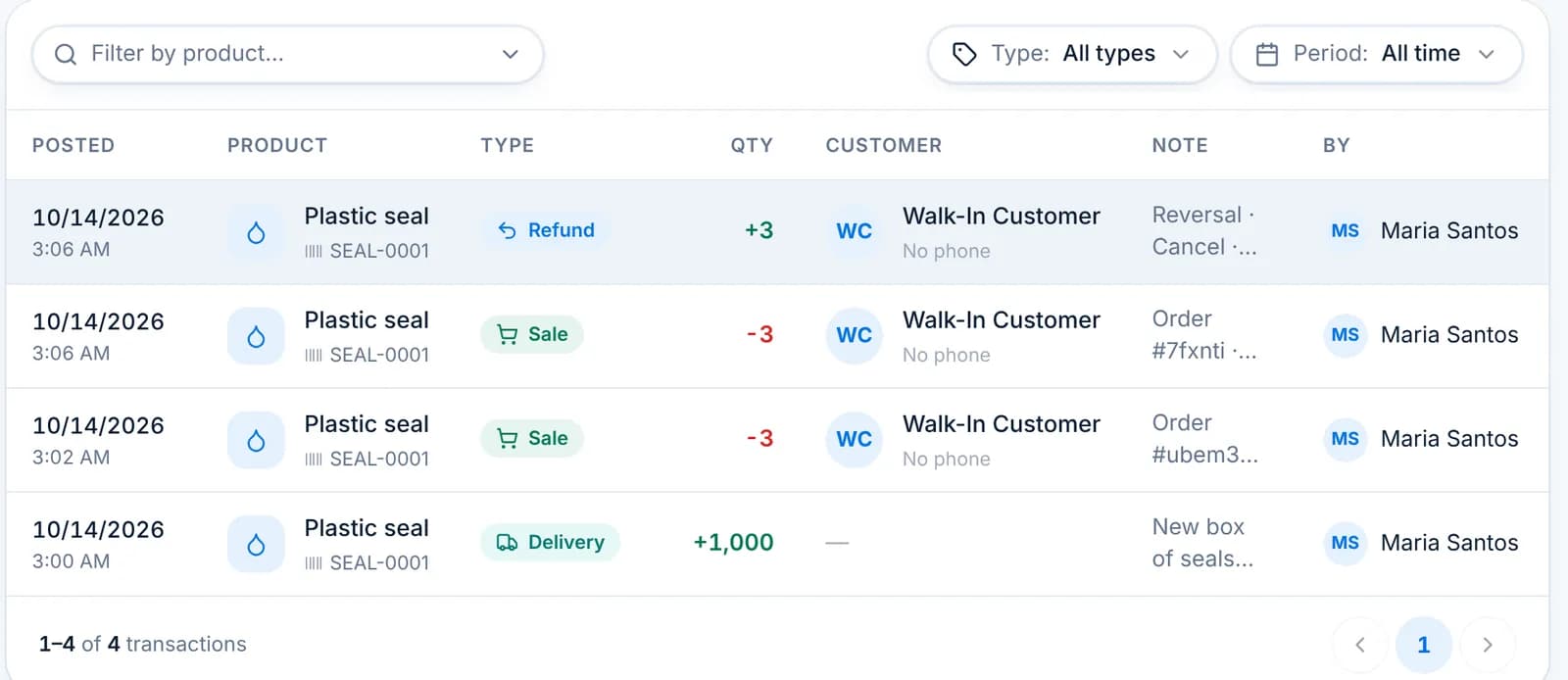
    Transaction History listing a refund, two sales and a delivery for Plastic seal.
  • The Current Stock Levels report prints the same list for a physical count.
  • Products with components deduct their parts automatically; see Product components.
  • Phones take orders offline and post their stock movements when they reconnect.

Stock adjustments

Post deliveries, write-offs and recounts with a reason, so the history explains itself later.

A stock adjustment is any movement that is not a sale: stock arriving, stock thrown away, or a recount. Each one is posted with a type, a quantity and a reason, and shows up in Transaction History and on the Stock Levels page.

  1. Step 1: Open the dialog

    Go to Inventory › Stock Adjustment and click New adjustment, or click Adjust stock on Stock Levels. Pick the type first; it decides the sign of the quantity.

    The New stock adjustment dialog with the types Adjustment, Delivery, Damaged, Expired and Maintenance.
  2. Step 2: Pick the type

    Delivery adds stock (a supplier delivery). Damaged, Expired and Maintenance remove stock and need a reason. Adjustment is a generic correction in either direction, for recounts and typing mistakes.

  3. Step 3: Product and quantity

    Pick the product; the dialog shows On hand now. Enter the quantity (a plain number for Delivery; the dialog handles the sign for write-offs). Add a reason.

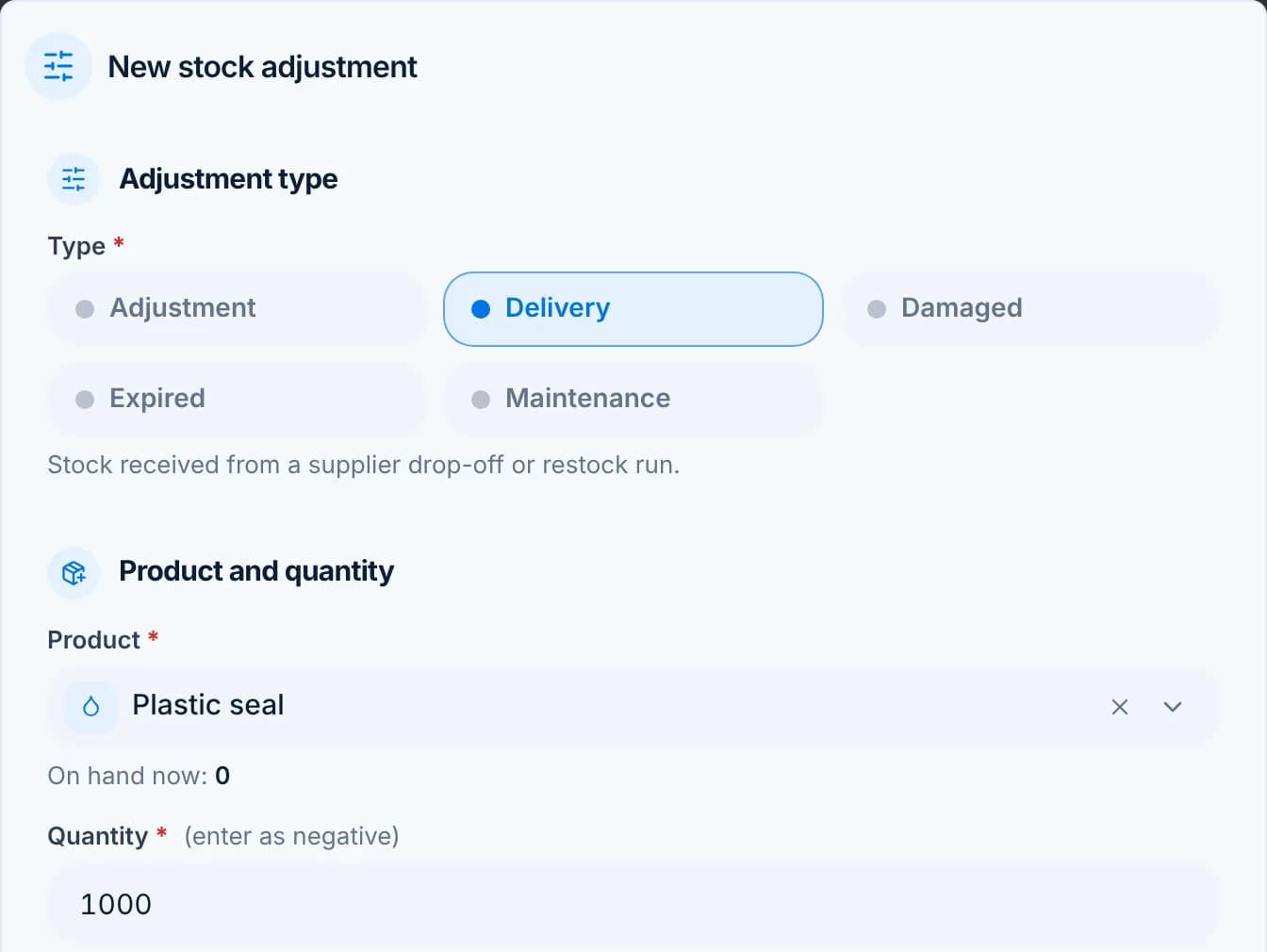
    The stock adjustment dialog with type Delivery, product Plastic seal and quantity 1000.
  4. Step 4: Log the cost

    For a delivery, switch on Log as an expense and enter what you paid. The purchase lands in Expenses with the same date and the Expense vs Revenue report counts it.

    The Expense section of the adjustment dialog with Log as an expense on and an amount.

    Tip: Post adjustment saves both the stock movement and the expense in one go.

  5. Step 5: Check the history

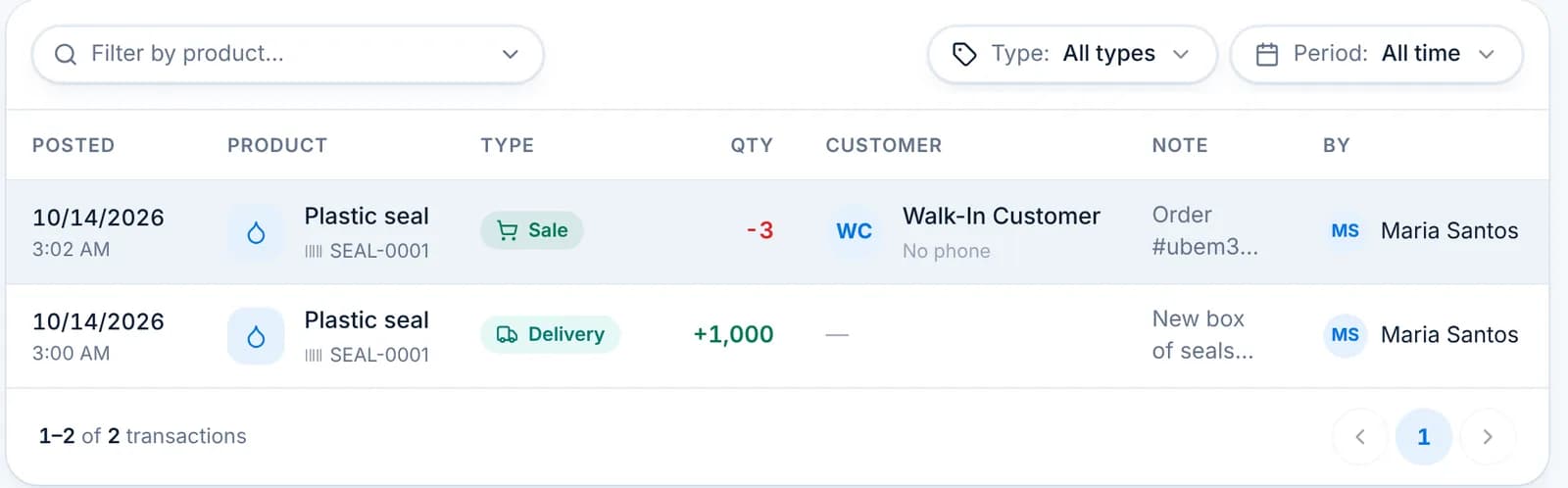
    Inventory › Transaction History lists every movement with type, quantity, customer, note and who posted it. Filter by product, type and period, or export it.

    Transaction History with a Sale and a Delivery for Plastic seal.
  • Adjustments cannot be edited. Post a second adjustment to correct one.
  • Restrict Inventory to trusted roles under Settings › Roles so every correction is intentional.
  • Parts used on a maintenance work order are deducted when the work order is marked complete, with type Maintenance.

Transaction history

Every stock movement from every source, in one list you can filter and export.

Inventory › Transaction History is the audit trail behind Stock Levels. Sales, refunds, adjustments, deliveries, returns, loans and write-offs all land here with who posted them, when, and a note that says why.

  1. Step 1: Read a row

    Each row has the time, product, type, signed quantity, customer, note and the staff member. Red quantities left stock; green quantities came in. The tiles above count movements, sales, manual changes and loans and returns.

    Transaction History rows for Plastic seal: a Refund, two Sales and a Delivery, with notes and the staff member.
  2. Step 2: Filter

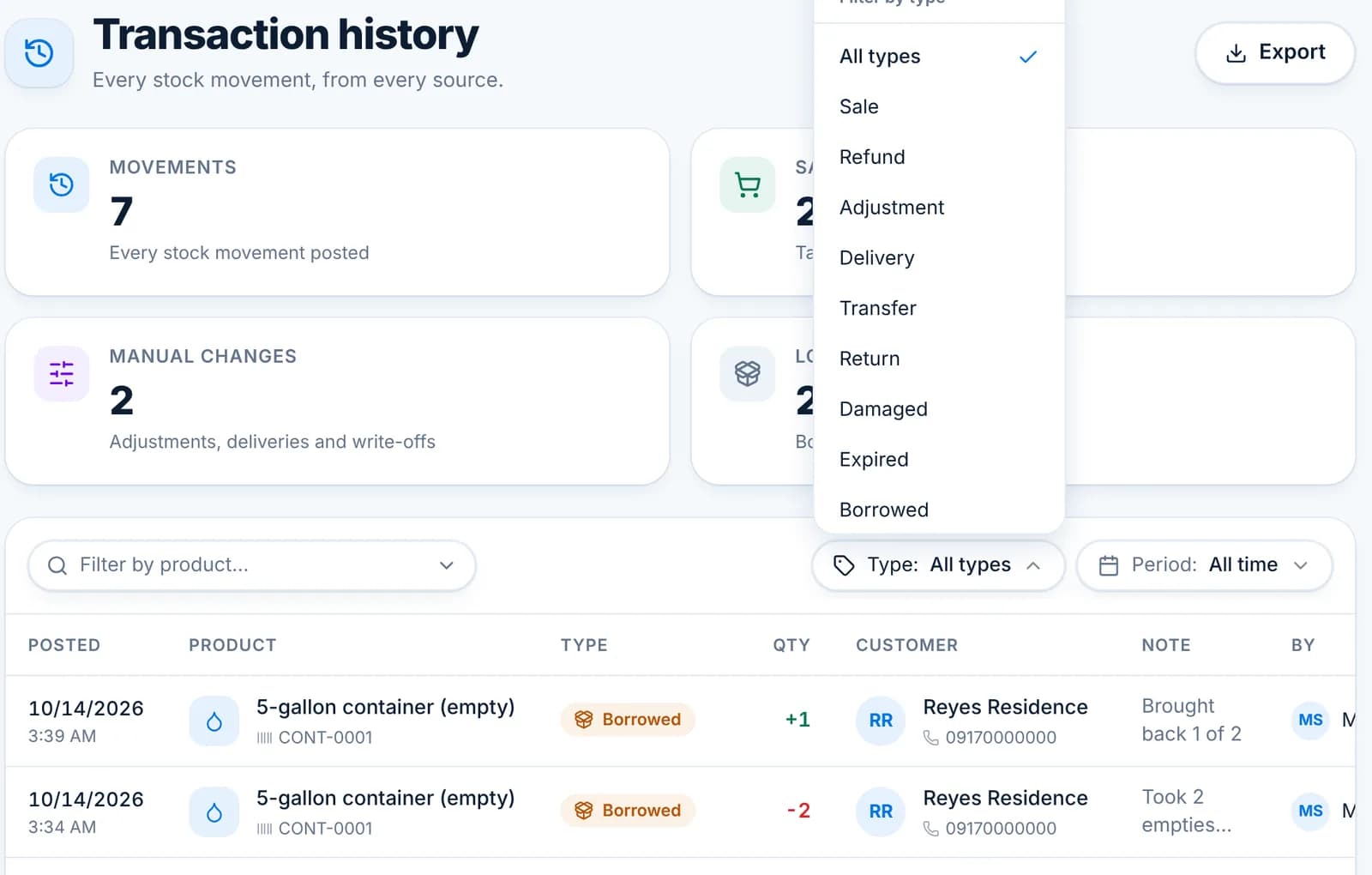
    Filter by product, by type (Sale, Refund, Adjustment, Delivery, Transfer, Return, Damaged, Expired, Borrowed and so on) and by period. The tiles update with the filter, so “Damaged this month” is two clicks.

    The Type filter open on Transaction History listing all movement types.
  3. Step 3: Follow an order

    Sale rows carry the order number in the note, and component lines say which product they belong to. A cancelled order posts matching Refund rows with Reversal in the note, so both halves stay visible.

  4. Step 4: Export

    Export saves the filtered list as Excel, CSV or PDF for your accountant or a stock audit.

  • Rows are never edited or deleted. Correct a mistake with a new adjustment.
  • Orders taken offline post their movements when the device reconnects, stamped with the original time.

Borrowed stock

Track containers that leave with customers and record them when they come back.

Borrowed Stock tracks the containers you lend out and records when they come back. The container is a product with its own stock, so every loan lowers the count and every return raises it, and each customer’s page shows how many they still hold.

  1. Step 1: Make the container a product

    Under Products add the container (for example “5-gallon container (empty)”) with Track stock and Borrowable on. Give it a starting count under Stock Adjustment.

  2. Step 2: Lend containers

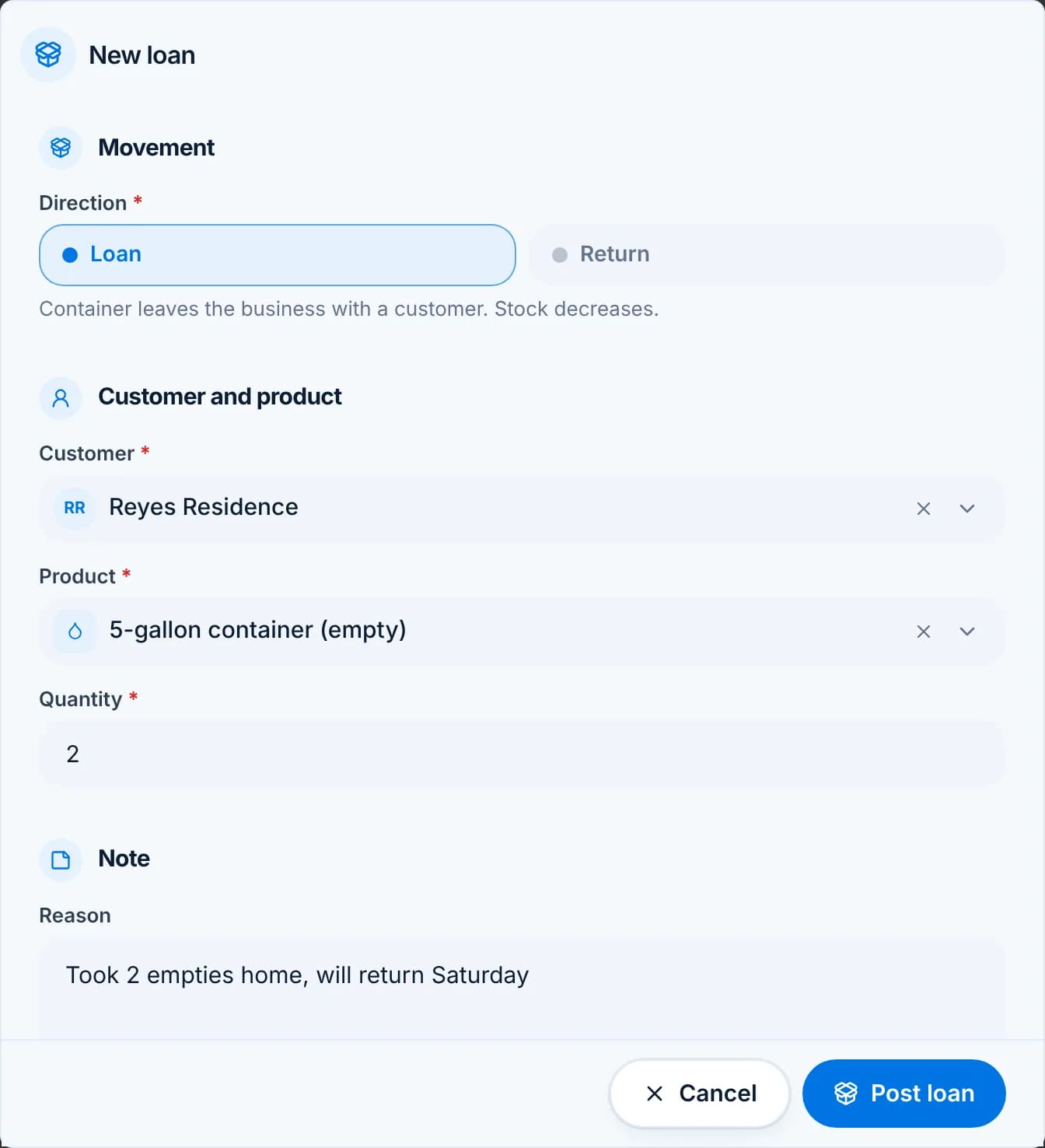
    Go to Inventory › Borrowed Stock and click New loan. Keep Direction on Loan, pick the customer and product, enter the quantity and a note, then Post loan. The container stock goes down and the customer’s Containers out goes up.

    The New loan dialog with Direction Loan, customer Reyes Residence, product 5-gallon container (empty) and quantity 2.
  3. Step 3: See who holds what

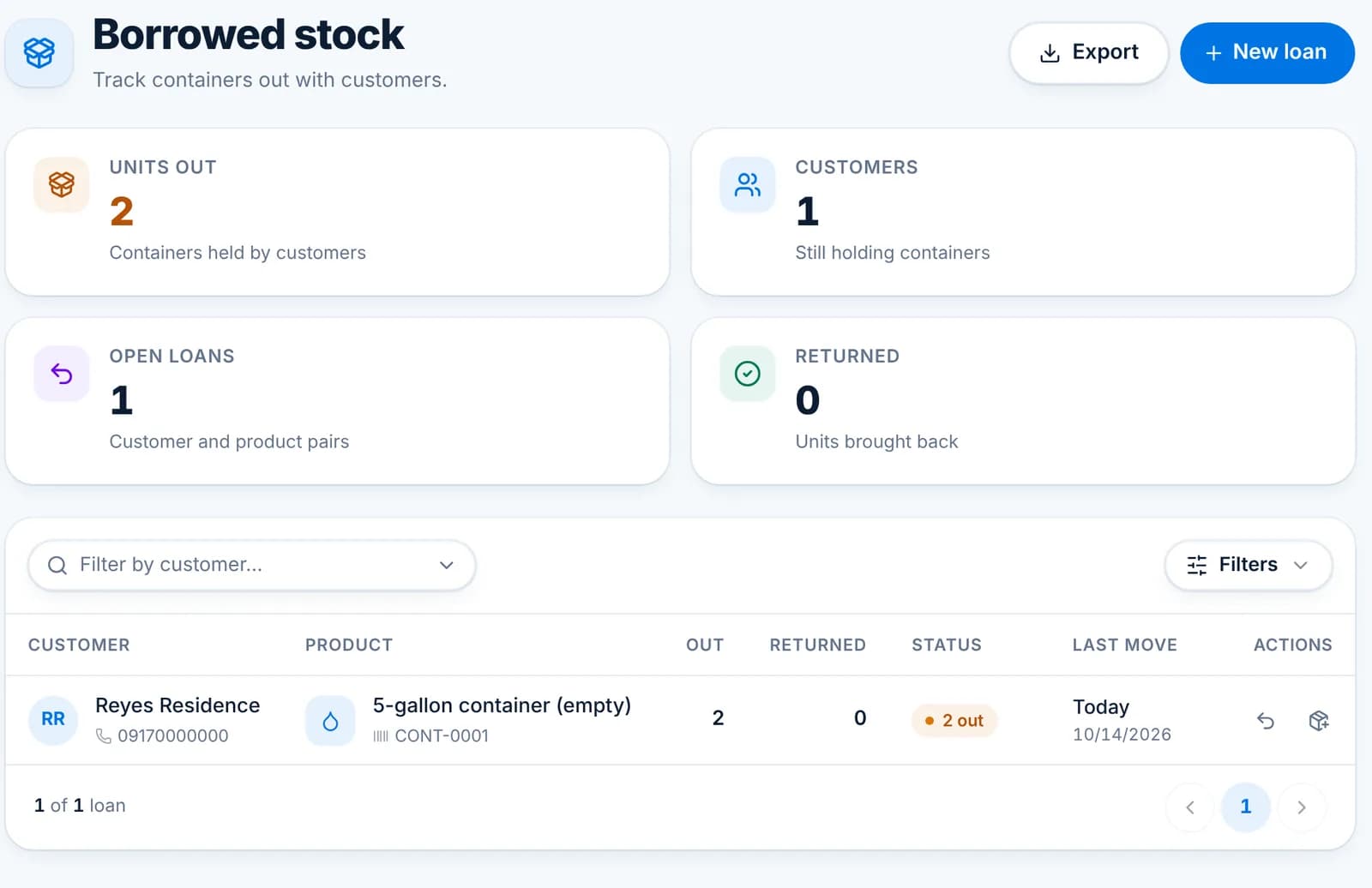
    The Borrowed Stock page lists each customer and product with units out, returned and status. The tiles total units out and customers still holding containers.

    The Borrowed stock page with Reyes Residence holding 2 containers.
  4. Step 4: Record a return

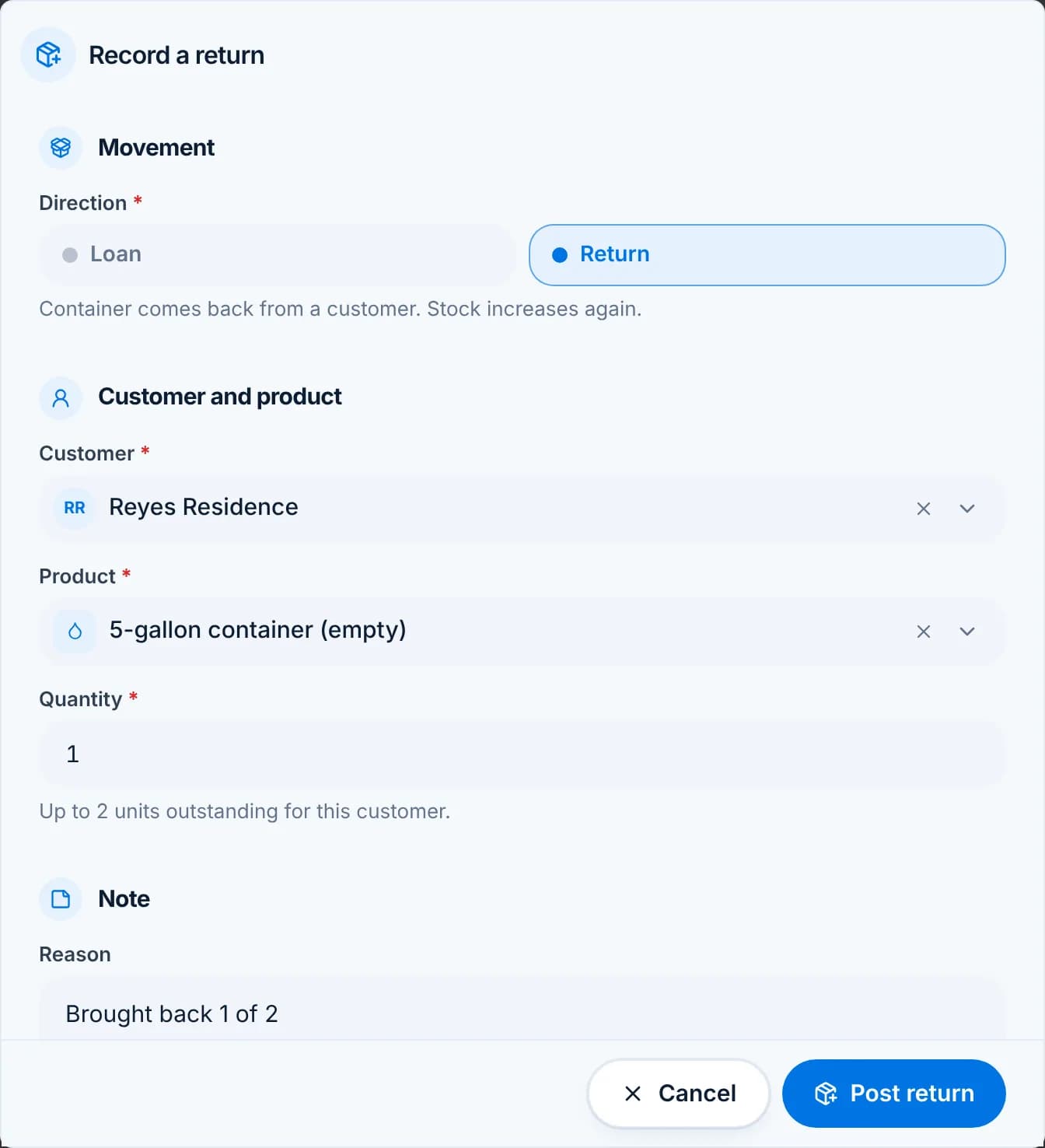
    Click the return arrow on the row, or New loan with Direction set to Return. The dialog tells you how many units are outstanding for that customer. Post return puts the stock back.

    The Record a return dialog with Direction Return, quantity 1 and a note that up to 2 units are outstanding.
  • Loans and returns show in Transaction History as Loan and Return movements.
  • The customer page shows Containers out so counter staff can ask for them back.

Products

Catalog items, pricing, and product components.

Products and pricing

Set up what you sell, with a price for each kind of customer.

Products is your catalog. Each product has a name, category and container type, a price per customer type, and switches that decide where it shows and whether its stock is counted. Products marked For sale appear as tiles on New order.

  1. Step 1: Add the product

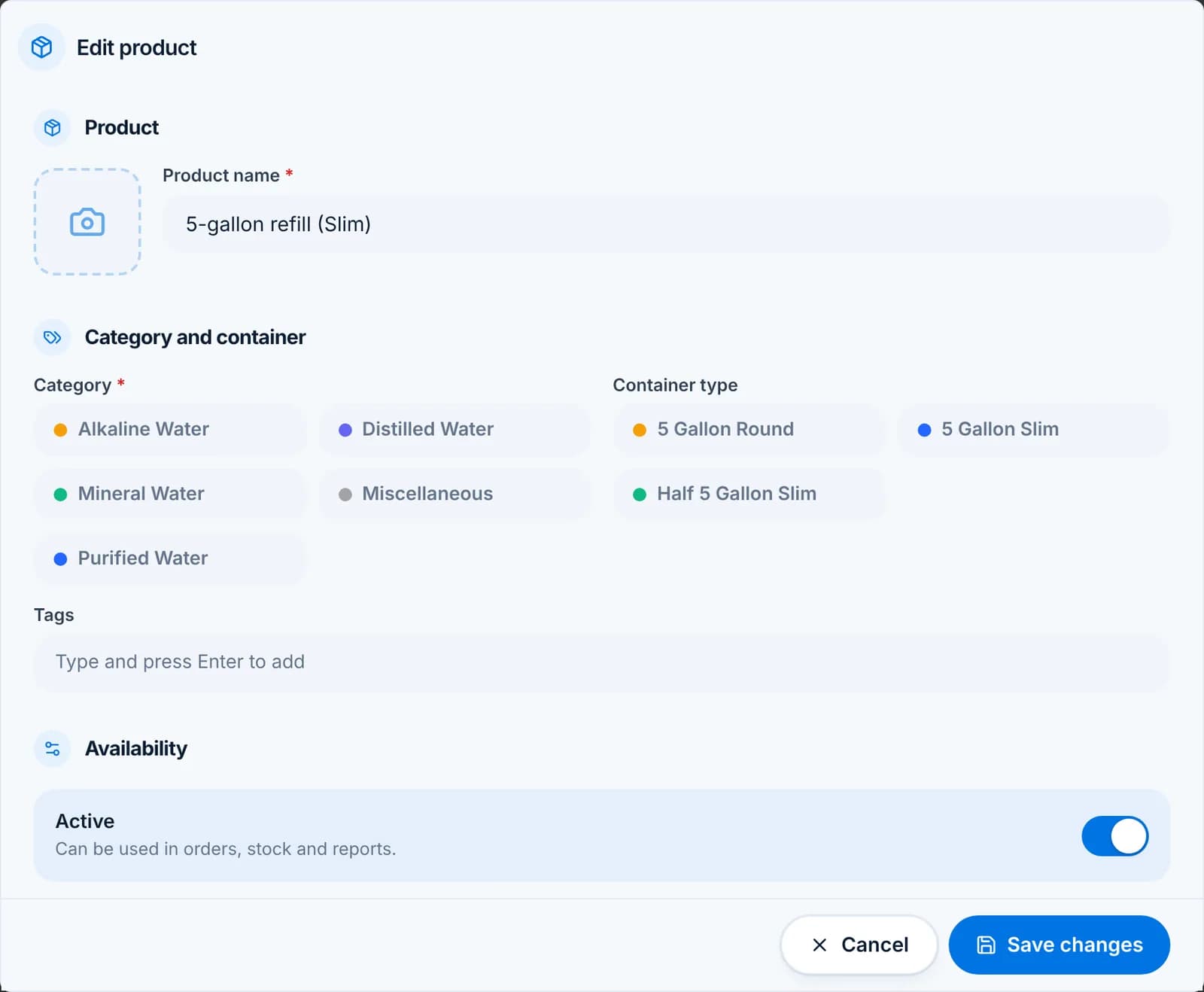
    Go to Products and click Add product. Enter a short name staff will recognise, pick a category and, for containers and refills, the container type. Add a photo if you like; it shows on the tile.

    The Edit product form showing name, category chips, container type chips and tags.
  2. Step 2: Availability

    Active means the product can be used anywhere. For sale puts it on the New order screen. Turn For sale off for parts, seals and anything staff should never ring up.

    The Availability section with Active and For sale on, and the Customer pricing rows beneath.
  3. Step 3: Price per customer type

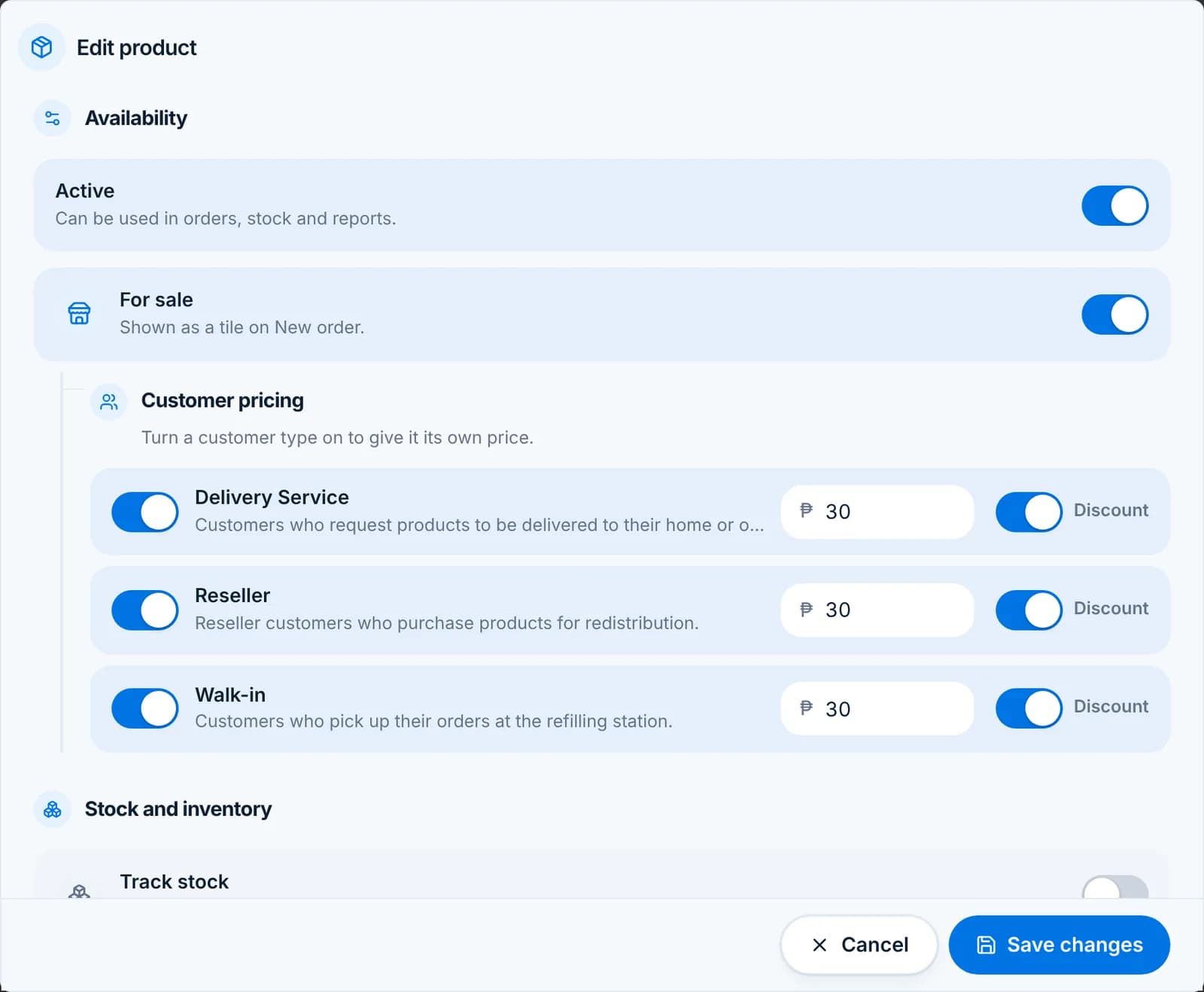
    Under Customer pricing turn on each customer type the product is sold to and enter its price. The Discount switch allows discounts for that type. A type that is off cannot buy the product at all.

    Customer pricing rows for Delivery Service, Reseller and Walk-in, each with a price of ₱30 and a Discount switch.

    Tip: Resellers often get a lower price than walk-ins; set it here once and every order uses it.

  4. Step 4: Stock settings

    Track stock counts the product in Inventory. Borrowable lets it go out on loan. Used as a component links it to other products (see Product components).

    The Stock and inventory section with Track stock, thresholds, Borrowable and Used as a component.
  5. Step 5: The product list

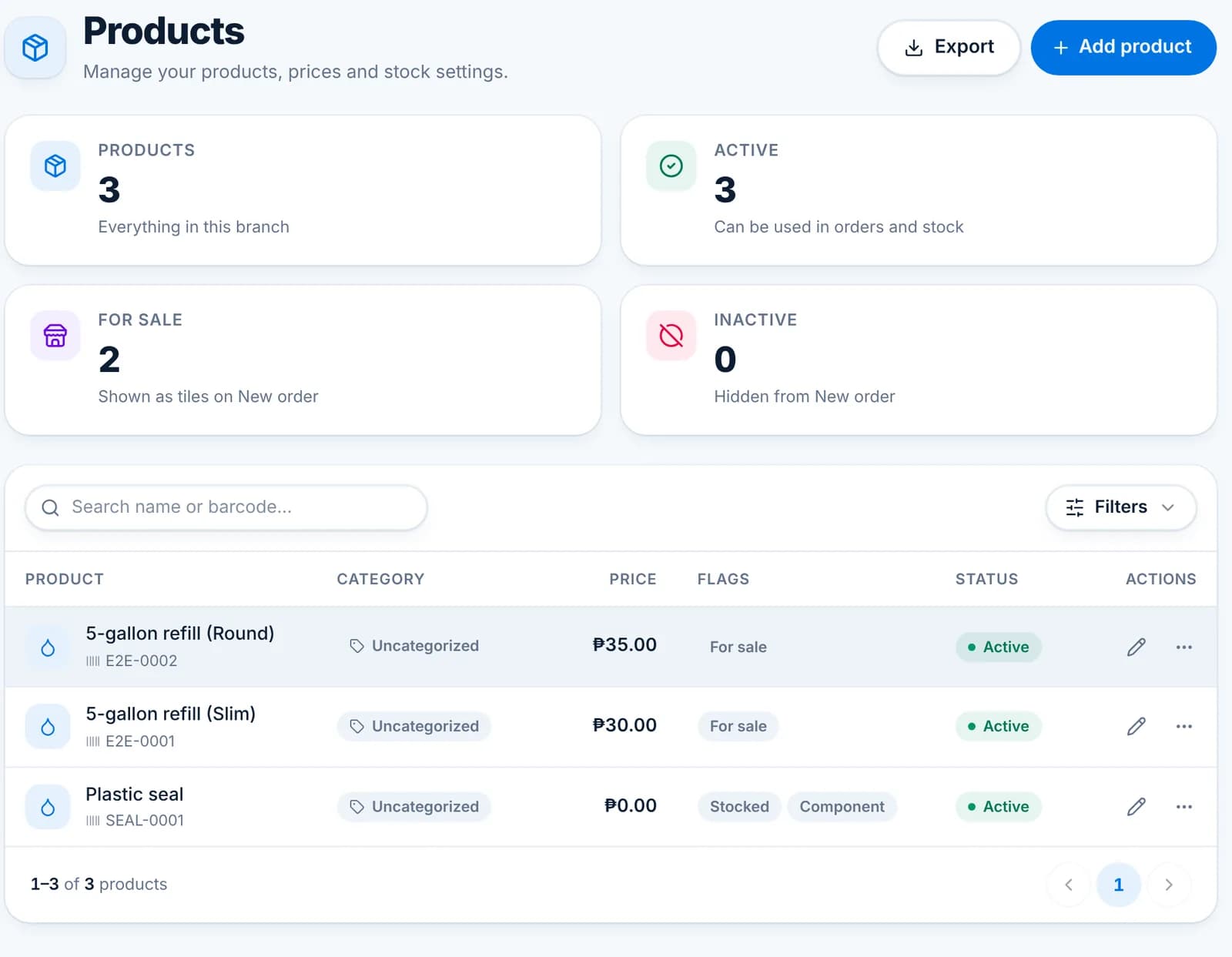
    The Products page shows price, flags (For sale, Stocked, Component) and status. Search by name or barcode. Edit from the pencil; the ··· menu deactivates or deletes.

    The Products page listing two refills for sale and a Plastic seal marked Stocked and Component.
  • Changing a price affects new orders only; existing orders keep the price they were made at.
  • Deactivate instead of deleting when a product has history. Deleted products disappear from reports.
  • Edit prices is its own permission, so cashiers can sell without being able to change prices.

Product components: what they are

Link the small items that go out with every sale (seals, caps, labels, bottles) to the product that uses them, so their stock goes down automatically.

A component is a product that is used up as part of another product. The most common example in a refilling station is the plastic seal or cap that goes on every refill: you sell “5-gallon refill”, but each sale also consumes one seal. Product Components lets you record that relationship once, and WaterWise then deducts the seal from stock every time a refill is sold.

Two kinds of products take part. The main product is what the cashier taps on the New order screen (the refill, a bundle, a new container with water). The component is the item consumed with it. One main product can have several components, and one component (for example the same seal) can be used by several main products.

Components are optional. If you only want to count refills and containers, skip this feature entirely. Set it up when you buy consumables in bulk and want to know how many are left without counting the box.

You will find it under Products › Product Components in the web app, and under Products › Product Components in the phone app. The product form has a switch called “Used as a component” that marks an item as a component; the Product Components page is where you link it to the products that use it. Anyone with the Products permission can set this up.

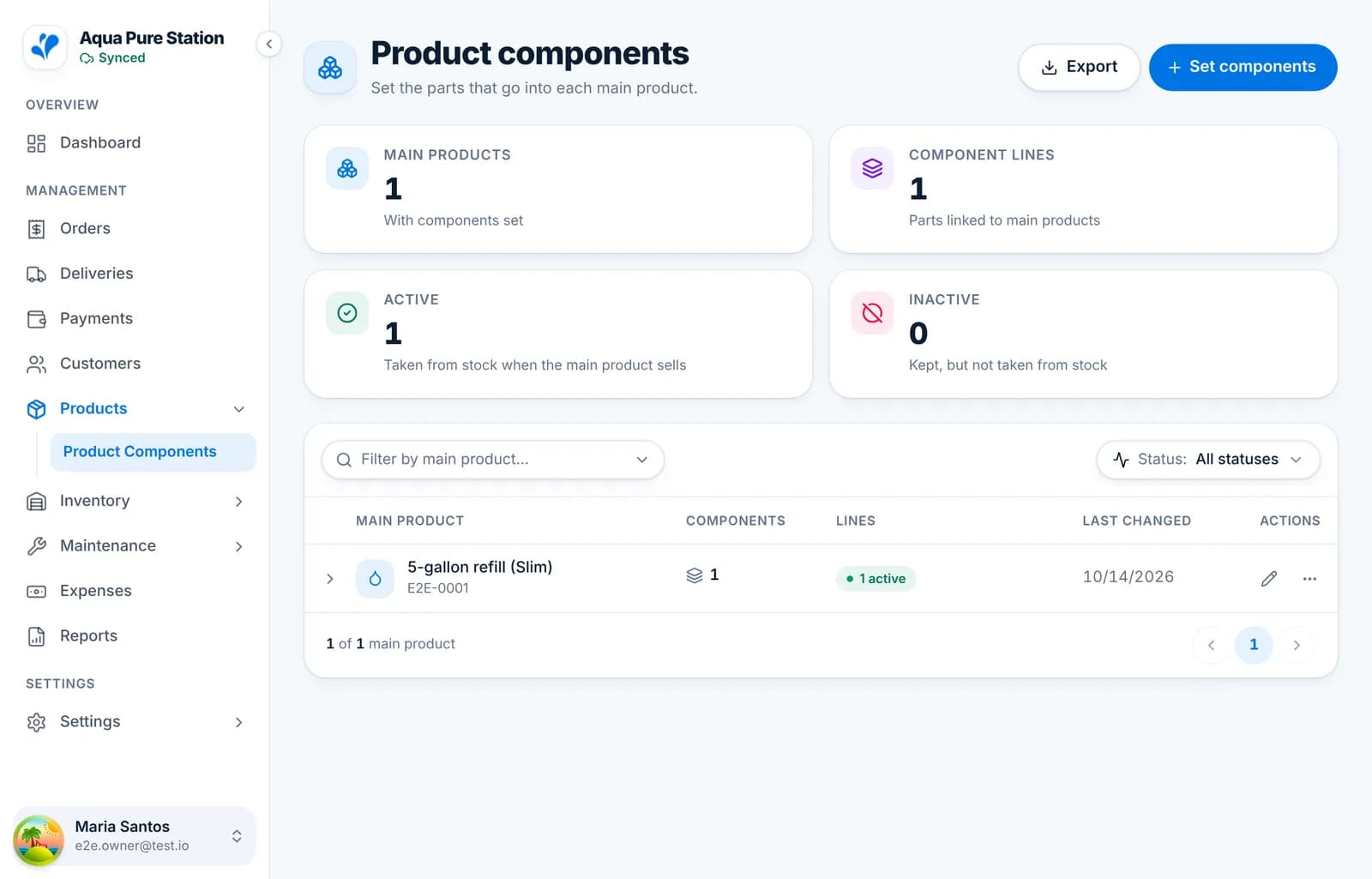
The Product components page listing “5-gallon refill (Slim)” with one active component line.
  • Typical components: plastic seals, caps, tamper bands, labels, sanitizing wipes, carry handles.
  • Typical main products: a refill, a “new container + water” bundle, a promo pack of several refills.
  • Components are deducted at the moment the order is saved, on web and on the phone, and come back if the order is cancelled.

Set up a component, step by step

Five short steps, using plastic seals on refills as the example. About three minutes.

You create the seal as a product, link it to the refill, and enter how many seals you have. After that there is nothing to do day to day: every refill sold takes one seal off the count.

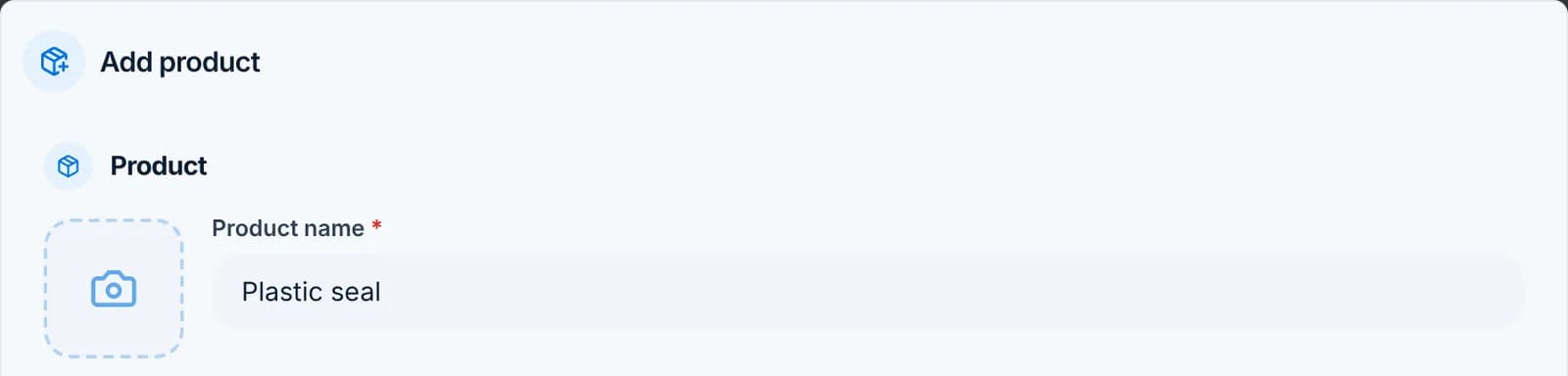
  1. Step 1: Create the seal as a product

    Go to Products and click Add product. Give it a clear name such as “Plastic seal” and pick a category.

    The Add product form with “Plastic seal” typed in the Product name field.
  2. Step 2: Switch on Track stock and Used as a component

    Scroll down to Stock and inventory. Turn on Track stock, then turn on Used as a component. Leave For sale off so the seal does not show up as a tile on New order, and leave the price empty. Click Create product.

    The Stock and inventory section of the product form with Track stock and Used as a component switched on.

    Tip: Turning on Used as a component switches Track stock on by itself if you forgot it.

  3. Step 3: Link the seal to the refill

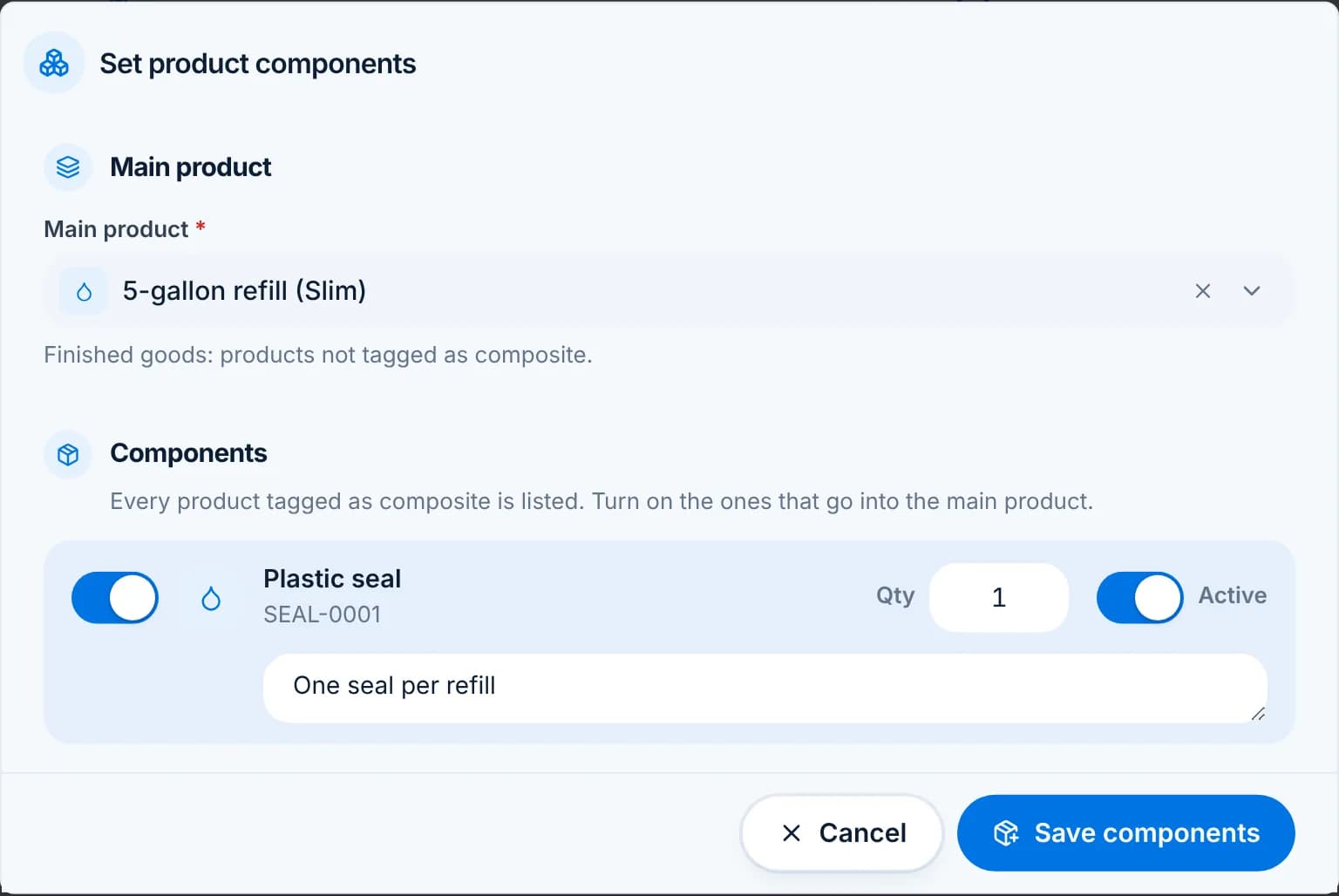
    Go to Products › Product Components and click Set components. Pick the main product (for example “5-gallon refill”). Every product marked Used as a component is listed; switch on Plastic seal, set Qty to the number used per refill (usually 1), and click Save components.

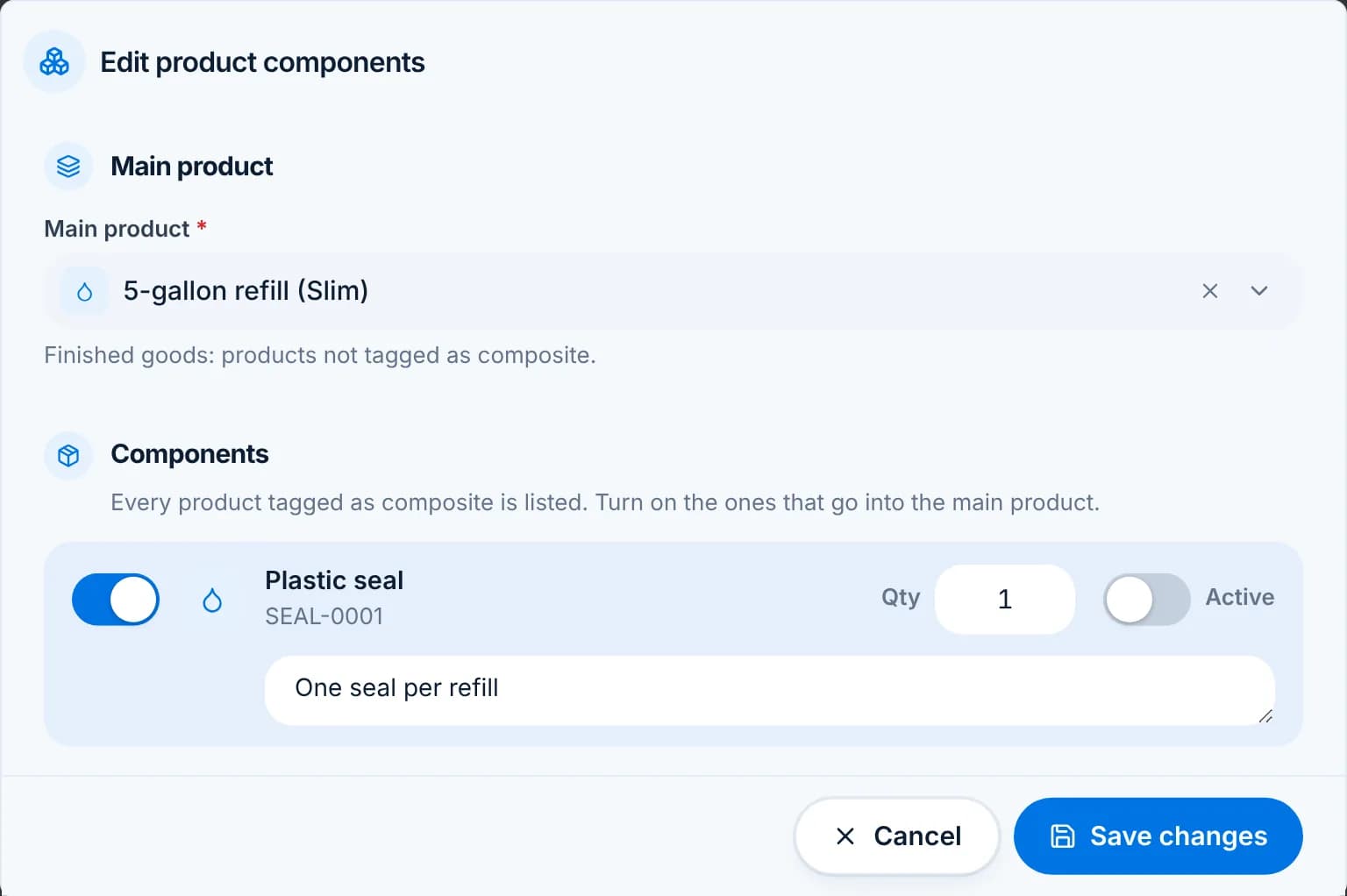
    The Set product components dialog with “5-gallon refill (Slim)” as the main product and Plastic seal switched on with quantity 1.

    Tip: Repeat this for every main product that uses the same seal. Use decimals when one component covers several units, for example 0.5.

  4. Step 4: Enter how many seals you have

    Go to Inventory › Stock Adjustment and click New adjustment. Choose Delivery, pick Plastic seal, type the quantity (for example a box of 1,000) and a short reason.

    The New stock adjustment dialog with type Delivery, product Plastic seal and quantity 1000.
  5. Step 5: Optional: log the box as an expense

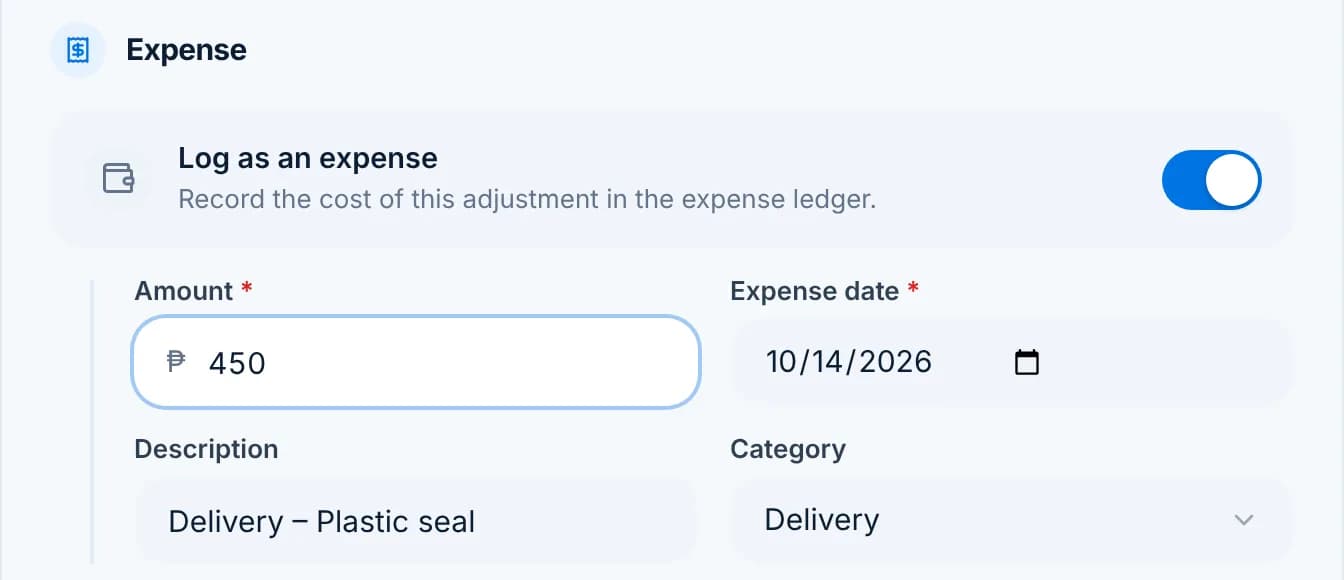
    In the same dialog, switch on Log as an expense and enter what you paid for the box. Click Post adjustment. The seal count is now 1,000 and the purchase appears under Expenses, so your Expense vs Revenue (P&L Summary) report already includes it.

    The Expense section of the stock adjustment dialog with Log as an expense on and an amount of 450 pesos.

    Tip: Do steps 4 and 5 again each time you buy a new box.

  • Done. From now on each refill sold takes one seal off the count, and a cancelled order puts it back.
  • To pause a link without deleting it, switch it to Inactive on the Product Components page. Inactive links do not deduct stock.
  • Check the count any time under Inventory › Stock Levels, or see each deduction under Transaction History.

How component stock is deducted

Follow one sale of three refills from the cart to the stock count, and what happens when it is cancelled.

Once a seal is linked to a refill, you never touch it again at the counter. The cashier sells refills as usual and WaterWise moves the seal stock in the background. Here is the whole journey for a sale of 3 refills with one seal each.
  1. Step 1: The cashier sells 3 refills

    Nothing changes on the New order screen. The cashier picks the customer, taps the refill three times and creates the order. Seals never appear in the cart.

    The New order screen with 3 × 5-gallon refill (Slim) in the cart and a Create order button for ₱90.
  2. Step 2: Stock moves the moment the order is saved

    WaterWise posts one movement for each line. The refill itself only moves if it has Track stock on (most refills do not). Each active component moves by quantity sold × quantity per unit, so 3 refills take 3 seals. Transaction History shows the seal line as a Sale with the order number in the note.

    Transaction History with a Sale of −3 Plastic seal tagged with the order number, above the +1,000 Delivery.

    Tip: The note on a component line reads “Order #… · component of 5-gallon refill”, so you can tell a seal used by a sale from one you removed by hand.

  3. Step 3: Stock Levels shows the new count

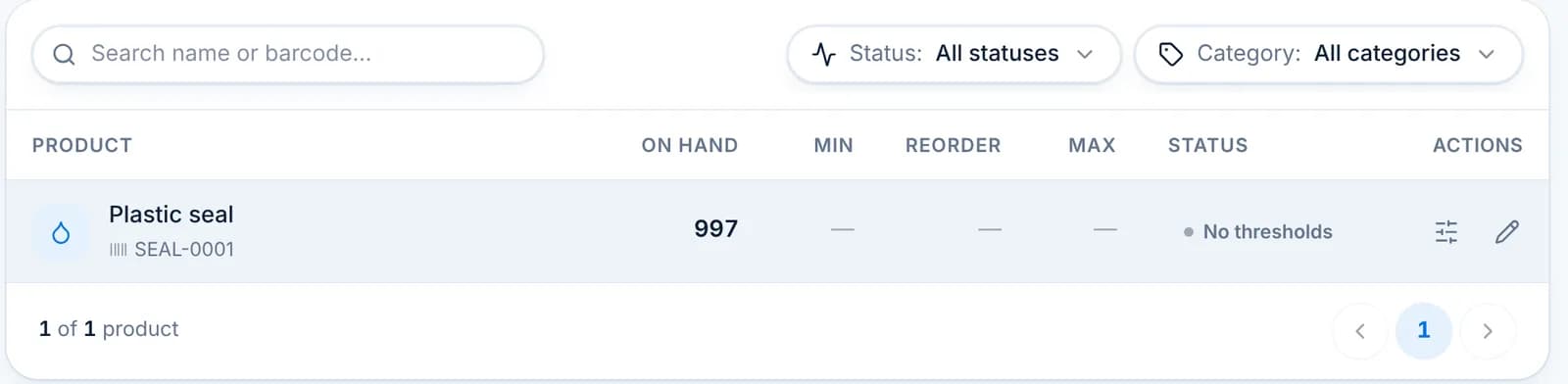
    Inventory › Stock Levels now shows 997 seals. If you set a minimum or reorder point on the seal product, the status column turns to Needs action or Reorder soon when you run low.

    Stock levels showing Plastic seal with 997 on hand.
  4. Step 4: Cancelling the order puts the seals back

    If an order is cancelled or voided, WaterWise finds every movement that order created and posts a matching Refund. Both lines stay in the history, so the record never rewrites itself. The count goes back up to where it was.

    Transaction History showing a Refund of +3 Plastic seal labelled Reversal · Cancel above the two Sale lines.
  5. Step 5: Running low warns, but never blocks

    If an order would take a component below zero, the cart shows a warning with the item and the count it would reach. The sale still goes through, because the customer is already at the counter. Treat the negative number as a reminder to recount and add stock under Stock Adjustment.
    A “Will go negative” warning in the cart: Plastic seal 2 → −1.
  • Deduction per order line = quantity sold × component quantity per unit.
  • Only Active links deduct stock, and only components with Track stock on.
  • Changing a link (quantity, Active) applies to future orders only. Past movements are not recalculated.
  • Orders taken on the phone while offline post their movements when the phone reconnects.

Costing components: seals, caps and labels

Give each product a cost, let components add theirs, and read the profit per product in Sales by Product.

Every product has a Cost per unit: what one unit costs you before components (water, power, labour). A component such as a seal has its own cost. When a seal is linked to a refill, WaterWise adds the seal’s cost to the refill automatically, so the Sales by Product report shows the real cost and profit of each refill sold. Nothing is counted twice: the refill’s own cost never includes the seal.

  1. Step 1: Set the component’s cost

    Open the seal under Products. In the Cost section enter what one seal costs you, for example ₱0.45 if a box of 1,000 costs ₱450. Save.

    The Cost section of the product form with Cost per unit and a With components figure beside it.
  2. Step 2: Set the refill’s own cost

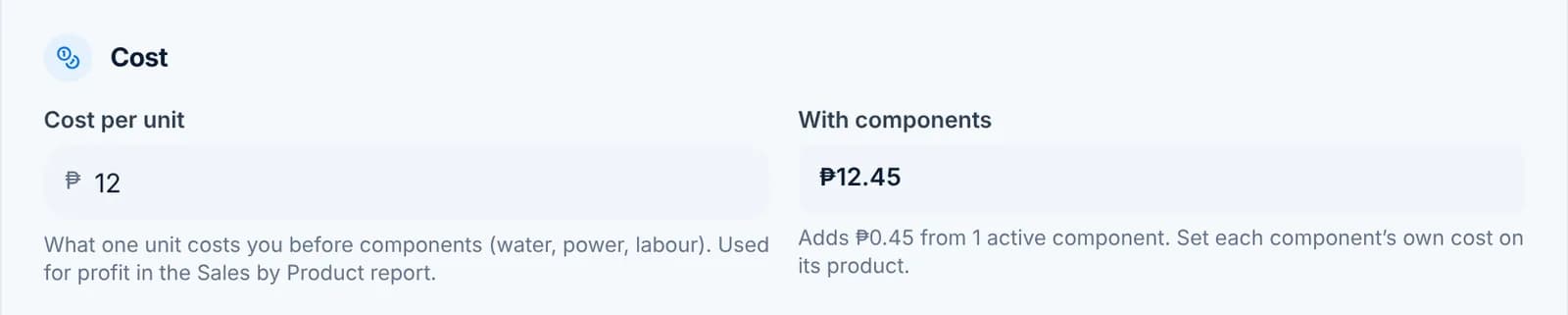
    Open the refill. Enter its Cost per unit without the seal: water, power and labour per gallon. The With components box beside it shows the total including every active component, and says how much the components add.

    The refill’s Cost per unit of ₱12 and With components ₱12.45, adding ₱0.45 from 1 active component.

    Tip: Leave Cost per unit empty if you don’t know it yet. The report shows a dash for that product instead of a wrong profit.

  3. Step 3: Check the link

    Products › Product Components › edit the refill. Under the component rows a line says how much the enabled components add to one unit. If a component shows ₱0, set its cost on its own product.

    The Edit product components dialog with a note: these components add ₱0.45 to the cost of one unit.
  4. Step 4: Read profit in Sales by Product

    Reports › Sales by Product. Once any product has a cost, the report gains Cost and Profit tiles and columns. Cost is the effective unit cost (own cost plus components) times units sold; Profit is revenue minus cost. Products without a cost show a dash.

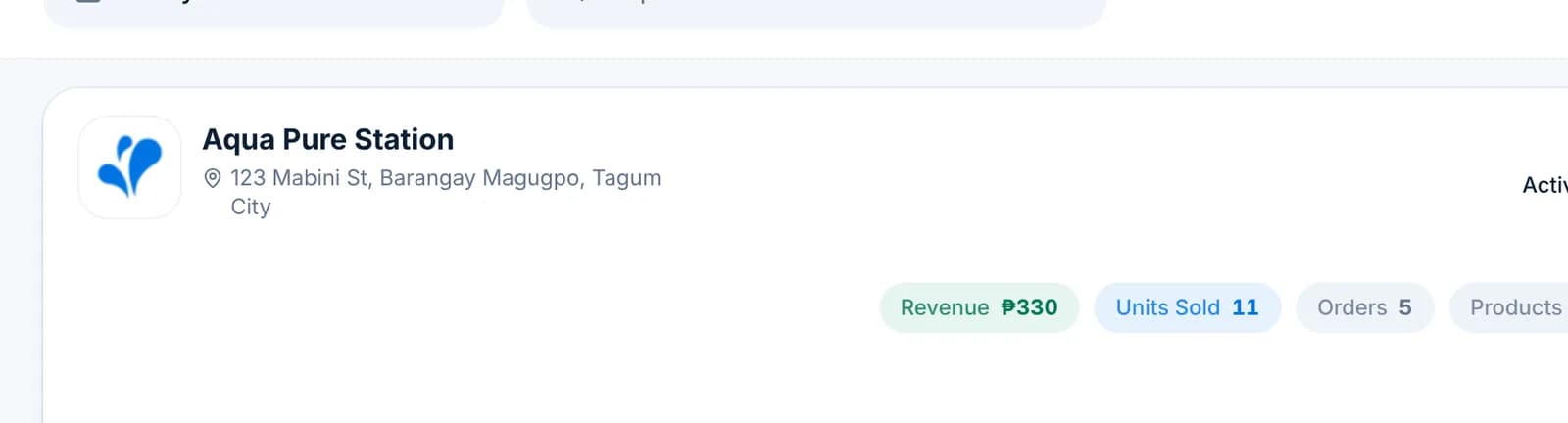
    Sales by Product with Cost ₱137 and Profit ₱193 tiles and a row showing cost ₱136.95 and profit ₱193.05 for 11 refills.
  5. Step 5: Still log the purchase as an expense

    Product cost is for profit per product. The Expense vs Revenue (P&L Summary) report works from Expenses, so keep recording each box of seals there: switch on Log as an expense when you add the stock, or add it under Expenses.

    The Expense section of the stock adjustment dialog with Log as an expense on and an amount.
  • Changing a cost affects reports from now on; past orders are not recalculated.
  • Inactive component links do not add cost, the same as they do not deduct stock.
  • The phone app shows the same Cost field and the same Cost and Profit columns.

Troubleshooting: component stock is not moving

Three places to look when a seal or cap count stays the same after a sale.

Nothing here changes past orders. Once the setting is right, the next sale deducts correctly, and you can fix today’s count with one stock adjustment. Check the three places below in order; the first two cover almost every case.

  1. Step 1: Is the link Active?

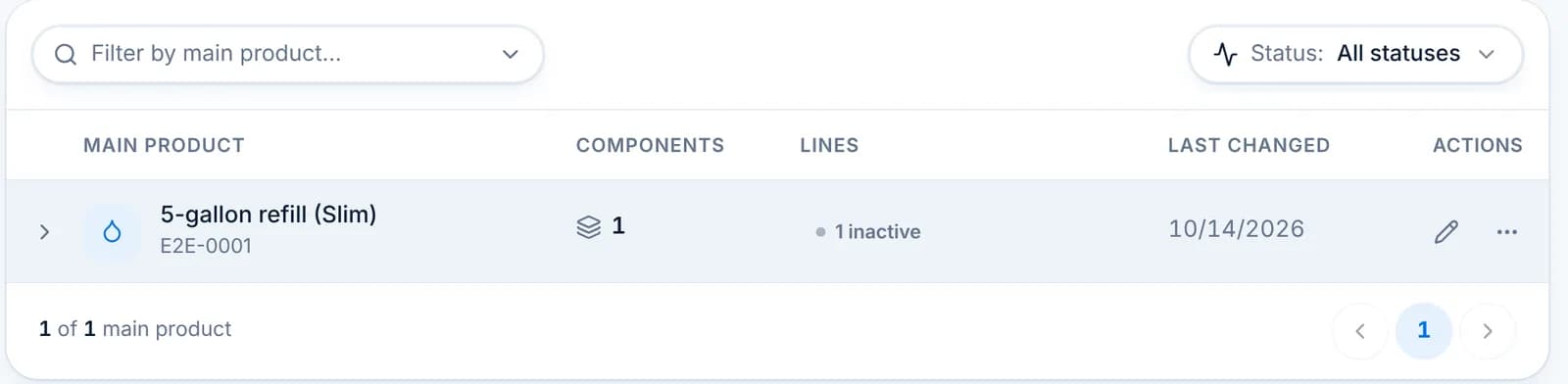
    Open Products › Product Components. Each main product shows its component lines and whether they are active. A grey “1 inactive” pill, or a 1 in the Inactive tile at the top, means the link is paused and will not deduct stock.

    The Product components list showing 5-gallon refill (Slim) with 1 component and a grey “1 inactive” pill.
  2. Step 2: Turn it back on and save

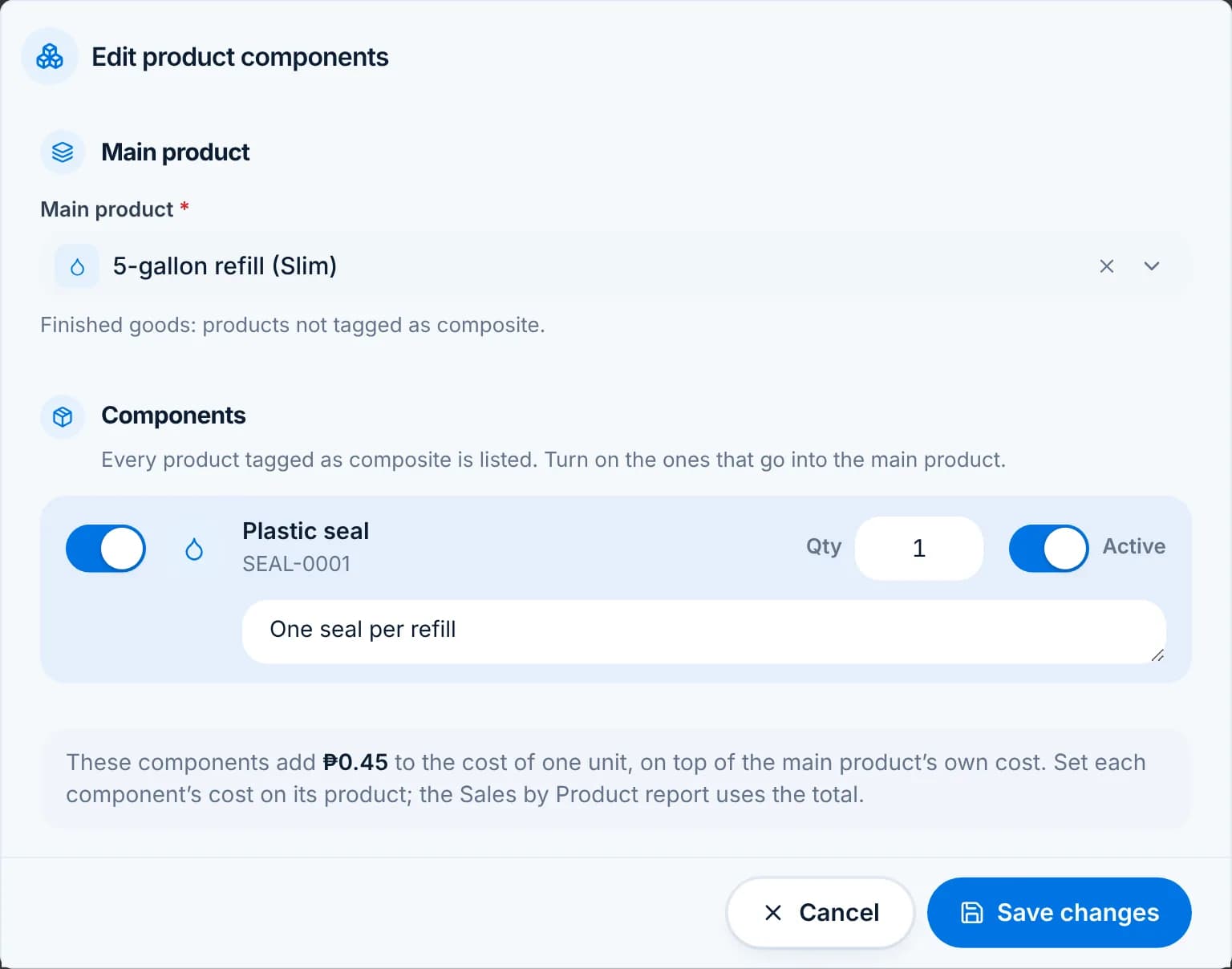
    Click the pencil on the row. In the dialog, make sure the component’s switch on the left is on, the Qty is more than zero, and the Active switch on the right is on. Click Save changes.

    The Edit product components dialog with Plastic seal switched on, Qty 1, and the Active switch off.

    Tip: The link must be on the exact product that was sold. “5-gallon refill (Slim)” and “5-gallon refill (Round)” each need their own link.

  3. Step 3: Does the component track stock?

    Open the component itself under Products and check that Track stock is on. A component with Track stock off is skipped when orders are saved. Turning Used as a component on switches Track stock on by itself, but Track stock can be switched off again later.

    The Stock and inventory section of the product form with Track stock and Used as a component switched on.
  • Order taken on the phone while offline? The movement is sent when the phone reconnects. Check the sync indicator in the phone app first.
  • The movement is there but the number looks wrong: check the quantity per unit on the link and the quantity sold on the order.
  • Products and components belong to one branch. A link made in another branch does not apply here.
  • Still stuck? Email [email protected] with the product names and the order number.

Reports & maintenance

Summaries, readings, and equipment upkeep.

Sales and operational reports

Fourteen ready-made reports: pick the filters, generate, then print or download.

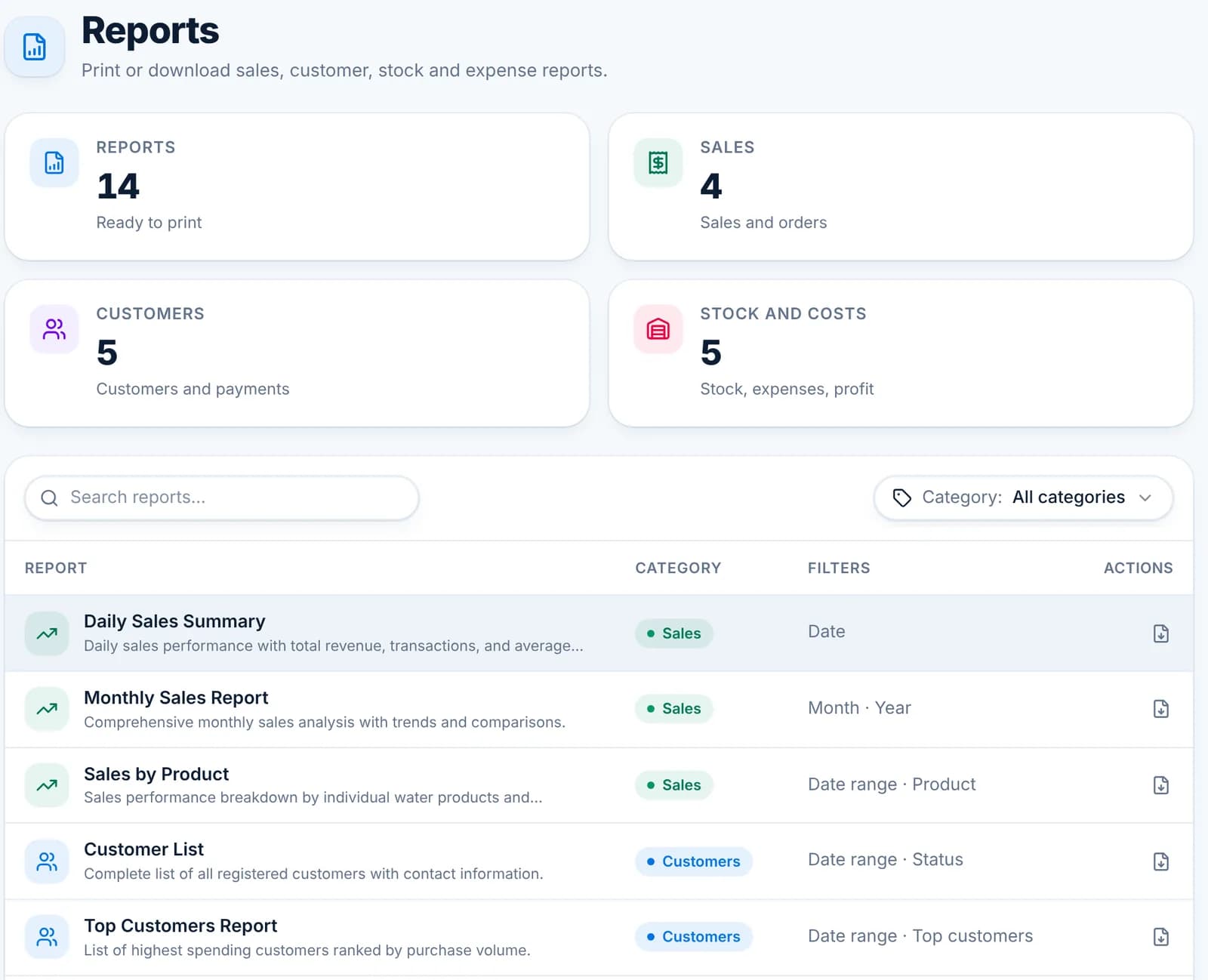
Reports are grouped into Sales, Customers and Stock and costs. Every report works the same way: open it, choose a date or range and any other filters, click Generate report, then print or download the PDF.

  1. Step 1: Pick a report

    Go to Reports. Search by name or filter by category. Each row shows which filters the report takes.

    The Reports page with 14 reports grouped by Sales, Customers and Stock and costs.
  2. Step 2: Set the filters

    Choose the date, month or date range, and where offered a customer, product or status. Then click Generate report.

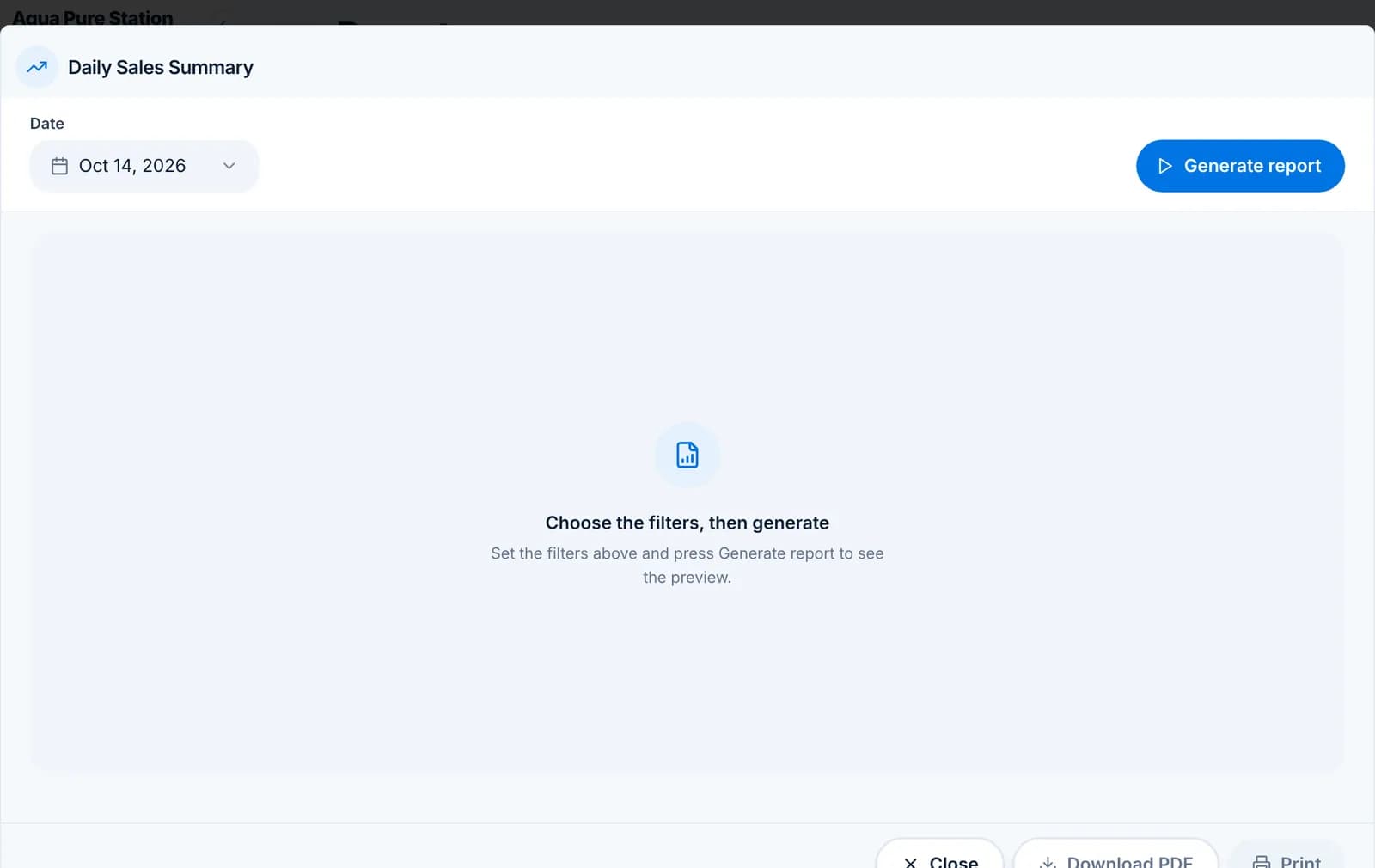
    The Daily Sales Summary dialog with a Date filter set to Oct 14, 2026 and a Generate report button.
  3. Step 3: Read the preview

    The preview shows the report with your branch header. Totals sit at the top, details below. Change a filter and generate again to compare.

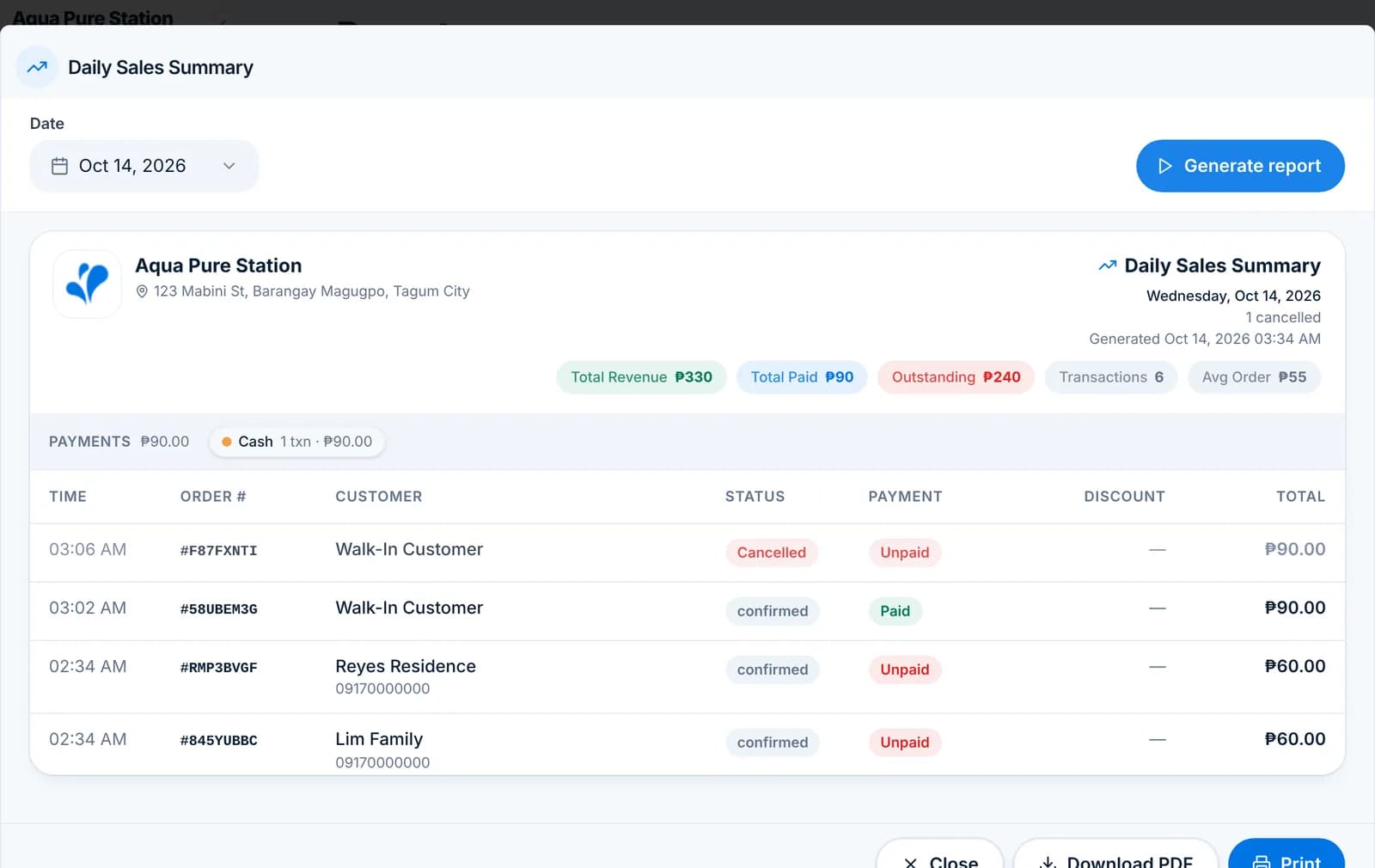
    The Daily Sales Summary preview with total revenue, total paid, outstanding and a list of the day’s orders.
  4. Step 4: Print or download

    Download PDF saves the report; Print sends it to your printer. Both use the same layout as the preview.

  5. Step 5: Expenses feed the P&L

    Record spending under Expenses with a category. The Expense Summary, Monthly Expense Trend and Expense vs Revenue (P&L Summary) reports use those entries.

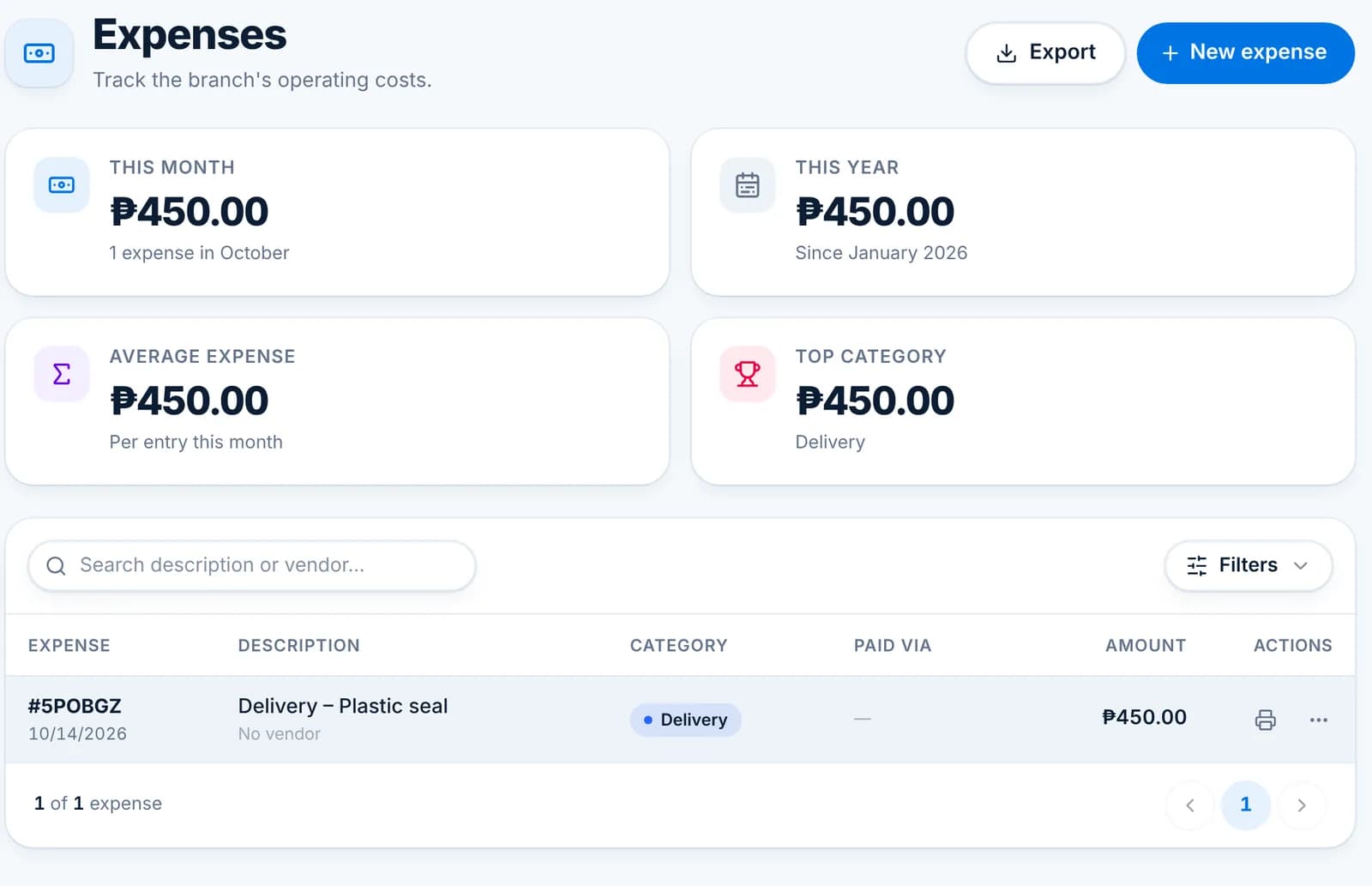
    The Expenses page with this month, this year, average expense and top category tiles and one expense row.
  • Sales: Daily Sales Summary, Monthly Sales Report, Sales by Product, Order Summary Report.
  • Customers: Customer List, Top Customers, Customer Purchase History, Customers with Outstanding Balance, Payments by Customer.
  • Stock and costs: Current Stock Levels, Expense Summary, Expense Detail Ledger, Monthly Expense Trend, Expense vs Revenue (P&L Summary).
  • Z-reading and monthly reports are part of Pro.

Expenses

Record what the branch spends so the expense reports and the P&L are complete.

Expenses is the ledger for everything you pay out: electricity, rent, supplies, salaries, consumables. Each entry has an amount, a date, a category, a payment method and a description, and can carry a vendor, a reference number and a photo of the receipt.

  1. Step 1: Add an expense

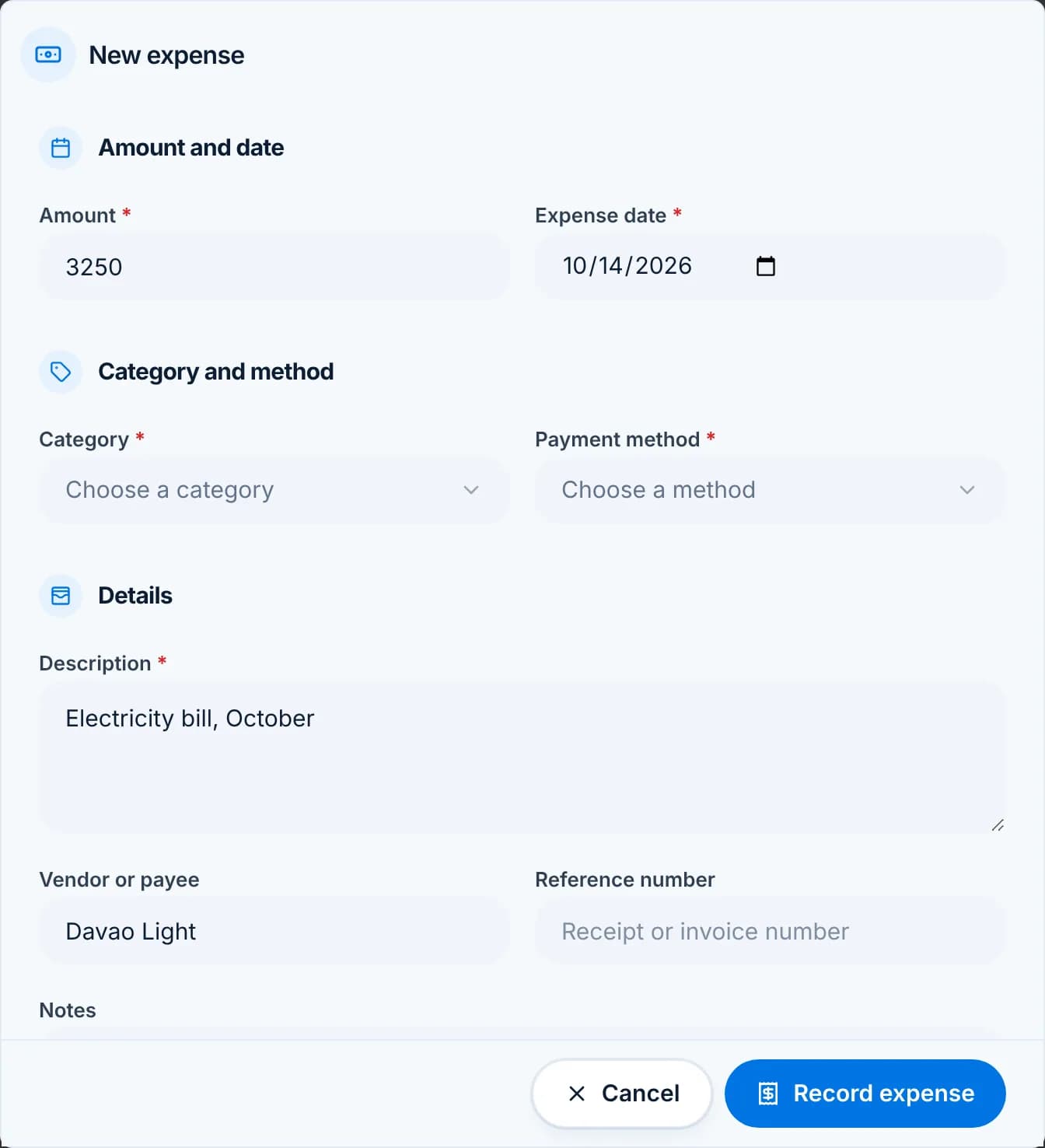
    Expenses › New expense. Enter the amount and date, pick a category and payment method, and describe it. Vendor or payee and a reference number are optional but help at tax time. Attach a photo of the receipt if you have one.

    The New expense dialog with amount 3250, date, category and payment method pickers, description and vendor fields.
  2. Step 2: Categories

    Categories come from Settings › Templates › Expense categories. The Top category tile and the Expense Summary report group by them, so keep the list short and consistent.

  3. Step 3: From a stock delivery

    When you add stock under Stock Adjustment, switch on Log as an expense to record the purchase at the same time. It appears here with the product name in the description.

    The Expense section of the stock adjustment dialog with Log as an expense on.
  4. Step 4: Review and export

    The Expenses page totals this month and this year and lists every entry with its category and method. Search by description or vendor, filter by period, print one, or Export the list.

    The Expenses page with This month, This year, Average expense and Top category tiles and one expense row.
  • Reports: Expense Summary, Expense Detail Ledger, Monthly Expense Trend and Expense vs Revenue (P&L Summary).
  • Expenses need the Expenses module in the user’s role; cashiers usually do not have it.

Export any list to Excel, CSV or PDF

Every table in the app has an Export button that respects your current filters.

Orders, payments, customers, products, stock levels, transaction history, borrowed stock, expenses, maintenance and the team list can all be exported. The export contains exactly the rows your search and filters show.

  1. Step 1: Filter first, then export

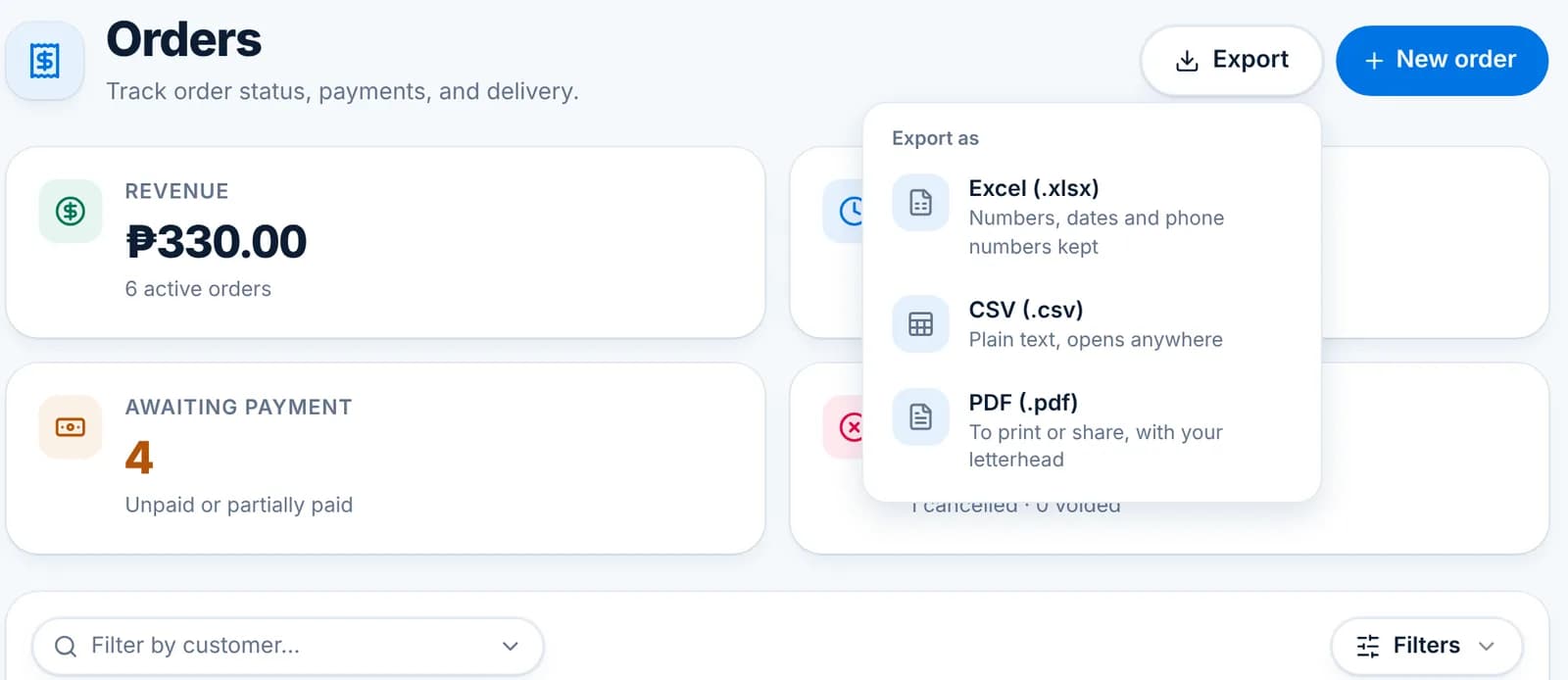
    Set the search box, filters and period so the table shows what you need. Then click Export at the top right and pick a format.

    The Export menu on the Orders page offering Excel (.xlsx), CSV (.csv) and PDF (.pdf).
  2. Step 2: Pick a format

    Excel keeps numbers, dates and phone numbers as proper values for sorting and formulas. CSV is plain text that opens anywhere. PDF is for printing or sharing and carries your letterhead.

  • Exports need the Reports export permission, which the Owner and Manager roles have.
  • Large exports are built on your device; keep the tab open until the download starts.

Maintenance: equipment, schedules and work orders (Pro)

Keep filters, membranes and machines serviced on time, with parts taken from stock.

Maintenance has four pages. Equipment is the list of machines. Schedules are repeating plans that create work orders for you. Work Orders are the jobs to do. History keeps what was done and which parts it used.

  1. Step 1: Add your equipment

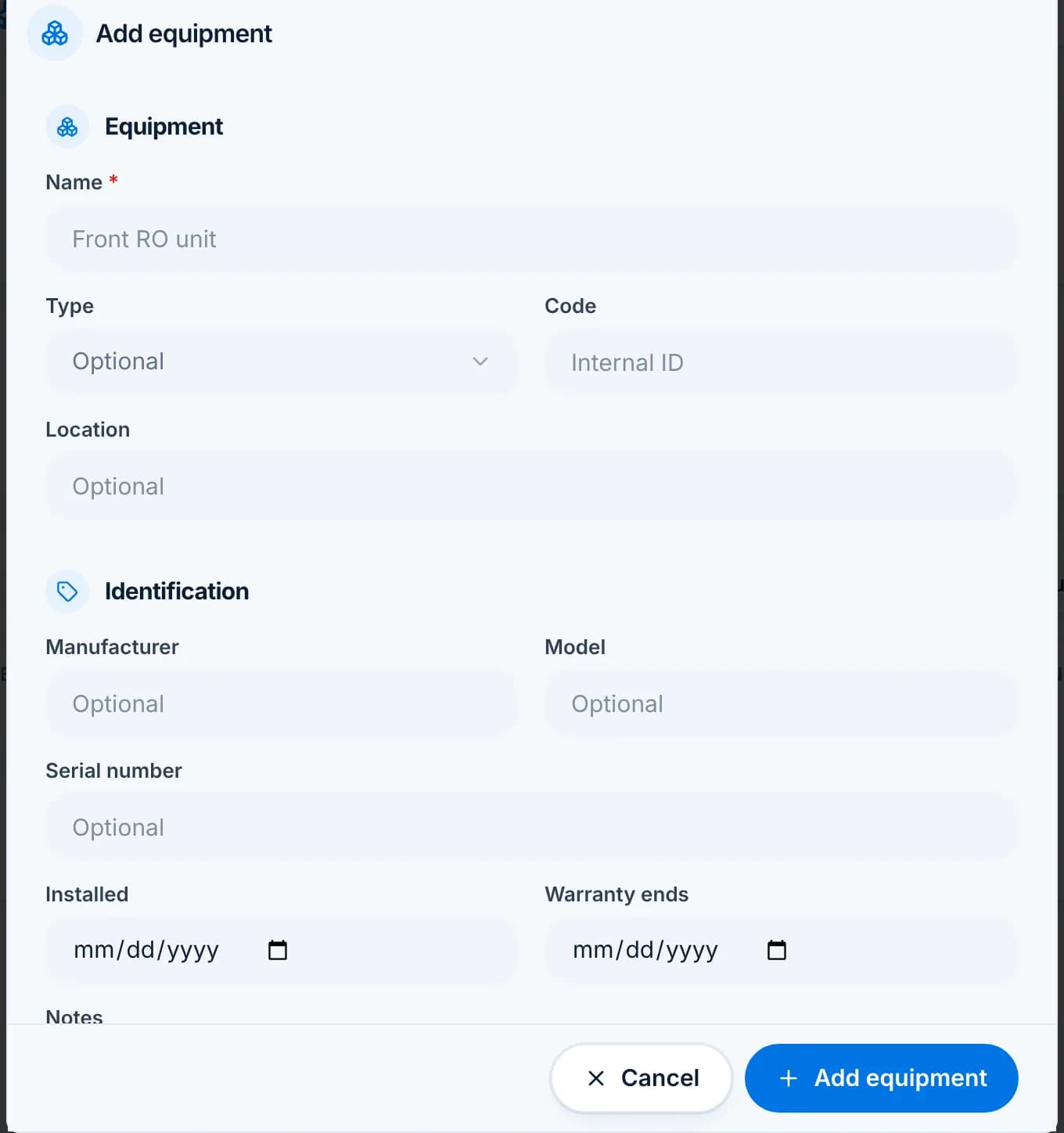
    Maintenance › Equipment › Add equipment. A name is enough to start; type, code, location, manufacturer, model, serial, install date and warranty end are optional and useful later.

    The Add equipment dialog with name, type, code, location, manufacturer, model, serial, installed and warranty fields.
  2. Step 2: Set a schedule

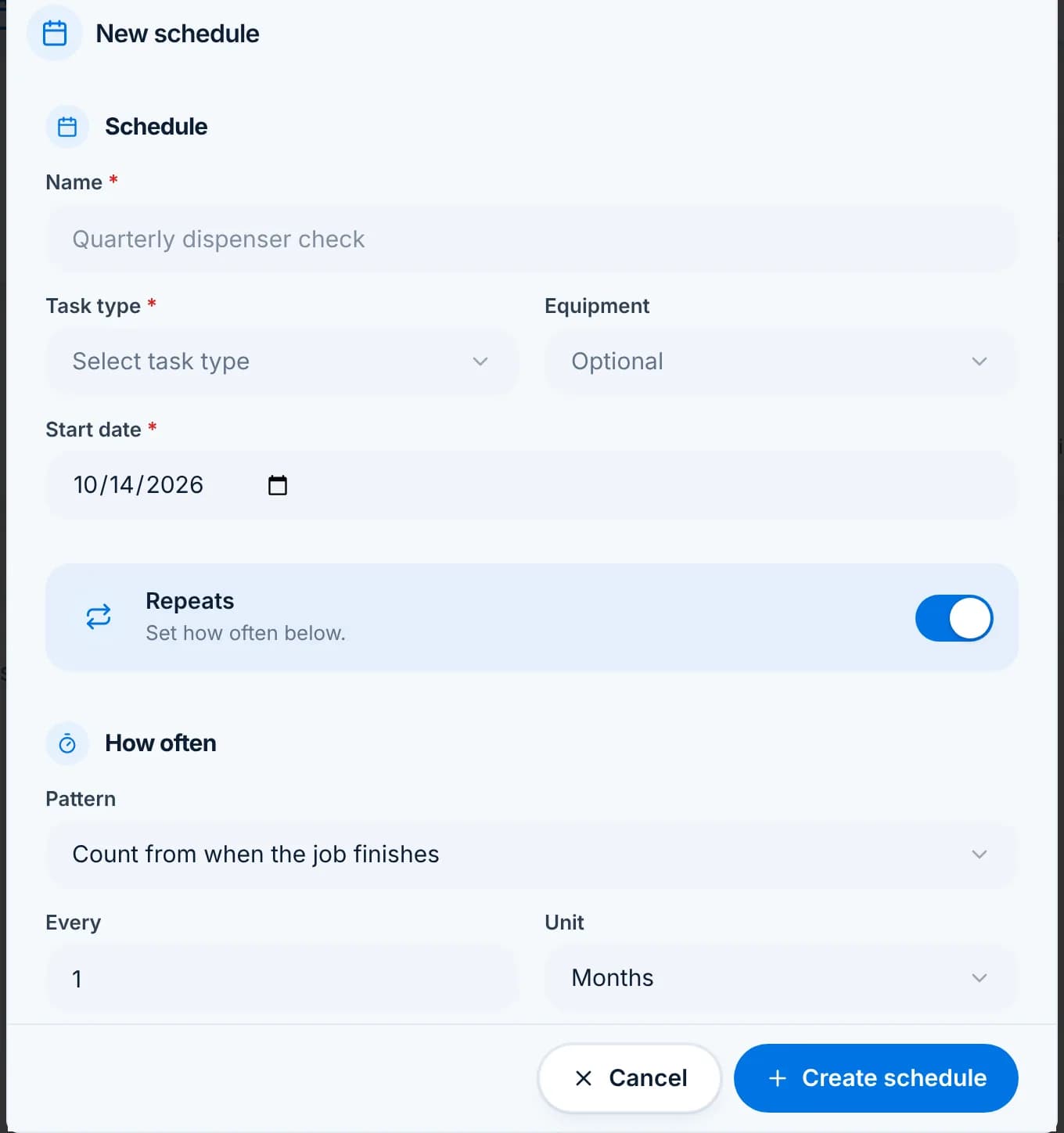
    Maintenance › Schedule › New schedule. Name it, pick the task type and equipment, set the start date and how often it repeats. WaterWise creates the next work order each time one is completed, or on fixed dates, depending on the pattern.

    The New schedule dialog with name, task type, equipment, start date, Repeats on, pattern and every 1 months.

    Tip: Count from when the job finishes suits filter changes; a fixed pattern suits inspections that must happen on the 1st.

  3. Step 3: Create a work order

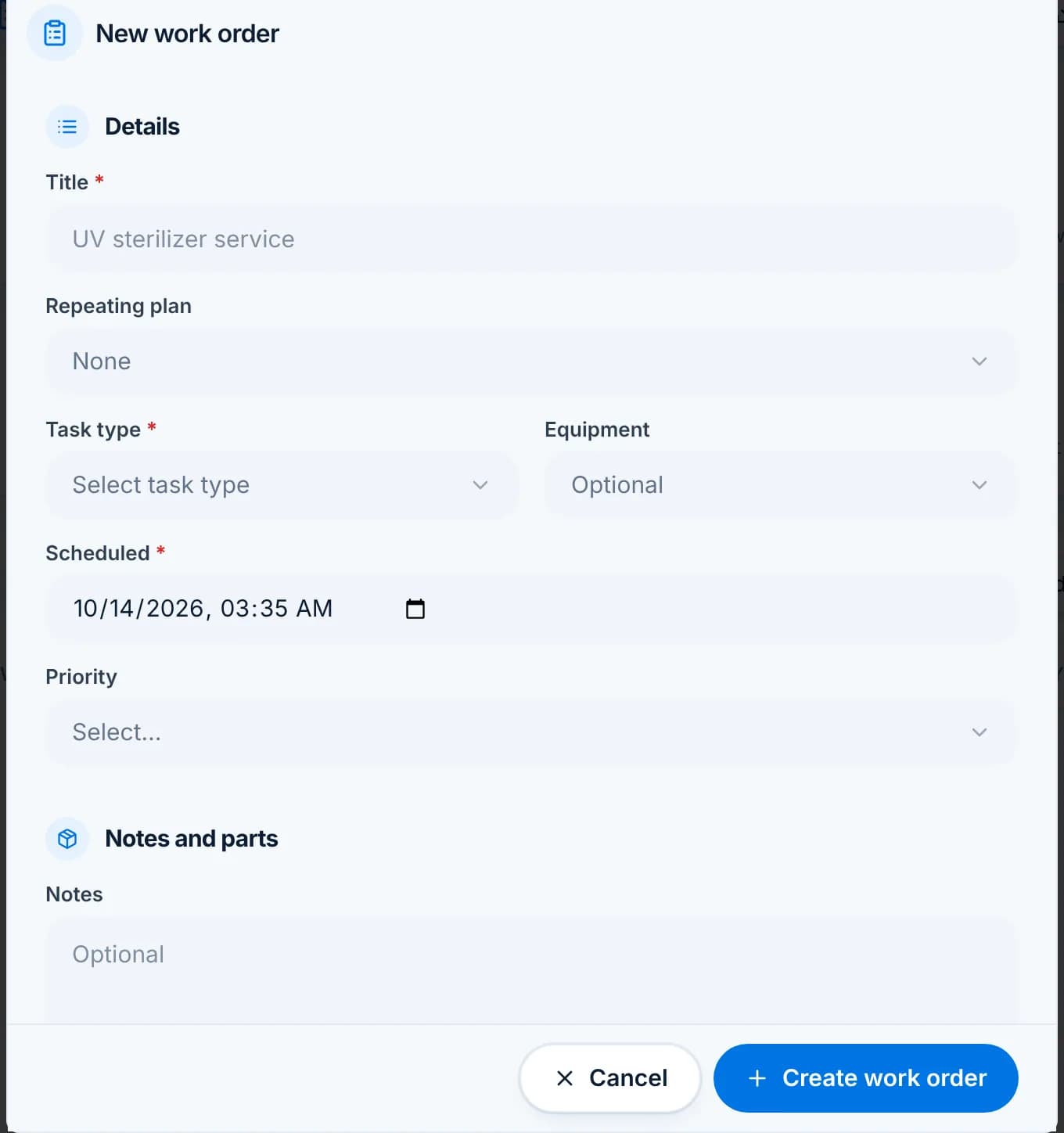
    Maintenance › Work Orders › New work order. Give it a title, task type, equipment, a scheduled date and priority. Under Notes and parts list the parts it will use.

    The New work order dialog with title, repeating plan, task type, equipment, scheduled date, priority and notes.
  4. Step 4: Work the list

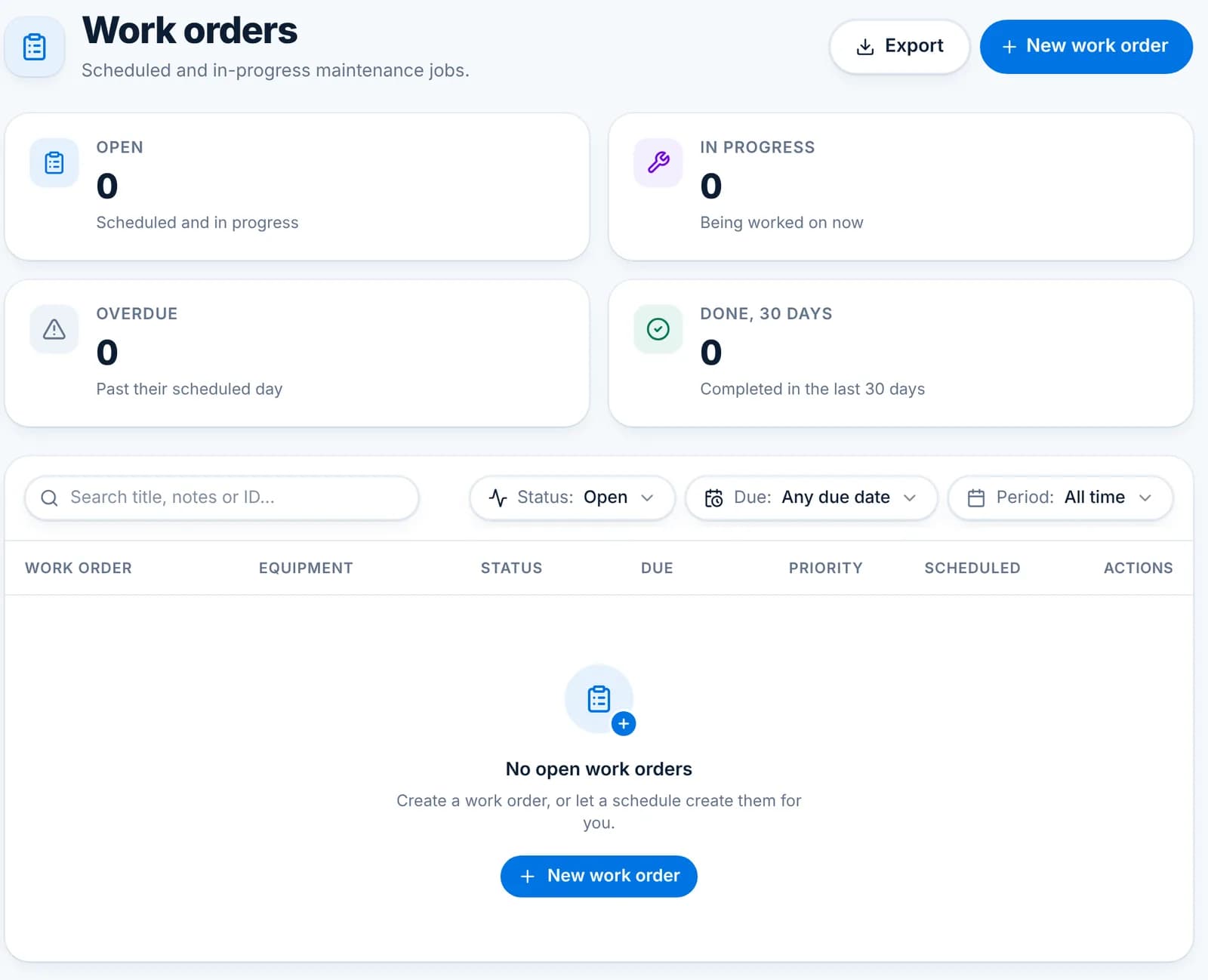
    The Work Orders page shows open, in progress and overdue jobs. Change the status as the job moves. Marking it complete deducts the listed parts from stock and moves the job to History.

    The Work orders page with open, in progress, overdue and done tiles.

    Tip: Parts come from Products with Track stock on, so keep filters and membranes in your catalog.

  5. Step 5: Look back

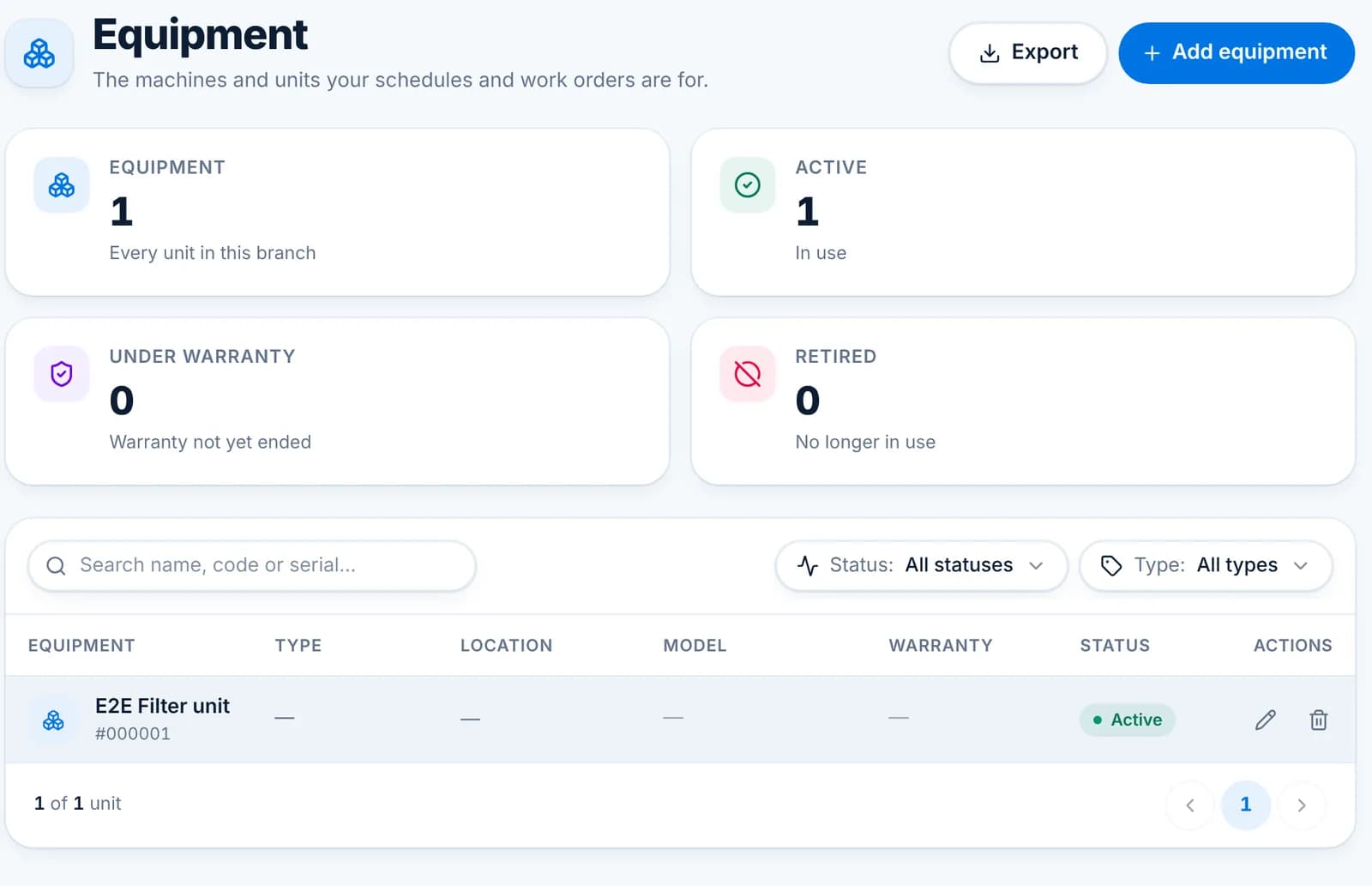
    Maintenance › History lists every finished job with its equipment, priority and completion date, and the parts it took. The Equipment page shows what is active, under warranty or retired.

    The Equipment page listing one active unit.
  • Equipment and schedules can be reached from the Dashboard’s notifications when something is due or overdue.
  • Task types (filter change, cleaning, calibration and so on) are edited under Settings › Templates.

Billing, users & security

Plans, subscriptions, roles, and account safety.

Upgrading and PayMongo checkout

Pay for Pro each cycle through a secure checkout, with no automatic charges.

WaterWise does not store cards or charge you automatically. Each 30-day Pro period is paid through a PayMongo checkout page when you choose to extend. Lifetime is arranged directly with us.

  1. Step 1: Open Billing

    Settings › Billing shows your plan, the paid-through date and the plan cards. The Extend subscription button starts a payment.

    The Billing page with the Pro plan active, Extend subscription and the plan cards.
  2. Step 2: Pay through PayMongo

    Click Extend subscription. You are taken to a PayMongo checkout where you can pay by QR Ph, GCash, Maya, BPI and other banks. When the payment goes through you are returned to WaterWise and your paid-through date moves forward by 30 days.

    Tip: Extending early never wastes days: the new period starts when the current one ends.

  3. Step 3: Going back to Free

    Cancel subscription or Downgrade to Free stops future extensions. You keep Pro until the end of the paid period, then move to Free: your data stays, but new orders stop.

  4. Step 4: Lifetime

    Click Contact us on the Lifetime card or email [email protected]. It is a one-time payment with dedicated onboarding, priority chat and phone support and free data migration.

  • PayMongo sends its own payment receipt by email; your WaterWise invoice history is under Billing.
  • If a payment went through but Billing still shows the old date after a few minutes, email support with the PayMongo reference.

Users, roles and permissions (Pro)

Give each staff member their own sign-in and decide exactly what they can see and do.

Every staff member signs in with their own email. What they can open and change is set by their role. Six roles come built in: Owner, Manager, Cashier, Delivery, Staff and Counter. You can adjust them or create your own.

  1. Step 1: Invite a team member

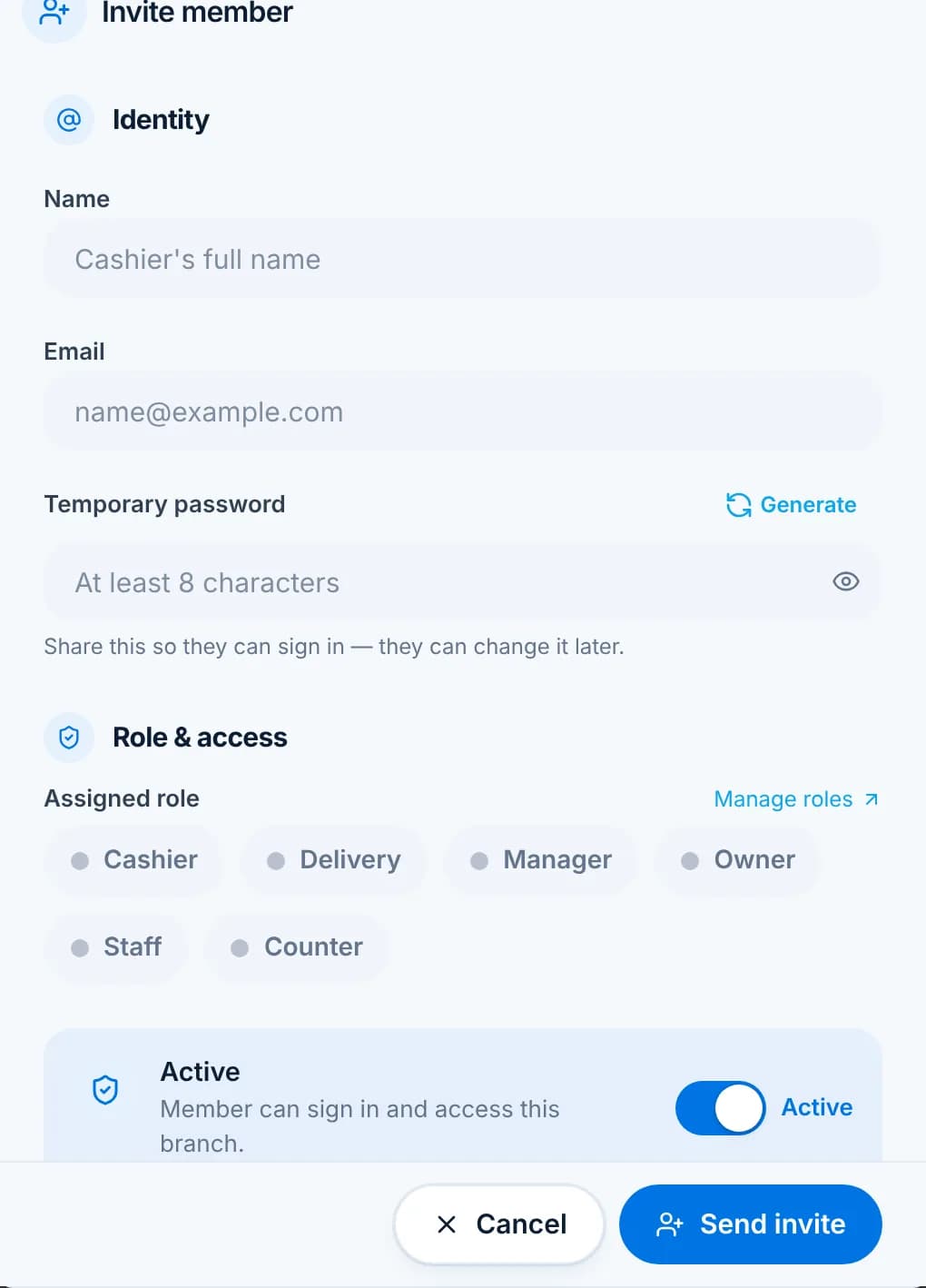
    Settings › Users › Invite member. Enter their name and email, generate a temporary password, pick a role and click Send invite. They get an email to verify their address, then sign in with the temporary password and change it.

    The Invite member dialog with name, email, a Generate temporary password link, role chips and an Active switch.
  2. Step 2: Manage the team

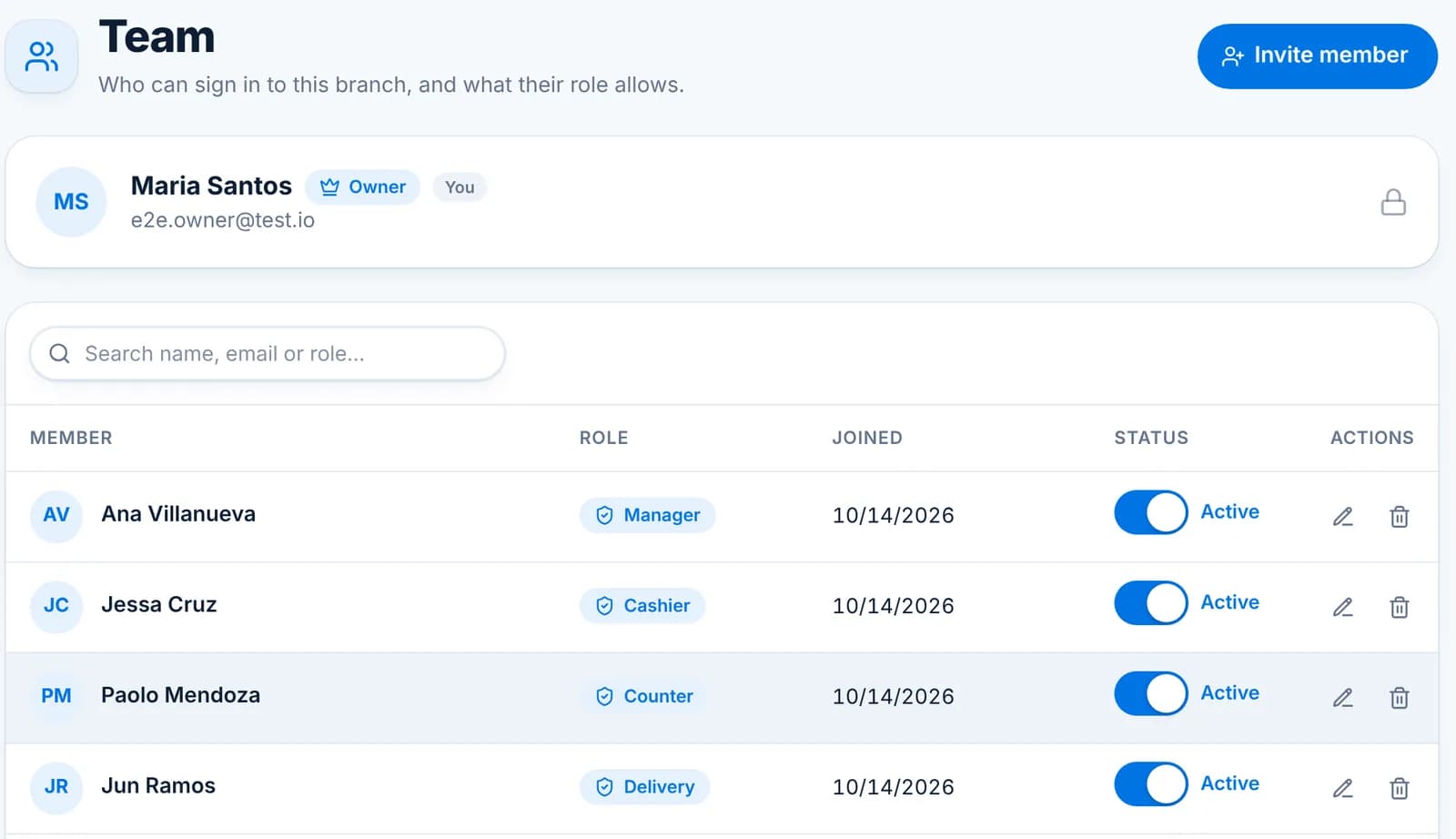
    The Team list shows each member, their role, when they joined and whether they are active. Switch someone to inactive to block sign-in without deleting their history.

    The Team page listing four members with their roles and Active switches.
  3. Step 3: Set what a role can do

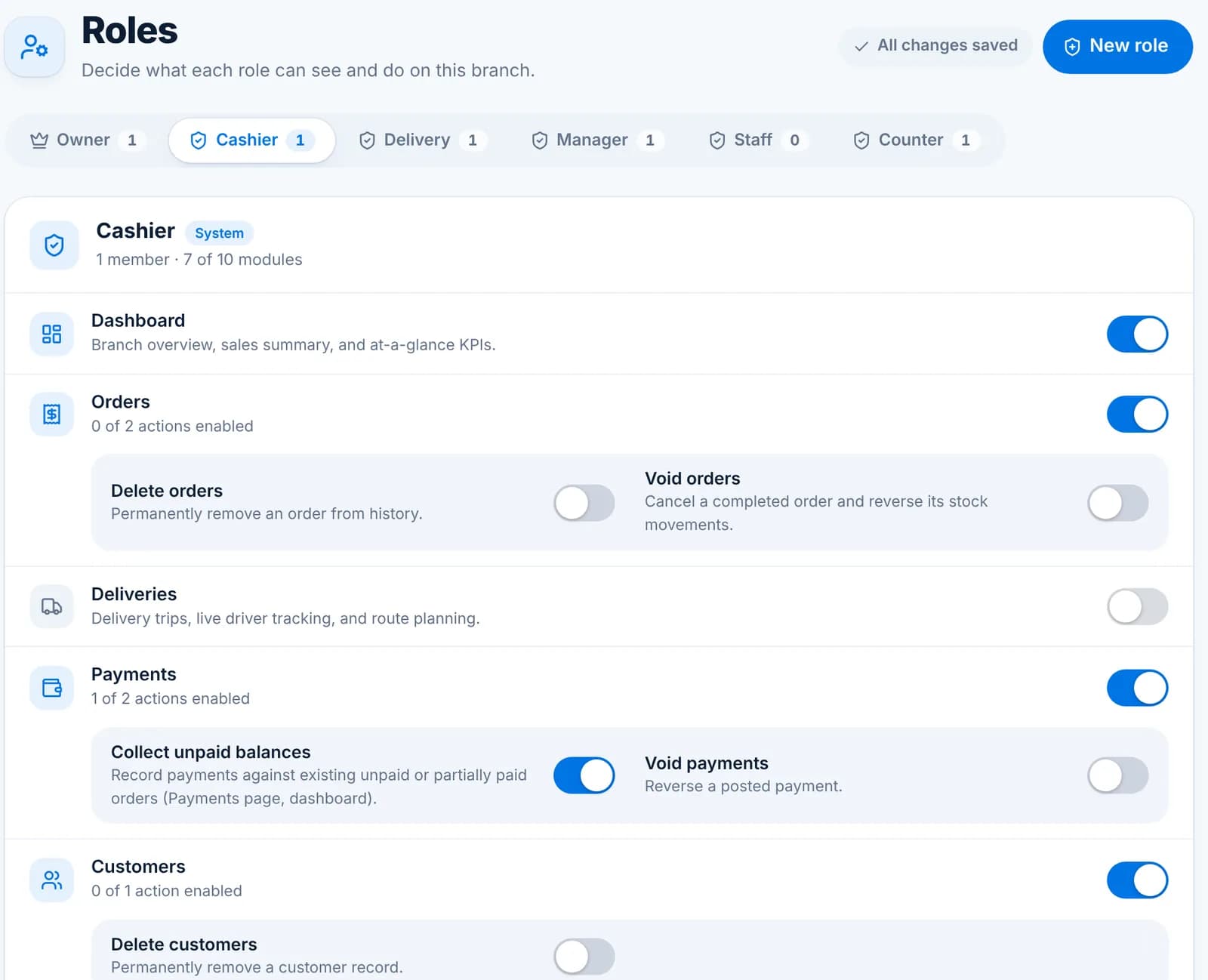
    Settings › Roles. Pick a role tab, then switch modules on or off (Dashboard, Orders, Deliveries, Payments, Customers, Products, Inventory and so on). Some modules have extra actions such as Delete orders, Void orders, Collect unpaid balances, Void payments and Edit prices.

    The Roles page on the Cashier tab with module switches and action switches such as Void orders and Collect unpaid balances.

    Tip: Changes to a role apply to everyone with that role the next time their app refreshes.

  4. Step 4: Create your own role

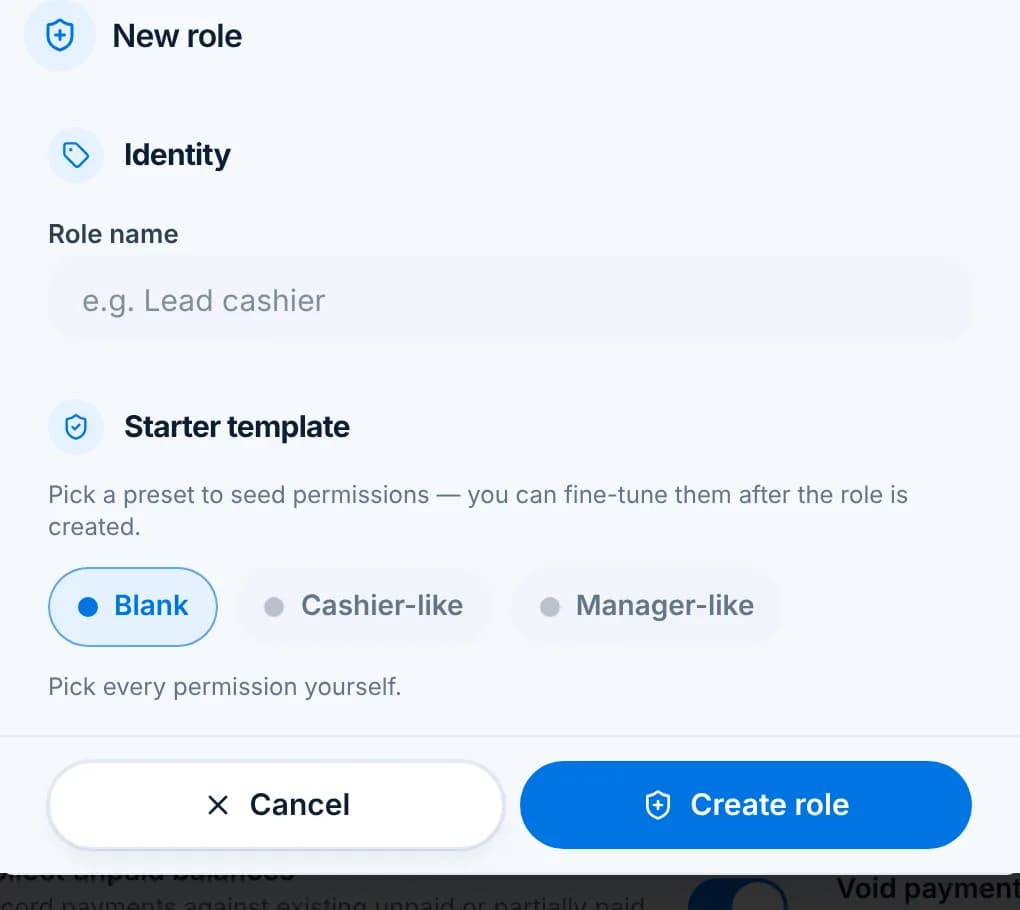
    Click New role, name it, and start from Blank, Cashier-like or Manager-like. Fine-tune the switches afterwards.

    The New role dialog with a role name field and Blank, Cashier-like and Manager-like starter templates.
  • Owner is the account that created the branch and cannot be edited or removed.
  • Delivery is built for drivers: the Deliveries module only, plus collecting at the door.
  • A cashier without Edit prices can still sell at the set prices and apply the discounts their customer types allow.

Security practices

Keep the owner account safe and know what to do when someone leaves.

WaterWise protects your account with verified email sign-in, Google sign-in, and permissions per role. A few habits on your side keep it that way.

  1. Step 1: Change your password

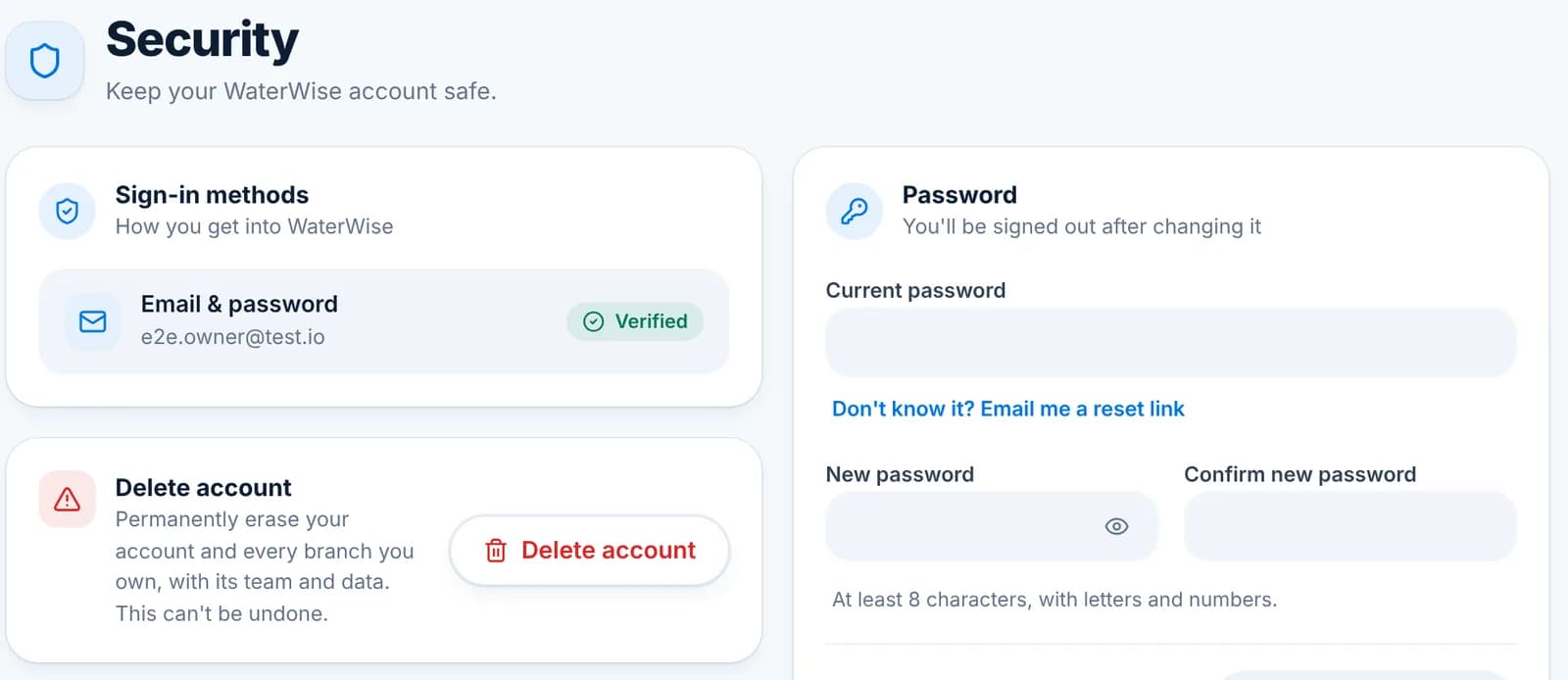
    Settings › Security. Enter your current password and a new one of at least 8 characters with letters and numbers. You are signed out everywhere after the change.

    The Security page with sign-in methods, a password change form and a Delete account button.
  2. Step 2: Forgot it?

    Use Don’t know it? Email me a reset link on the Security page, or Forgot password on the sign-in screen. The link expires after a short time.

  3. Step 3: When a staff member leaves

    Settings › Users: switch them to inactive the same day. Their sign-in stops at once; their orders and payments stay on record.

  4. Step 4: Deleting the account

    Delete account under Security permanently erases your account and every branch you own, with all its data. It cannot be undone. Export the reports you need first.

    Tip: Owners of more than one branch: deleting the account removes all of them.

  • Never share the owner login; invite staff instead so each action is tied to a person.
  • Use the Google sign-in on shared devices and sign out when you leave the counter.
  • Keep the email on the owner account one you control; it is where reset links and the daily summary go.

Phone app

Install on a phone or tablet, use it at the counter, and the driver app.

Install WaterWise on your phone or tablet

Put the app on the home screen so it opens full-screen, works offline and feels like any other app. No app store needed.

WaterWise runs in the browser, and every modern phone and tablet can install a website as an app. Once installed it opens without the browser bar, keeps your sign-in, and works at the counter without internet. The same account and data are used everywhere.

  1. Step 1: Open the install guide

    Sign in on the phone. A blue Install WaterWise POS card sits at the top of every page; tap Install app. You can also open waterwisepos.com/?pwa_install=1 in the phone’s browser.

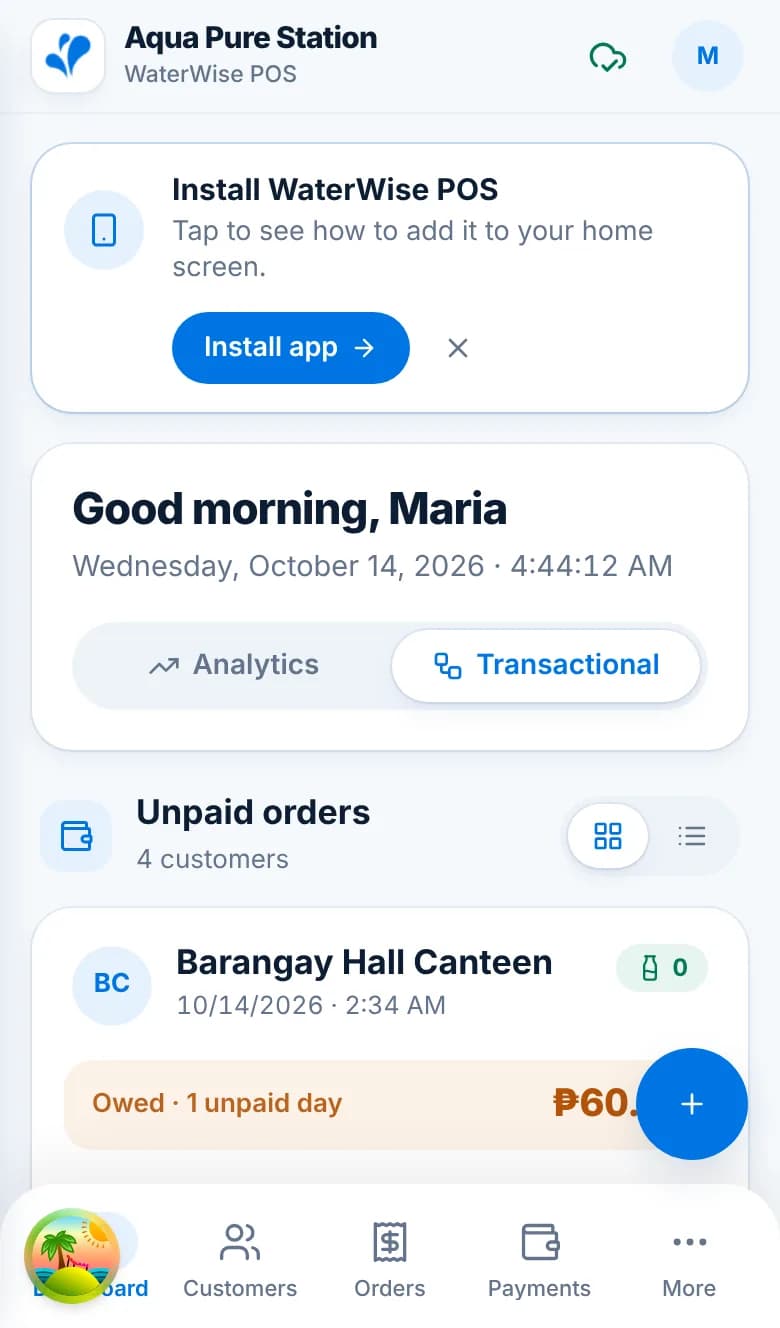
    The Dashboard on a phone with the Install WaterWise POS card and its Install app button at the top.
  2. Step 2: iPhone and iPad

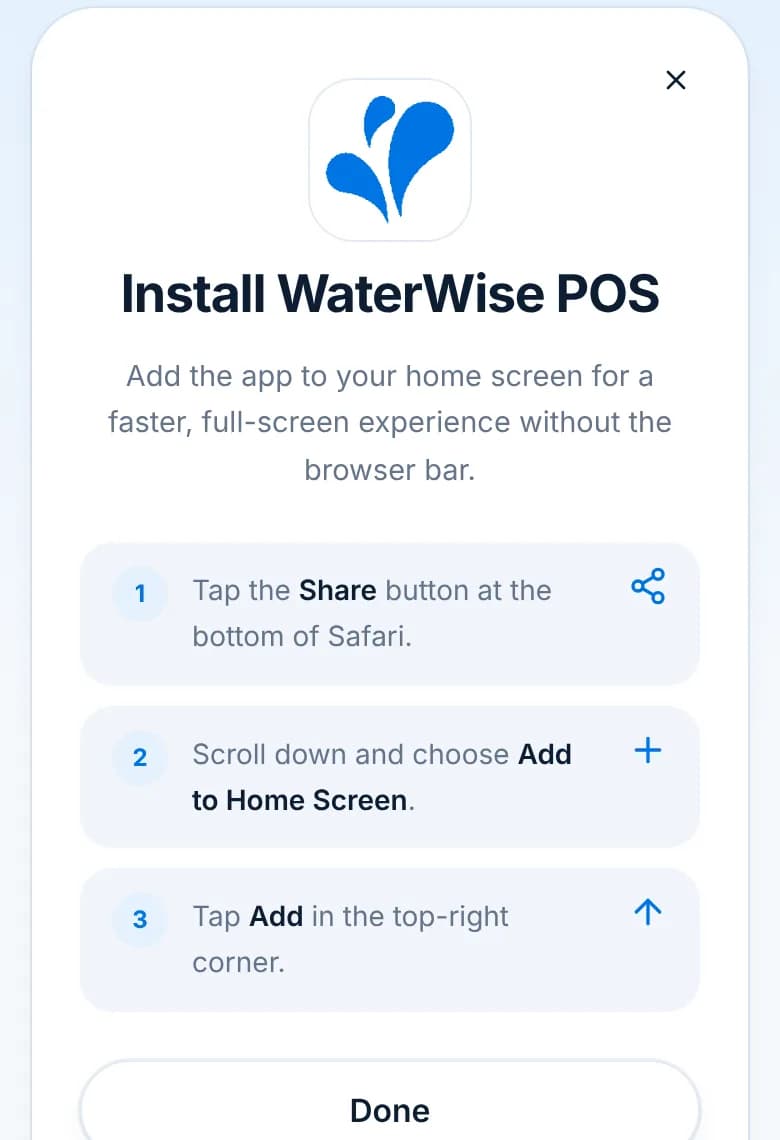
    Use Safari. Tap the Share button at the bottom, scroll down and choose Add to Home Screen, then tap Add at the top right. The WaterWise icon appears on the home screen.

    The Install WaterWise POS guide on an iPhone with three steps: Share, Add to Home Screen, Add.

    Tip: On iPhone it must be Safari. Chrome on iOS cannot add apps to the home screen.

  3. Step 3: Android

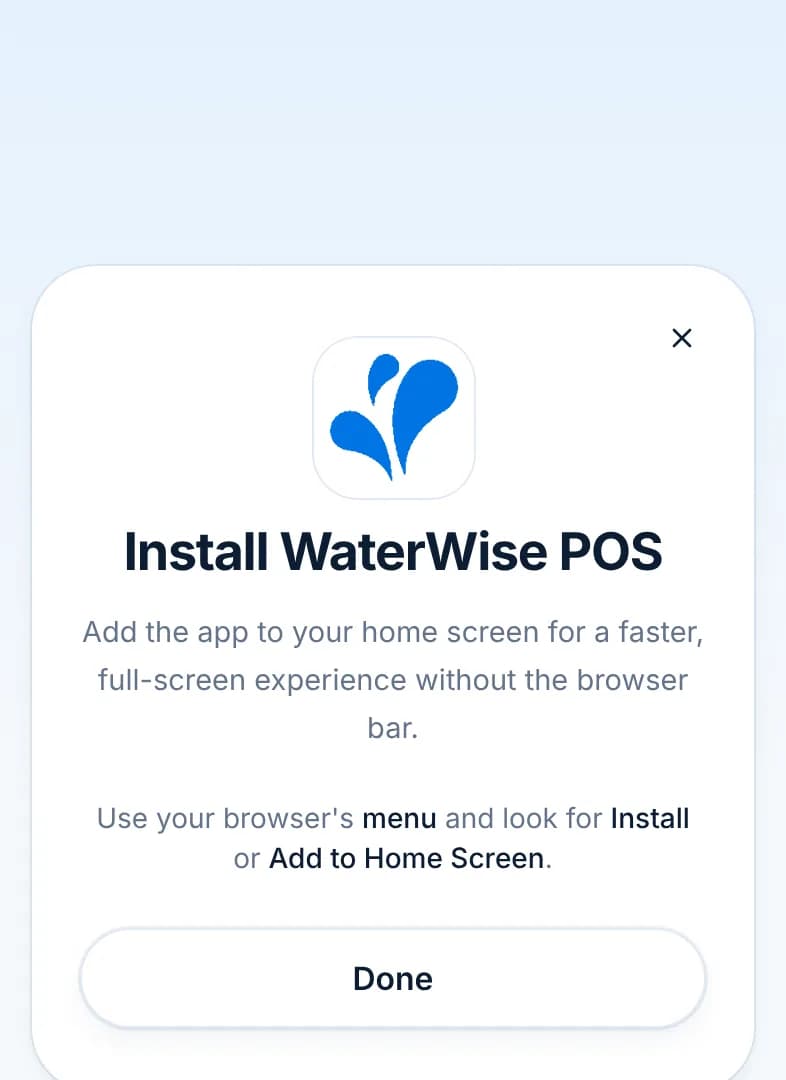
    Use Chrome. Tap Install app and confirm the prompt, or open the browser menu (three dots) and choose Install app or Add to Home screen.

    The Install WaterWise POS guide on Android pointing to the browser menu and the Install option.
  4. Step 4: Open it from the home screen

    From now on open WaterWise from its icon, not from the browser. The first open downloads your branch data so it also works offline. Sign in once; the app remembers you.

    Tip: A tablet at the counter: install it the same way and keep it plugged in. The layout widens to show the sidebar.

  • Dismissed the install card? It comes back from the Install app entry in the account menu.
  • Updates arrive by themselves the next time the app opens with a connection.
  • On Android you can also get the WaterWise app from Google Play: tap Install app and choose Android. The iPhone and iPad app is coming soon; until then, use the installed web app.

Using WaterWise on a phone

Where everything is on a small screen, and how to take an order with one hand.

On a phone the sidebar becomes a bottom bar with Dashboard, Customers, Orders, Payments and More. More opens the full menu. Everything the web app does is here; forms open as full-screen pages and tables scroll sideways.

  1. Step 1: The bottom bar and More

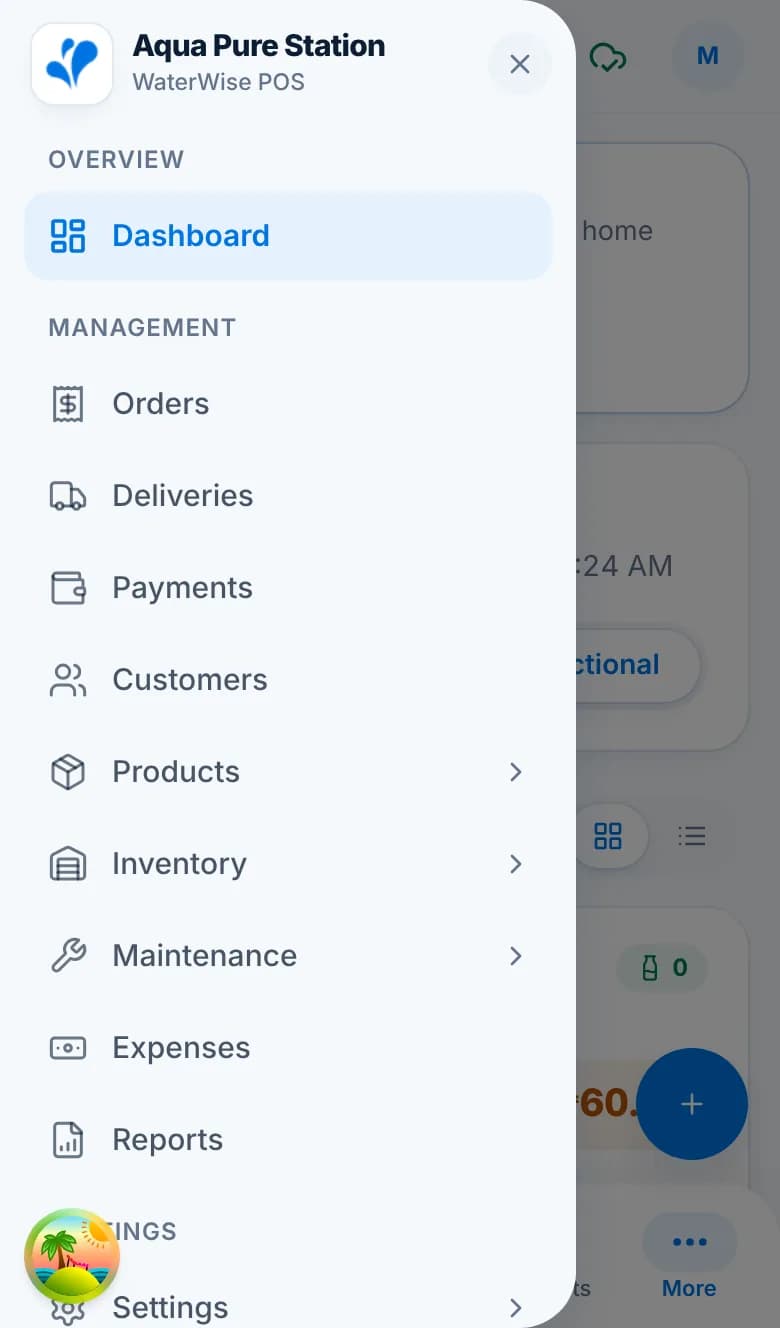
    The four tabs you use most are always visible. More opens the full list: Deliveries, Products, Inventory, Maintenance, Expenses, Reports and Settings. The cloud icon at the top shows the sync state and the avatar opens your account menu.

    The More menu on a phone listing Dashboard, Orders, Deliveries, Payments, Customers, Products, Inventory, Maintenance, Expenses, Reports and Settings.
  2. Step 2: Start an order

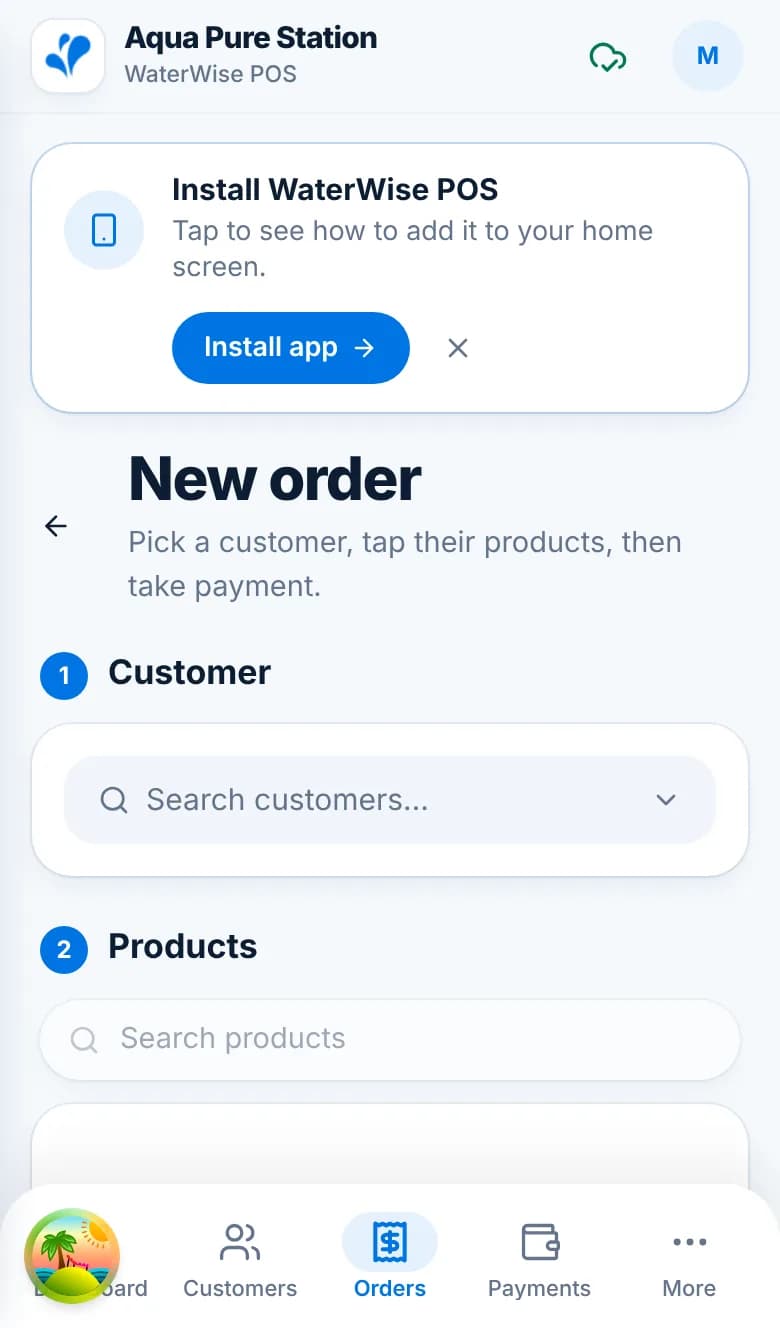
    Orders › New order, or the blue New button on the Dashboard. The screen has the same three parts as on the web, stacked: Customer, Products, Details, with the Current order panel below.

    The New order screen on a phone with the Customer search box and the Products section.
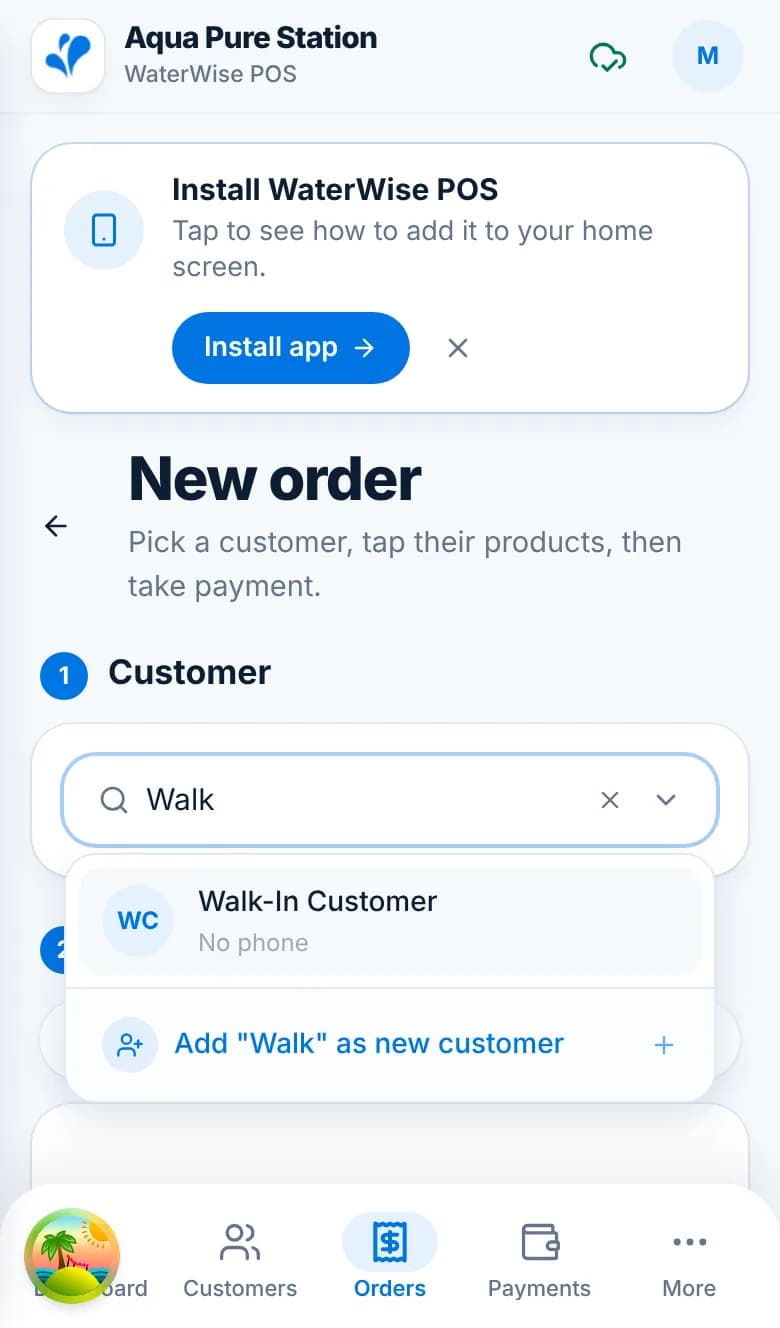
  3. Step 3: Pick the customer

    Type a name or phone number and tap the match, or Walk-In Customer. Add “name” as new customer creates the record on the spot.

    The customer search on a phone showing Walk-In Customer and an Add as new customer option.
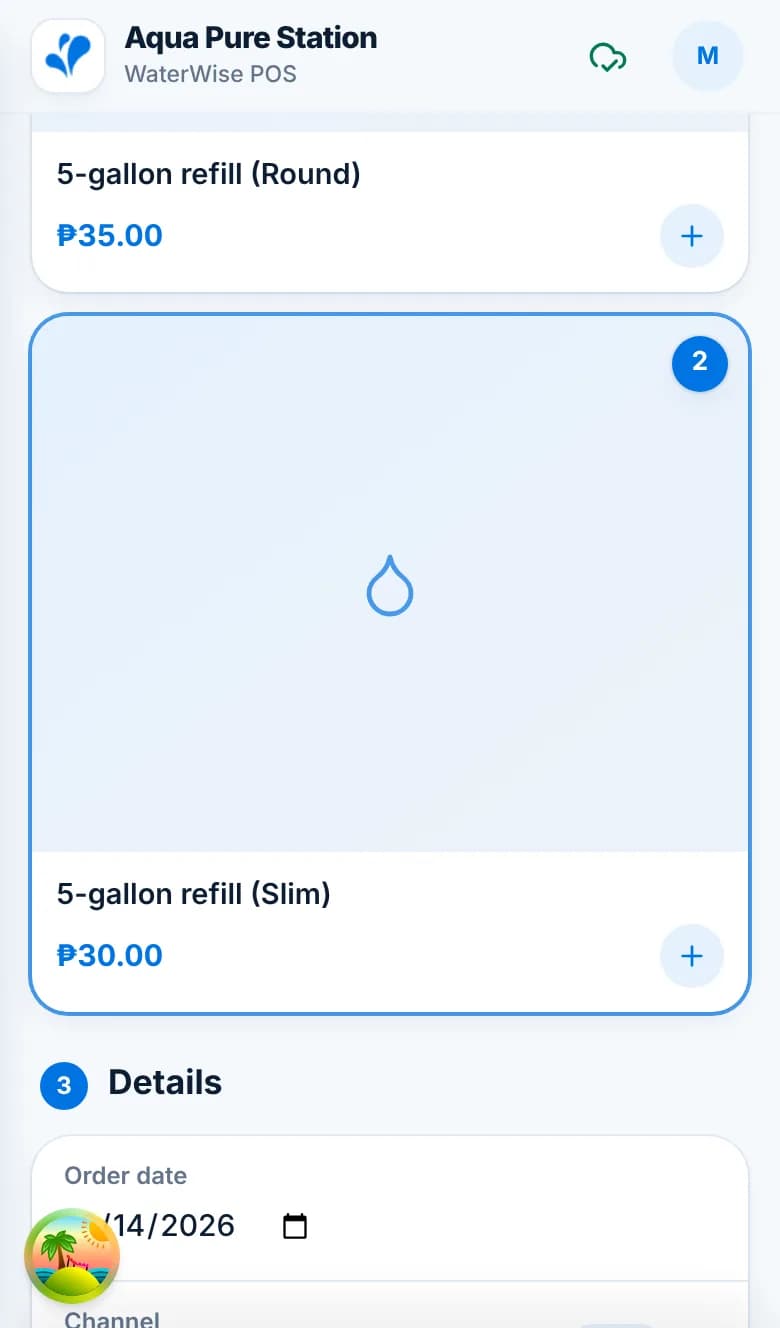
  4. Step 4: Tap the products

    Tiles show the price for this customer. Each tap adds one; the badge shows the count. Scroll down to change quantities in the Current order panel.

    Product tiles on a phone with 5-gallon refill (Slim) showing a badge of 2.
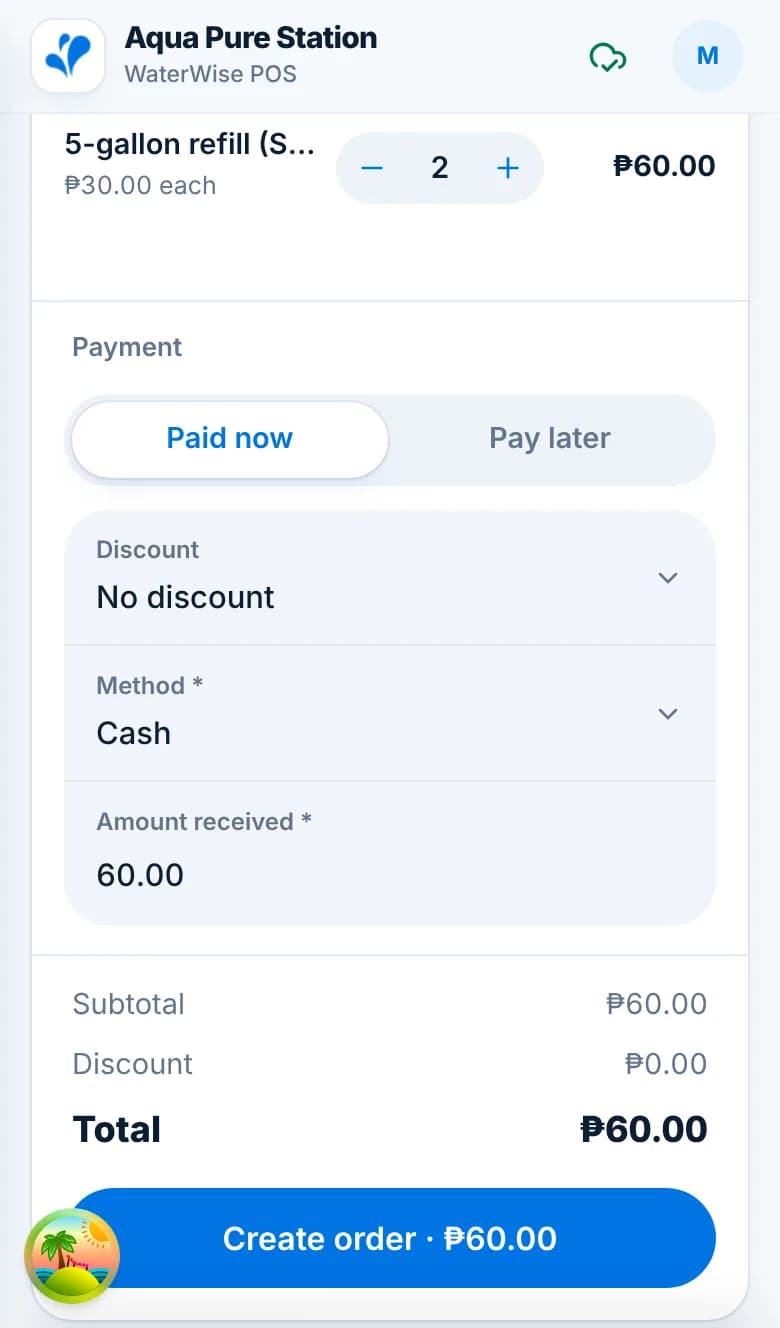
  5. Step 5: Take the payment

    Choose Paid now or Pay later, the method and the amount received, then tap Create order. Print or email the receipt from the confirmation.

    The Current order panel on a phone with Paid now selected, Cash, amount received 60 and a Create order ₱60 button.
  6. Step 6: Check sync before you leave

    Tap the cloud icon to see Connected, the last sync time and any changes waiting. Orders taken offline send when the phone is back online.

    The sync status sheet on a phone showing Connected and the last synced time.
  • Turn the phone sideways on tables with many columns, or use the Export button and read the file instead.
  • Staff see only the tabs their role allows; a cashier’s bottom bar may have fewer items.
  • Live maps under Deliveries need a connection; everything else works offline.

The driver app: deliveries on the road

What a driver sees on the phone from trip start to back at the branch.

Drivers use the WaterWise phone app with the Delivery role. It shows only their trips, shares their location with the branch while a trip is running, and lets them mark each stop delivered, take a proof-of-delivery photo and collect payment at the door. The owner plans trips in the web app (see Delivery tracking). The native driver app is in testing; ask [email protected] to be added.

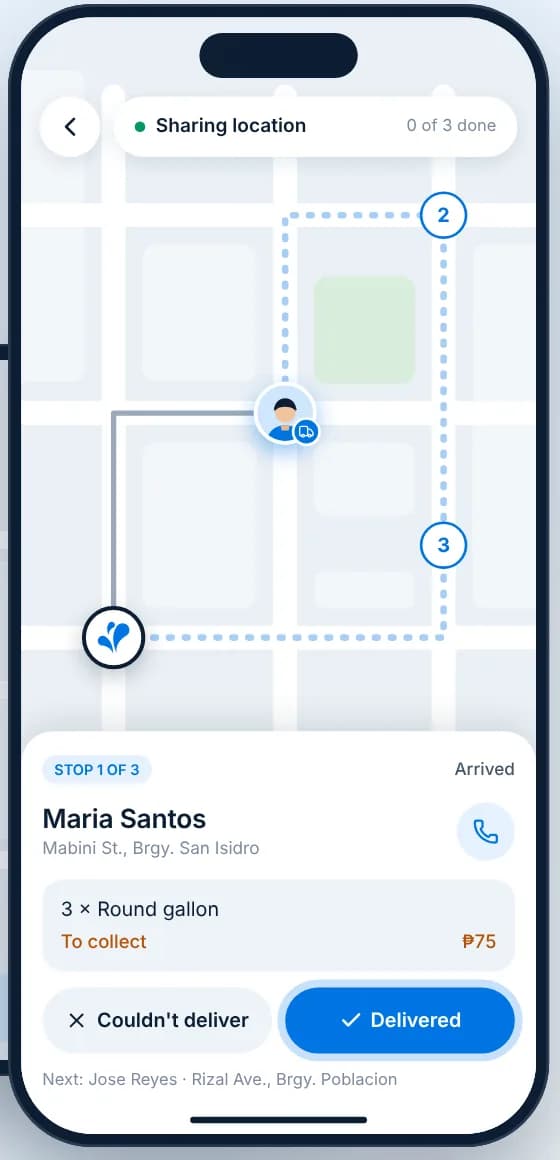
The driver’s trip screen: Sharing location, a map with three numbered stops, Stop 1 of 3 Maria Santos with 3 × Round gallon to collect ₱75, and Couldn’t deliver and Delivered buttons.
  1. Step 1: Sign in as the driver

    The driver signs in with the email and password from Settings › Users. With the Delivery role the app opens on Deliveries with their next trip. The first time, the app explains that it shares location during trips and asks for Always access so the branch can see them when the screen is off.

    Tip: Location is shared only while a trip is active, only with the branch’s owners and managers, and stops when the trip ends.

  2. Step 2: Take or start a trip

    Your next trip shows the stops, distance and time. Tap Start trip. No trip yet? Open orders listed below can be taken with Take; they join the next trip and the route is re-planned.

  3. Step 3: Drive the stops

    The screen shows Stop 1 of N with the customer, address, what to deliver and whether there is money to collect, plus a call button. Below it, Next shows who comes after.
  4. Step 4: Delivered or couldn’t deliver

    Tap Delivered: optionally take a proof-of-delivery photo (bottles at the door or with the customer; saved with the order), then record whether the balance was collected and by which method. Couldn’t deliver asks for a reason (Not home, Refused, Wrong address, Other) and keeps the orders open for another trip.

    Tip: A collected payment is recorded on the order straight away, oldest order first when a stop has several.

  5. Step 5: Back to the branch

    After the last stop the screen says Head back to the branch. The trip ends by itself when the phone arrives, or tap I am at the branch · finish trip. The summary shows delivered, could not deliver and the cash collected.

  • The owner follows the trip live under Deliveries › Live and sees each stop, photo and payment as it happens.
  • Undo start is available right after starting a trip by mistake.
  • If location is off the branch cannot see the driver and the trip cannot end automatically; the app shows a Turn on banner.
Still need help?Email us and we'll get back to you.Contact support